1
The Linux Cookbook: Tips and Techniques for Everyday Use
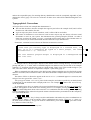
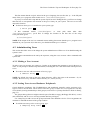
NOTE: There could be a lot of output—even single-user Linux systems typically have fifty or more
processes running at one time—so you may want to pipe the output of this command through less for
perusal (see Section 9.1 [Perusing Text], page 99).
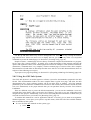
Additionally, use top to show a display of all processes on the system, sorted by their demand on
the system resources. The display is continually updated with current process information; press Q to
stop the display and exit the program. This tool also displays the information about system runtime and
memory that can be output with the uptime and free commands.
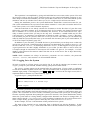
To display a continually updated display of the current system processes, type:
$ top RET
¯
2.7.4 Listing Processes by Name or Number
To list processes whose output contains a name or other text to match, list all processes and pipe the
output to grep. This is useful for when you want to see which users are running a particular program or
command.
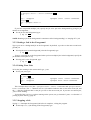
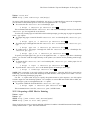
To list all the processes whose commands contain reference to an ‘sbin’ directory in them, type:
$ ps aux | grep sbin RET
To list any processes whose process IDs contain a 13 in them, type:
$ ps aux | grep 13 RET
¯
¯
To list the process (if any) which corresponds to a process ID, give that PID as an argument to the
‘-p’ option.
To list the process whose PID is 344, type:
$ ps -p 344 RET
¯
2.8 Help Facilities
Linux systems come with a lot of help facilities, including complete manuals in etext form. In fact, the
foremost trouble with Linux documentation isn’t that there is not enough of it, but that you have to sift
through the mounds of it, trying to find the precise information you’re looking for!
I describe the help facilities in the following sections; their relative usefulness for the particular kind
of information you’re looking for is noted.
If you find that you need more help, don’t panic—other options are available. They’re described in
Section 1.3 [If You Need More Help], page 14.
2.8.1 Finding the Right Tool for the Job
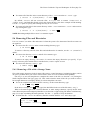
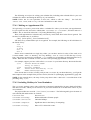
When you know what a particular tool or application does, but you can’t remember it’s name, use
apropos. This tool takes a keyword as an argument, and it outputs a list of installed software whose
one-line descriptions contain that keyword. This is also useful for finding software on your system related
to, say, “audio” or “sound” or “sort” or some other such general concept.
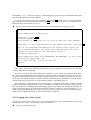
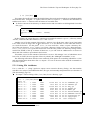
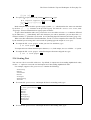
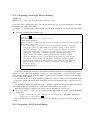
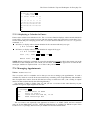
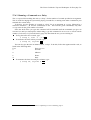
To output a list of programs that pertain to consoles, type:
¯
«
$ apropos consoles
console (4)
gpm (1)
ª$
¨
RET
- console terminal and virtual consoles
- a cut and paste utility and mouse server for
virtual consoles
©