1
Choose a Course Management System (CMS) Personality
Immediately after the Respondus software is activated, you are prompted to select a Course
Management System (CMS) “personality.” Respondus offers various user environments (called
personalities) that parallel the features and terminology used by specific course management
systems, such as Blackboard, eCollege and WebCT. You can change the “personality” at any
time in Respondus from the Start menu.
On-line Help
Respondus includes a full-featured help system that includes an index and context-sensitive help.
To view the on-line help, choose “Help Topics” from the pull-down Help menu and select a topic.
You can also press the F1 key from within Respondus to obtain context-sensitive help.
Throughout the program you will additionally see small buttons having a “?” symbol. When the
button is clicked, information on that particular option or task is provided.
If you encounter a question that is not answered in the on-line help or in this manual, you are
encouraged to visit the “Support” section of our web site (www.respondus.com). There you will
find Frequently Asked Questions (FAQ) and other resources.
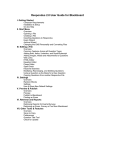
The remainder of this user manual is organized according to the five menus used in the “WebCT
Personality”of Respondus: Start, Edit, Settings, Preview & Publish, and Retrieval & Reports.
4