1
Client Configuration
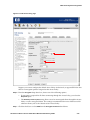
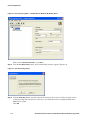
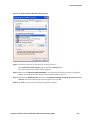
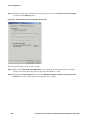
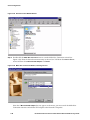
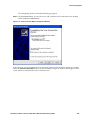
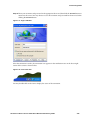
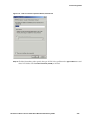
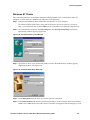
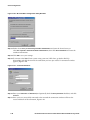
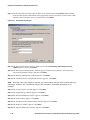
Step 17. To connect to the 700wl Series system using your new L2TP client, go back to Dial-Up
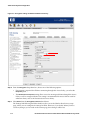
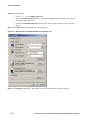
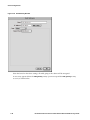
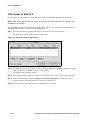
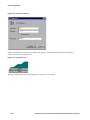
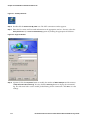
Networking and click the icon for the connection you have just created. A connection window
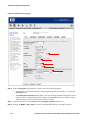
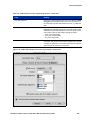
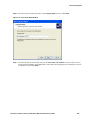
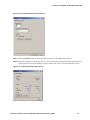
appears, Figure 3-101.
Figure 3-101. Connection Windows
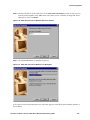
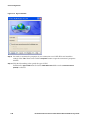
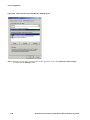
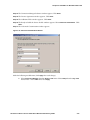
Step 18. Enter your Username and Password (and optionally check the Save password check box) and click
Connect.
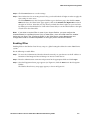
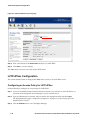
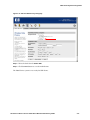
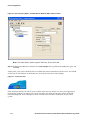
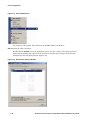
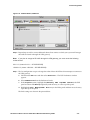
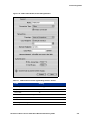
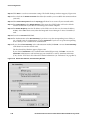
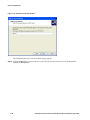
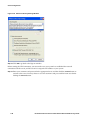
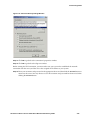
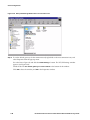
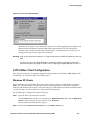
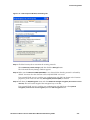
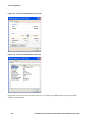
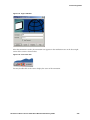
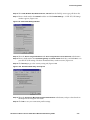
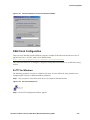
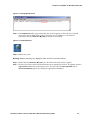
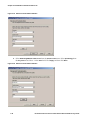
Step 19. Once you have successfully connected to the network the connection window will show the
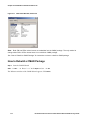
status and details of the connection, Figure 3-102.
Figure 3-102. Connection Windows: Connection Status and Details
Windows 98 Clients
This section describes how to configure computers running Windows 98 as L2TP+IPSec clients. The same
process will work for Windows ME, as well. This example will use Windows 98 Second Edition (SE); the
steps are the same for Windows ME.
To configure an L2TP client on a Windows 98 computer do the following:
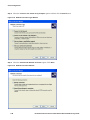
Step 1. Download the Microsoft IPSec VPN Client and install it on your computer.
The Microsoft IPSec VPN Client, along with instructions on how to install it, is found at:
http://www.microsoft.com/windows2000/server/evaluation/news/bulletins/l2tpclient.asp
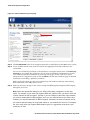
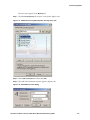
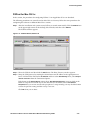
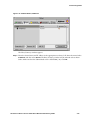
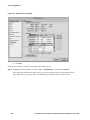
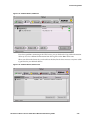
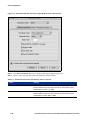
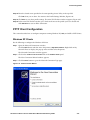
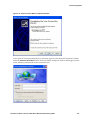
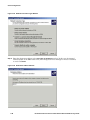
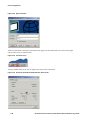
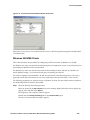
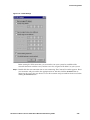
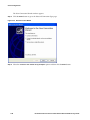
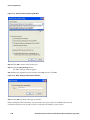
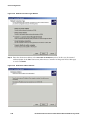
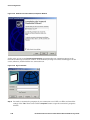
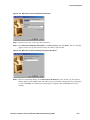
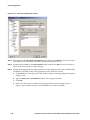
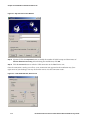
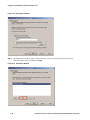
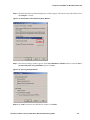
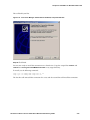
Step 2. On your Windows computer, go to Dial-Up Networking and click Make New Connection. The
Make New Connection window appears, Figure 3-103.
3-74
HP ProCurve Secure Access 700wl Series Wireless Data Privacy Guide