1
Wireless Data
Privacy Guide
HP ProCurve
Secure Access
700wl Series
www.hp.com/go/hpprocurve
HP PROCURVE
SECURE ACCESS 700WL SERIES
WIRELESS DATA PRIVACY GUIDE
© Copyright 2004 Hewlett-Packard Development
Company, L.P. The information contained herein is
subject to change without notice.
This document contains proprietary information,
which is protected by copyright. No part of this
document may be photocopied, reproduced, or
translated into another language without the prior
written consent of Hewlett-Packard.
Publication Number
5990-8810
February, 2004
Edition 1
Applicable Products
HP ProCurve Access Controller 720wl
HP ProCurve Access Control Server 740wl
HP ProCurve Integrated Access Manager 760wl
HP ProCurve 700wl 10/100 Module
HP ProCurve 700wl Gigabit-SX Module
HP ProCurve 700wl Gigabit-LX Module
HP ProCurve 700wl 10/100/1000Base-T
HP ProCurve 700wl Acceleration Module
(J8153A)
(J8154A)
(J8155A)
(J8156A)
(J8157A)
(J8158A)
(J8159A)
(J8160A)
Trademark Credits
Windows NT®, Windows®, and MS Windows® are US
registered trademarks of Microsoft Corporation.
ii
Disclaimer
HEWLETT-PACKARD COMPANY MAKES NO
WARRANTY OF ANY KIND WITH REGARD TO
THIS MATERIAL, INCLUDING, BUT NOT LIMITED
TO, THE IMPLIED WARRANTIES OF
MERCHANTABILITY AND FITNESS FOR A
PARTICULAR PURPOSE. Hewlett-Packard shall not
be liable for errors contained herein or for incidental or
consequential damages in connection with the
furnishing, performance, or use of this material.
The only warranties for HP products and services are
set forth in the express warranty statements
accompanying such products and services. Nothing
herein should be construed as constituting an
additional warranty. HP shall not be liable for technical
or editorial errors or omissions contained herein.
Hewlett-Packard assumes no responsibility for the use
or reliability of its software on equipment that is not
furnished by Hewlett-Packard.
Warranty
See the Customer Support/Warranty booklet included
with the product.
A copy of the specific warranty terms applicable to
your Hewlett-Packard products and replacement parts
can be obtained from your HP Sales and Service Office
or authorized dealer.
CONTENTS
Preface
v
Audience
v
How To Use This Document
v
Document Conventions v
Organization
Chapter 1
Chapter 2
Overview of Security Protocols vi
1-1
Wireless Data Privacy in the 700wl Series System
1-1
IPSec
1-1
PPTP
1-2
L2TP over IPSec
IPSec vs. L2TP+IPSec
L2TP vs. PPTP
1-2
1-3
1-3
SSH
1-4
700wl Series System Configuration
2-1
Configuration Overview
2-1
IPSec Configuration
Configuring an Access Policy for IPSec
Enabling IPSec
2-1
2-2
2-5
PPTP Configuration
Configuring the Rights Manager for PPTP
Enabling PPTP
2-7
2-7
2-9
L2TP+IPSec Configuration
Configuring an Access Policy for L2TP+IPSec
Enabling L2TP+IPSec
2-10
2-10
2-13
SSH Configuration
Configuring an Access Policy for SSH
Enabling SSH
2-14
2-14
2-16
iii
Chapter 3
Chapter 4
iv
Client Configuration 3-1
IPSec Client Configuration
SafeNet SoftRemote for Windows
SSH Sentinel for Windows
PGPnet for Mac OS 9.x
VPN Tracker for Mac OS X
3-1
3-1
3-7
3-13
3-20
PPTP Client Configuration
Windows XP Clients
Windows 2000/NT Clients
Windows 98/95/ME Clients
3-27
3-27
3-36
3-45
L2TP+IPSec Client Configuration
Windows XP Clients
Windows 2000 Clients
Windows NT Clients
Windows 98 Clients
3-51
3-51
3-61
3-71
3-74
SSH Client Configuration
PuTTY for Windows
3-79
3-79
Scripts for L2TP/IPSec on Windows 2000 or XP
4-1
Scripts Overview
4-1
What’s in the Package?
4-1
Setting up Windows 2000
4-2
Setting up Windows XP
4-5
How to Rebuild a CMAK Package
4-8
References
Ref-1
Index
IX-1
HP ProCurve Secure Access 700wl Series Wireless Data Privacy Guide
PREFACE
This preface describes the audience, use, and organization of the Wireless Data Privacy Guide. It also
outlines the document conventions, safety advisories, compliance information, related documentation,
support information, and revision history.
Audience
The primary audience for this document are network administrators who want to enable their network
users to communicate using the HP ProCurve Secure Access 700wl Series. This document is intended for
authorized personnel who have previous experience working with network telecommunications systems
or similar equipment. It is assumed that the personnel using this document have the appropriate
background and knowledge to complete the procedures described in this document.
How To Use This Document
This document contains procedural information describing how to configure an HP ProCurve Integrated
Access Manager, or an HP ProCurve Access Control Server to provide support for client connections via
IPSec, PPTP (Point-to-Point Tunneling Protocol), and L2TP+IPsec (Layer 2 Tunnel Protocol over IPsec). It
also describes how to configure the client system to use an IPsec, PPTP, or L2TP+IPsec client for its VPN
connection.
Where applicable, navigation aids also refer you to supplemental information such as figures, tables, and
other procedures in this document or another document. Main chapters are followed by supplemental
information such as appendices and an index.
Document Conventions
The following text conventions are used in this document:
Table i-1. Text Conventions
Convention
Definition
Boldface Arial
Window menus that you click to select, commands that you select, or field names are
in boldface Arial.
Boldface Italic
Palatino
New terms that are introduced are in boldface italic Palatino.
Italic Palatino
Emphasized terms are in italic Palatino.
v
Table i-1. Text Conventions
Convention
Definition
Filenames and text that you type are in Courier.
Courier
The following notices and icons are used to alert you to important information.
Table i-2. Notices
Icon
Notice Type
Alerts you to...
None
Note
Helpful suggestions or information that is of special importance in
certain situations.
None
Caution
Risk of loss of system functionality or loss of data.
Warning
Risk of personal injury, system damage, or irrecoverable loss of
data.
Organization
This document is organized as follows:
Chapter 1 – Overview of Security Protocols
This chapter provides an overview of the security protocols that can be used with the 700wl Series
system.
Chapter 2 – 700wl Series System Configuration
This chapter describes the configuration of the HP ProCurve Secure Access 700wl Series VPN and
Wireless Data Privacy setup.
Chapter 3 – Client Configuration
This chapter describes client security configuration.
Chapter 4 – Scripts for L2TP/IPSec on Windows 2000 or XP
This chapter describes the use of scripts to setup L2TP/IPSec connections on Windows systems.
vi
HP ProCurve Secure Access 700wl Series Wireless Data Privacy Guide
OVERVIEW OF SECURITY PROTOCOLS
1
This chapter provides an overview of security protocols. It consists of the following sections:
Wireless Data Privacy in the 700wl Series System . . . . . . . . . . . . . . . . . . . . . . . . . . . . . . . . 1-1
IPSec . . . . . . . . . . . . . . . . . . . . . . . . . . . . . . . . . . . . . . . . . . . . . . . . . . . . . . . . . . . . . . . . . . . . . . 1-1
PPTP . . . . . . . . . . . . . . . . . . . . . . . . . . . . . . . . . . . . . . . . . . . . . . . . . . . . . . . . . . . . . . . . . . . . . . 1-2
L2TP over IPSec . . . . . . . . . . . . . . . . . . . . . . . . . . . . . . . . . . . . . . . . . . . . . . . . . . . . . . . . . . . . . 1-2
SSH . . . . . . . . . . . . . . . . . . . . . . . . . . . . . . . . . . . . . . . . . . . . . . . . . . . . . . . . . . . . . . . . . . . . . . . 1-4
Wireless Data Privacy in the 700wl Series System
The 700wl Series system is used to enhance the security and availability of client connections at the edge
of the network. The connections can be made from both wired and wireless networks.
The client must be authenticated by the 700wl Series system before he/she can gain access to the
network. The client connection can be secured through a Virtual Private Network (VPN) established
between the client system and the 700wl Series system.
This document describes how to configure the HP Integrated Access Manager to provide support for
client connections via IPSec, PPTP (Point-to-Point Tunneling Protocol), L2TP+IPSec (Layer 2 Tunnel
Protocol over IPSec) and SSH. It also describes how to configure the client system to use an IPSec, PPTP,
or L2TP+IPSec client for its VPN connection. The client configuration procedures are described based on
Windows XP, Windows 2000, Windows Me, Windows 98, and Apple Mac OS.
The configuration procedures described in this document are also applicable for the system using a
combination of an HP Access Control Server and Access Controller instead of an HP Integrated Access
Manager.
IPSec
IPSec is a protocol suite that provides security services at the IP layer. IPSec enables a system to select
required security protocols, determine the algorithm(s) to use for the service(s), and put in place any
cryptographic keys required to provide the requested services.
IPSec can be used to protect communications between a pair of security gateways, or between a security
gateway and a host. In a 700wl Series system, the Integrated Access Manager and Access Controller are
used as the security gateway.
1-1
Overview of Security Protocols
IPSec uses two protocols to provide traffic security: Authentication Header (AH) and Encapsulating
Security Payload (ESP). See more details on these two protocols in RFCs 2402 and 2406, respectively (see
“References” on page Ref-1).
The HP Integrated Access Manager and Access Controller only support IPSec ESP protocol. ESP
completely encapsulates user data and provides optional authentication. Cryptographic keys or shared
secret values are used for both authentication/integrity and encryption services. IPSec relies on a separate
set of mechanisms for putting these keys in place; one of which uses the Internet Key Exchange (IKE)
protocol. IKE is used between the client and the security gateway for negotiating what kind of IPSec
attributes to use. The attributes are, for example, the encryption algorithm, the authentication algorithm,
the key length, and so on. For technical details on ESP and IKE refer to RFC 2406, RFC 2407, RFC 2408,
and RFC 2409 (see “References” on page Ref-1).
This document describes how to configure both the IPSec client and server. Three applications, namely
SafeNet SoftRemote LT, PGPnet, and SSH Sentinel, are used as IPSec clients on Windows platforms. VPN
Tracker is available for Mac OS X.
PPTP
Point-to-Point Tunneling Protocol (PPTP) is a network protocol used to secure Point-to-Point (PPP)
connections by creating a Virtual Private Network (VPN), which tunnels traffic across a public TCP/IP
network. The security of a VPN relies on the strength of authentication and encryption protocols used.
This document describes PPTP-based security only on the Microsoft implementation.
Authentication protocols used in Microsoft PPTP include the Microsoft Challenge/Reply Handshake
Protocol (MS-CHAP) and its new version MS-CHAPv2.
The encryption protocol used in Microsoft PPTP is Microsoft Point to Point Encryption (MPPE). The
minimum encryption key length for PPTP is 40 bits, and the maximum is 128 bits.
Configuration of both the PPTP client and server to use MS-CHAPv2 with the 128-bit encryption key
length is described.
PPTP is available on all Windows platforms and on Apple’s Mac OS.
L2TP over IPSec
Layer-2 Tunneling Protocol (L2TP) is an extension of PPP similar to PPTP described in the previous
section. L2TP tunnels PPP traffic across a public network.
L2TP inherits the authentication, encryption, and compression control protocols from PPP. It also
includes support for tunnel authentication, which can be used to mutually authenticate the tunnel
endpoints. However, L2TP does not define tunnel protection mechanisms.
The IPSec protocol suite described in Section 2.1 can be used to protect the L2TP traffic over IP networks.
The implementation of L2TP using IPSec is referred to as L2TP over IPSec (L2TP+IPSec). See more details
in RFC 3193 (see “References” on page Ref-1). The 700wl Series system does not allow L2TP configuration
without IPSec.
1-2
HP ProCurve Secure Access 700wl Series Wireless Data Privacy Guide
Overview of Security Protocols
This document describes how to configure both the L2TP+IPSec client and server. L2TP+IPSec clients are
available on all Windows platforms, including Windows Mobile™ 2003 software for Pocket PC.
IPSec vs. L2TP+IPSec
The primary advantage of an IPSEC VPN client over L2TP+IPSec is that it allows you more flexibility in
configuring the exact encryption methods you want and the network traffic that is protected by the VPN.
Thus, you can allow specified traffic to be unencrypted so that you don't have to pay the computational
overhead for encryption for traffic that doesn't require it, such as Internet traffic.
The drawback is that an IPSEC VPN client requires more user expertise and the client software is an
added cost, while L2TP+IPSec comes with bundled with Windows.
Alternatively, setting up and using an L2TP+IPSec client is simpler than setting up and using IPSEC and
offers the benefits of IPSEC. However, all the traffic goes through a single VPN tunnel.
L2TP vs. PPTP
PPTP and L2TP+IPSec both use PPP to initially encode the data. Each then adds additional information in
headers for network transport. PPTP and L2TP+IPSec differ in the following ways:
• With PPTP, data encryption begins after the PPP connection and authentication completes. With
L2TP+IPSec, data encryption begins before the PPP connection process by negotiating an IPSec security
association; this secures the authentication process.
• PPTP connections use MPPE, a stream cipher, while L2TP+IPSec connections uses DES and other block
cipher algorithms. Stream ciphers encrypt data as a bit stream. Block ciphers encrypt data in discrete
blocks.
• PPTP connections require only user-level authentication through a PPP-based authentication protocol.
L2TP+IPSec connections require user-level authentication and an additional computer-level
authentication via digital certificates or a pre-shared key (shared secret).
Advantages of L2TP+IPSec over PPTP
L2TP+IPSec has the following advantages over PPTP:
• IPSec ESP provides per-packet data origin authentication (i.e., proof that the data was sent by the
authorized user), data integrity (proof that the data was not modified in transit), replay protection
(encrypted packets captured by a third party cannot be resent), and encryption. PPTP only provides
per-packet data confidentiality.
• L2TP+IPSec connections provide stronger authentication by requiring both computer-level
authentication and user-level authentication.
• PPP packets exchanged during user-level authentication are sent in an encrypted form since the IPSec
security negotiation occurs prior to the PPP connection process. With PPTP, the PPP authentication
exchange is susceptible to attack, allowing user passwords to be recovered by the attacker.
HP ProCurve Secure Access 700wl Series Wireless Data Privacy Guide
1-3
Overview of Security Protocols
Advantages of PPTP over L2TP+IPSec
PPTP has the following advantages over L2TP+IPSec:
• PPTP does not require a generating and installing any digital certificates. L2TP+IPSec requires a digital
certificate, or pre-shared key (shared secret), for authentication between the VPN server computer and
all VPN clients.
• PPTP clients can be placed behind a network address translator (NAT) if the NAT has an editor for
PPTP traffic. L2TP+IPSec-based VPN clients or servers cannot be placed behind a NAT unless both the
VPN client and server support IPSec NAT traversal (NAT-T). IPSec NAT-T is supported by Windows
Server 2003, Microsoft L2TP+IPSec VPN Client.
SSH
Secure Shell (SSH) is a UNIX-based command interface and protocol for users on a local computer (SSH
Client) to log into and execute commands on a remote computer (SSH Server).
SSH provides secure encrypted communications between the local and remote computers, which include
X11 connections and applications running on arbitrary TCP/IP ports. Both ends of the client/server
connection are authenticated using a digital certificate, and passwords are protected by being encrypted.
SSH uses RSA public key cryptography for both connection and authentication. Encryption algorithms
include AES (SSH2 only), Blowfish, 3DES, and DES.
There are two versions of SSH: version 1 (SSH1) and version 2 (SSH2). SSH2, the latest version, is a
proposed set of standards from the Internet Engineering Task Force (IETF). The 700wl Series system
supports both versions.
SSH is widely used among network administrators to control Web and other application servers
remotely. SSH is also available on Microsoft Windows and Apple Mac OS platforms.
This document describes how to configure the 700wl Series system to function as the SSH server. A
freeware application, named “PuTTY” is used as the SSH client on a Windows platform. User traffic is
tunneled through the opened SSH session into the network.
1-4
HP ProCurve Secure Access 700wl Series Wireless Data Privacy Guide
700WL SERIES SYSTEM CONFIGURATION
2
This chapter provides an overview of the 700wl Series system Wireless Data Privacy configuration. It
consists of the following sections:
Configuration Overview . . . . . . . . . . . . . . . . . . . . . . . . . . . . . . . . . . . . . . . . . . . . . . . . . . . . . 2-1
IPSec Configuration . . . . . . . . . . . . . . . . . . . . . . . . . . . . . . . . . . . . . . . . . . . . . . . . . . . . . . . . . 2-1
PPTP Configuration . . . . . . . . . . . . . . . . . . . . . . . . . . . . . . . . . . . . . . . . . . . . . . . . . . . . . . . . . 2-7
L2TP+IPSec Configuration . . . . . . . . . . . . . . . . . . . . . . . . . . . . . . . . . . . . . . . . . . . . . . . . . . . 2-10
SSH Configuration . . . . . . . . . . . . . . . . . . . . . . . . . . . . . . . . . . . . . . . . . . . . . . . . . . . . . . . . . 2-14
Configuration Overview
There are two parts to the configuration procedure for each security protocol. First, configure the security
protocol for each Access Policy as appropriate, by editing the Access Policies under the Rights icon in the
Administrative Console of your Integrated Access Manager or Access Control Server. The other is to
globally enable the Wireless Data Privacy protocols through the VPN icon in the Administrative Console.
To access the Administrative Console, point your browser to the IP address or host name of the Access
Control Server or Integrated Access Manager you want to access.
For all examples in this document, the HP ProCurve Secure Access 700wl Series Built-in Authentication
Service is assumed as the method used to authenticate users.
Note: If you allow or require encryption for any of your Access Policies, you must also configure the
same security policy for the Unauthenticated Access Policy (or any customized Access Policies you use
for unknown clients). Normally when an unknown client first connects to the 700wl Series system,
before it authenticates, it receive —logon rights“ based on the Unauthenticated Access Policy. If this
Access Policy does not allow any encryption protocols, clients will not be able to connect if they use
those protocols. The Unauthenticated Access Policy must allow any protocol that might be allowed or
required by any other Access Policy.
IPSec Configuration
This section describes how to configure the 700wl Series system as a VPN Security Gateway for IPSec
clients.
2-1
700wl Series System Configuration
Configuring an Access Policy for IPSec
Do the following to configure an Access Policy for IPSec:
Step 1. To access the Administrative Interface from the network, set your browser to the IP address or
hostname of the Integrated Access Manager or Access Control Server.
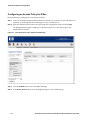
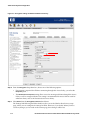
Step 2. Enter the Administrator username and password in the appropriate fields and click Logon.
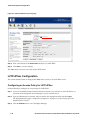
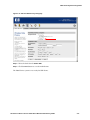
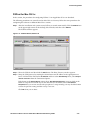
The Equipment Status page is displayed, as shown in Figure 2-1 as the initial page in the
Administrative Console.
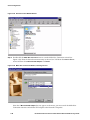
Figure 2-1. Initial Page after Logon- Equipment Status Page
Step 3. Click the RIGHTS icon to access the Rights Manager.
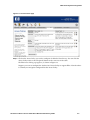
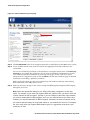
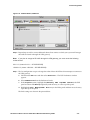
Step 4. Click Access Policies tab to access the Rights Manager’s Access Policies page.
2-2
HP ProCurve Secure Access 700wl Series Wireless Data Privacy Guide
700wl Series System Configuration
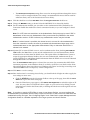
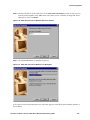
Figure 2-2. Access Policies page
Step 5. Click on the Access Policy you wish to configure for Wireless Data Privacy. You can click the
Access Policy name or the edit (pencil) button on the same row in the table.
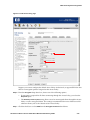
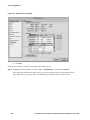
The Edit Access Policy page appears, as shown in Figure 2-3.
Suppose you want to configure the Authenticated Access Policy to support IPSec. Note that there
is currently no encryption configured for that Access Policy.
HP ProCurve Secure Access 700wl Series Wireless Data Privacy Guide
2-3
700wl Series System Configuration
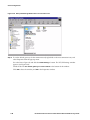
Figure 2-3. Encryption settings for Authenticated Access Policy
Step 6. From the Encryption drop-down box, choose one of the following options:
• If encryption is required for all clients connecting through this Access Policy, you select the
Required option.
• The Allowed, but not required setting allows access for unencrypted clients through this Access
Policy as well as encrypted clients. This setting is recommended for Access Policies used for
unknown clients, such as the Unauthenticated Access Policy.
Step 7. Select IPSec from the Encryption Protocols check boxes.
The Settings link following the IPSec check box takes you to the Wireless Data Privacy setup
page, where you can configure the settings for IPSec. However, if you do this before you have
saved any changes you’ve made on the current page, those changes will be lost.
2-4
HP ProCurve Secure Access 700wl Series Wireless Data Privacy Guide
700wl Series System Configuration
Step 8. Click the Save button to save the settings.
Step 9. Since Authenticated is an existing Access Policy, you should refresh all rights in order to apply the
new settings to active users.
Click the STATUS icon in the Navigation Toolbar to go to the Status page, then click the Client
Status tab. Once, the Client Status page appears, click on the Refresh User Rights Now to refresh
the rights of all users. Note that you may choose to refresh the client’s rights on a per-user basis
by clicking on each individual user’s link in the Clients table, or via the refresh button at the right
of each row in the client table.
Note: If you allow or require IPSec in some of your Access Policies, you must configure the
Unauthenticated (or equivalent) Access Policy to allow IPSec, since most VPN clients are enabled
before they can logon. See —Configuring Rights“ in the 700wl Series system Management and
Configuration Guide for a detailed explanation of the logon process and Access Policies.
Enabling IPSec
Enabling IPSec in the Wireless Data Privacy setup is a global setting that affects the entire 700wl Series
system.
Do the following to enable IPSec:
Step 1. To access the Administrative Interface from the network, set your browser to the IP address or
hostname of the Integrated Access Manager or Access Control Server.
Step 2. Enter the Administrator username and password in the appropriate fields and click Logon.
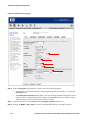
Step 3. Once the Equipment Status page appears (see Figure 2-1) click the VPN icon in the Navigation
Toolbar.
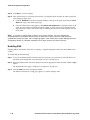
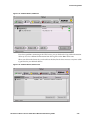
The Wireless Data Privacy setup page appears, as shown in Figure 2-4.
HP ProCurve Secure Access 700wl Series Wireless Data Privacy Guide
2-5
700wl Series System Configuration
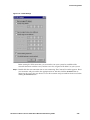
Figure 2-4. Wireless Data Privacy setup page
Step 4. Check Enable IPSEC in the list of encryption protocols to enable IPSec for the 700wl Series system.
Step 5. To use an IPSec shared secret, enter the secret in the appropriate field and confirm it in the
second field.
You can use a Public Key Certificate as the alternative to using the shared secret. Click Public Key
Certificate to use a Public Key Certificate. You can view the Certificate configuration or install a
new certificate under the Certificates tab at the top of the page. See the 700wl Series system
Management and Configuration Guide or click the HELP icon from the Certificates page for detailed
instructions on installing a public key certificate.
Make sure that the client uses the same certificate key and certificate authority when making
IPSec connection to the 700wl Series system.
Step 6. Make any necessary changes to the various settings for IKE Integrity, Encryption, ESP Integrity,
Encryption, and so on.
Note: Select the appropriate setting for your IPSec VPN clients‘ configuration so that they
match. For example, if your client only supports DES and 3-DES for IKE, you need to have one
of these selected for IKE encryption. Typically, if you use PGPnet as the IPSec client software,
you need to enable MD5 for IKE encryption, and if you use SSH Sentinel as the IPSec client
software, you should enable AES for ESP encryption. Otherwise, the client connection will fail.
You need to take the settings for all possible clients on your network into account. For example,
the Cisco Unity client only supports Diffie-Hellman group 2 in aggressive mode when a preshared key is used.
2-6
HP ProCurve Secure Access 700wl Series Wireless Data Privacy Guide
700wl Series System Configuration
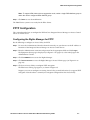
Note: To support VPN clients that use aggressive mode, select a single Diffie-Hellman group to
match the client‘s configured Diffie-Hellman group.
Step 7. Click Save to save the modification.
The 700wl Series system is now ready for the IPSec clients.
PPTP Configuration
This section describes how to configure the HP ProCurve Integrated Access Manager or Access Control
Server as a PPTP server.
Configuring the Rights Manager for PPTP
Do the following to configure an Access Policy for PPTP:
Step 1. To access the Administrative Interface from the network, set your browser to the IP address or
hostname of the Integrated Access Manager or Access Control Server.
Step 2. Enter the Administrator username and password in the appropriate fields and click Logon.
The Equipment Status page is displayed (see Figure 2-1 on page 2-2) as the initial page in the
Administrative Console.
Step 3. Click the RIGHTS icon to access the Rights Manager.
Step 4. Click Access Policies to access the Rights Manager’s Access Policies page (see Figure 2-2 on
page 2-3).
Step 5. Click on an Access Policy to configure PPTP encryption.
The Edit Access Policy page appears, as shown in Figure 2-5.
Suppose you want to configure an existing Access Policy, named Authenticated, to support PPTP
encryption. Note that there is currently no encryption configured for that Access Policy.
HP ProCurve Secure Access 700wl Series Wireless Data Privacy Guide
2-7
700wl Series System Configuration
Figure 2-5. Edit Access Policy page
Step 6. From the Encryption drop-down box, choose one of the following options:
• If encryption is required for all clients connecting through this Access Policy, you select the
Required option.
• The Allowed, but not required setting allows access for unencrypted clients through this Access
Policy as well as encrypted clients. This setting is recommended for Access Policies used for
unknown clients, such as the Unauthenticated Access Policy.
Step 7. Click the check box to select PPTP from the Encryption Protocols check boxes.
Step 8. Change the MPPE or Key Length as desired. Note that MSCHAP-V2 is selected by default.
2-8
HP ProCurve Secure Access 700wl Series Wireless Data Privacy Guide
700wl Series System Configuration
Step 9. For the authentication method, you can either use the Authentication Policy defined by the
Connection Profile that matches the client’s connection location, or you can configure a shared
secret.
Step 10. Click Save to save the settings.
Step 11. Since Authenticated is an existing Access Policy, you should refresh all rights in order to apply the
new settings to active users.
a. Click the STATUS icon in the Navigation Toolbar at the top of the page, then click Client
Status tab to go to the clients page.
b. Once the client page appears, click Refresh User Rights Now to refresh the rights of all users.
You may choose to refresh the client’s rights on a per-user basis by clicking on each
individual user’s link in the Clients table, or clicking the refresh icon to the right of each row.
Note: If you allow or require PPTP in some of your Access Policies, you must configure the
Unauthenticated (or equivalent) Access Policy to allow PPTP as well. See —Configuring Rights“ in the
700wl Series system Management and Configuration Guide for a detailed explanation of the logon
process and Access Policies.
Enabling PPTP
Enabling PPTP in the Wireless Data Privacy Setup is a global setting that affects the entire 700wl Series
system.
Do the following to enable PPTP:
Step 1. To access the Administrative Interface from the network, set your browser to the IP address or
hostname of the Integrated Access Manager or Access Control Server.
Step 2. You are prompted for the Administrator username and password. Type the username and
password in the appropriate text boxes and then click the Logon button.
The Equipment Status page is displayed (see Figure 2-1 on page 2-2).
Step 3. Click the VPN icon in the Navigation Toolbar.
The Wireless Data Privacy setup page appears.
HP ProCurve Secure Access 700wl Series Wireless Data Privacy Guide
2-9
700wl Series System Configuration
Figure 2-6. Wireless Data Privacy setup page
Step 4. Place a check mark in the Enable PPTP check box to enable PPTP.
Step 5. Click Save to save the settings.
The 700wl Series system is now ready for the PPTP clients.
L2TP+IPSec Configuration
This section describes how to configure the 700wl Series system as an L2TP+IPSec server.
Configuring an Access Policy for L2TP+IPSec
Do the following to configure an Access Policy for L2TP+IPSec:
Step 1. To access the Administrative Interface from the network, set your browser to the IP address or
hostname of the Integrated Access Manager or Access Control Server.
Step 2. Type the Administrator username and password in the appropriate fields and click Logon.
The Equipment Status page is displayed (see Figure 2-1 on page 2-2) as the initial page in the
Administrative Console.
Step 3. Click the RIGHTS icon to access the Rights Manager.
2-10
HP ProCurve Secure Access 700wl Series Wireless Data Privacy Guide
700wl Series System Configuration
Step 4. Click Access Policies to access the Rights Manager’s Access Policies page (see Figure 2-2 on
page 2-3).
Step 5. Click on an Access Policy to configure for L2TP+IPSec. The Edit Access Policy page appears, as
shown in Figure 2-7.
Figure 2-7. Edit Access Policy page
Suppose you want to configure an existing location, named Authenticated, to support L2TP+IPSec
encryption. Note that there is currently no encryption configured for that Access Policy.
Step 6. From the Encryption drop-down box, choose one of the following options:
• If encryption is required for all clients connecting through this Access Policy, you select the
Required option.
HP ProCurve Secure Access 700wl Series Wireless Data Privacy Guide
2-11
700wl Series System Configuration
• The Allowed, but not required setting allows access for unencrypted clients through this Access
Policy as well as encrypted clients. This setting is recommended for Access Policies used for
unknown clients, such as the Unauthenticated Access Policy.
Step 7. Click the check box to select L2TP+IPSec from the Encryption Protocols check boxes.
Step 8. Change the MSCHAP setting as desired. Note that MSCHAP-V2 is selected by default.
Step 9. For the authentication method, you can either use the Authentication Policy defined by the
Connection Profile that matches the client’s connection location, or you can configure a shared
secret.
Note: For L2TP, there are restrictions on the Authentication Policy that may be used if PAP is
not allowed. In this case, the Authentication Policy must include only RADIUS or the built-in
authentication services. If PAP is allowed, any authentication service may be included.
Note: If a shared secret is specified, this shared secret is not used for client authentication.
Once the connection is made, the client is presented with the web-based logon page, and is
authenticated based on the appropriate Authentication Policy to determine what access is
allowed to the network.
Step 10. (Optional) If an external LDAP server is used to authenticate the client, checking Allow PAP for
L2TP enables the 700wl Series system to both authenticate the user and obtain Identity Profile
information for the client from the LDAP server. This option allows the 700wl Series system to
assign the appropriate Identity Profile to the user once authenticated. Authentication by an
external LDAP server and Identity Profile information from the LDAP server cannot be obtained
through MS-CHAP v2 or MS-CHAP.
Once the Allow PAP for L2TP option is selected, the user must also customize their L2TP+IPSec
connection properties on the Windows client to use PAP as well. Please see details on the clientside configuration in Step 12 and Step 13 of “Windows XP Clients” and in Step 12 and Step 13 of
“Windows 2000 Clients” in Chapter 3, “Client Configuration”.
Step 11. Click Save to save the settings
Step 12. Since Authenticated is an existing Access Policy, you should refresh all rights in order to apply the
new settings to active users.
a. Click the STATUS icon in the Navigation Toolbar at the top of the page, then click the Client
Status tab to go to the client status page.
b. Once the Client Status page appears, click Refresh User Rights Now to refresh the rights of all
users. You may choose to refresh the client’s rights on a per-user basis by clicking on each
individual user’s link in the Clients table, or clicking the refresh icon on the right of each row
in the table.
Note: If you allow or require L2TP+IPSec in some of your Access Policies, you must configure the
Unauthenticated (or equivalent) Access Policy to allow L2TP+IPSec as well, since most VPN clients are
enabled before they can logon. See —Configuring Rights“ in the 700wl Series system Management and
Configuration Guide for a detailed explanation of the logon process and Access Policies.
2-12
HP ProCurve Secure Access 700wl Series Wireless Data Privacy Guide
700wl Series System Configuration
Enabling L2TP+IPSec
Enabling L2TP+IPSec in the Wireless Data Privacy settings is a global setting; it only needs to be done
once for the entire 700wl Series system.
Since this security protocol is L2TP over IPSec, you are required to enable not only L2TP but also IPSec.
Do the following to enable L2TP+IPSec:
Step 1. To access the Administrative Interface from the network, set your browser to the IP address or
hostname of the Integrated Access Manager or Access Control Server.
Step 2. You are prompted for the Administrator username and password. Type the username and
password in the appropriate text boxes and then click the Logon button.
The Equipment Status page is displayed (see Figure 2-1 on page 2-2).
Step 3. Click the VPN icon in the Navigation Toolbar.
The Wireless Data Privacy setup page appears, as shown in Figure 2-8.
Figure 2-8. Wireless Data Privacy setup page
Step 4. Check the Enable IPSec check box. This makes the Enable L2TP+IPSec check box available.
Step 5. Check the Enable L2TP+IPSec check box.
Step 6. Make any necessary changes to the various settings for IKE Integrity, Encryption, ESP Integrity,
Encryption, and so on.
See “Enabling IPSec” on page 2-5 for more information about the IPSec algorithm choices.
HP ProCurve Secure Access 700wl Series Wireless Data Privacy Guide
2-13
700wl Series System Configuration
Step 7. Click Save to save your changes.
The 700wl Series system is now ready for the L2TP+IPSec clients.
SSH Configuration
This section describes how to configure the 700wl Series system as an SSH server.
Configuring an Access Policy for SSH
To configure the Access Policy to allow SSH, do the following:
Step 1. To access the Administrative Interface from the network, set your browser to the IP address or
hostname of the Integrated Access Manager or Access Control Server.
Step 2. Type the administrator username and password in the appropriate fields and then click the Login
button.
The Equipment Status page is displayed (see Figure 2-1 on page 2-2) as the initial page in the
Administrative Console.
Step 3. Click the RIGHTS icon to access the Rights Manager.
Step 4. Click Access Policies to access the Rights Manager’s Access Policies page (see Figure 2-2 on
page 2-3).
Step 5. Click on an Access Policy to configure it for SSH. The Edit Access Policy page appears, as shown
in Figure 2-9.
2-14
HP ProCurve Secure Access 700wl Series Wireless Data Privacy Guide
700wl Series System Configuration
Figure 2-9. Edit Access Policy page
Suppose you want to configure the default Access Policy Authenticated, to support SSH. Note that
there is no encryption protocol assigned to this Access Policy.
Step 6. From the Encryption drop-down box, choose one of the following options:
• If encryption is required for all clients connecting through this Access Policy, you select the
Required option.
• The Allowed, but not required setting allows access for unencrypted clients through this Access
Policy as well as encrypted clients. This setting is recommended for Access Policies used for
unknown clients, such as the Unauthenticated Access Policy.
Step 7. Click the check box to select SSH from the Encryption Protocols check boxes.
HP ProCurve Secure Access 700wl Series Wireless Data Privacy Guide
2-15
700wl Series System Configuration
Step 8. Click Save to save the settings.
Step 9. Since Authenticated is an existing Access Policy, you should refresh all rights in order to apply the
new settings to active users.
a. Click the STATUS icon in the Navigation Toolbar at the top of the page, then click the Client
Status tab to go to the client status page.
b. Once the Client Status page appears, click Refresh User Rights Now to refresh the rights of all
users. You may choose to refresh the client’s rights on a per-user basis by clicking on each
individual user’s link in the Clients table, or clicking the refresh icon on the right of each row
in the table.
Note: If you allow or require SSH in some of your Access Policies, you must configure the
Unauthenticated (or equivalent) Access Policy to allow SSH as well, since most VPN clients are
enabled before they can logon. See —Configuring Rights“ in the 700wl Series system Management and
Configuration Guide for a detailed explanation of the logon process and Access Policies.
Enabling SSH
Enabling SSH in the Wireless Data Privacy settings is a global setting that affects the entire 700wl Series
system.
To enable SSH, do the following:
Step 1. To access the Administrative Interface from the network, set your browser to the IP address or
hostname of the Integrated Access Manager or Access Control Server.
Step 2. Enter the administrator username and password in the appropriate fields and then click the Login
button.
The Equipment Status page is displayed (see Figure 2-1 on page 2-2).
Step 3. Click the VPN icon in the Navigation Toolbar.
The Wireless Data Privacy setup page appears, as shown in Figure 2-10.
2-16
HP ProCurve Secure Access 700wl Series Wireless Data Privacy Guide
700wl Series System Configuration
Figure 2-10. Wireless Data Privacy setup page
Step 4. Select the check box for Enable SSH.
Step 5. Click the Save button to save the modification.
The 700wl Series system is now ready for SSH clients.
HP ProCurve Secure Access 700wl Series Wireless Data Privacy Guide
2-17
700wl Series System Configuration
2-18
HP ProCurve Secure Access 700wl Series Wireless Data Privacy Guide
3
CLIENT CONFIGURATION
This chapter provides an overview of client configurations. It consists of the following sections:
IPSec Client Configuration . . . . . . . . . . . . . . . . . . . . . . . . . . . . . . . . . . . . . . . . . . . . . . . . . . . 3-1
PPTP Client Configuration . . . . . . . . . . . . . . . . . . . . . . . . . . . . . . . . . . . . . . . . . . . . . . . . . . 3-27
L2TP+IPSec Client Configuration . . . . . . . . . . . . . . . . . . . . . . . . . . . . . . . . . . . . . . . . . . . . . 3-51
SSH Client Configuration . . . . . . . . . . . . . . . . . . . . . . . . . . . . . . . . . . . . . . . . . . . . . . . . . . . 3-79
IPSec Client Configuration
This section describes how to configure computers running Microsoft Windows as IPSec clients.
SafeNet SoftRemote for Windows
The following procedures configures SafeNet SoftRemote, for use as an IPSec client.
Note: This procedure assumes you have already installed the SoftRemote software on your system.
SoftRemote should start automatically after the software installation and system reboot.
The following procedure is based on a Windows XP client. You may follow the same procedure for
configuring the software on different Windows platforms.
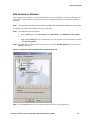
Step 1. Start the SoftRemote software Security Policy Editor:
• Double-click the SoftRemote icon in the desktop taskbar’s Notify area (lower-right corner) to
open the Security Policy Editor window
or
•
From the Start menu select Programs, then SoftRemote, then click on Security Policy Editor.
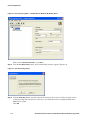
The Security Policy Editor – SafeNet SoftRemote window appears (Figure 3-1).
3-1
Client Configuration
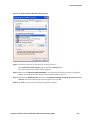
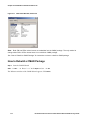
Figure 3-1. Security Policy Editor œ SafeNet Remote Window
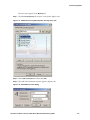
Step 2. Click Options to display the Options menu.
Select Secure and then select All Connections. This will force all network connections through the
secure tunnel.
The Connection Security Panel appears (Figure 3-2).
3-2
HP ProCurve Secure Access 700wl Series Wireless Data Privacy Guide
Client Configuration
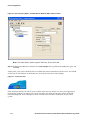
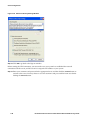
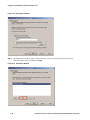
Figure 3-2. Security Policy Editor œ SafeNet Remote Window, Connection Security Panel
Step 3. Click to select the Connect using checkbox and make sure that Secure Gateway Tunnel is selected.
Also make sure that ID Type is set to IP Address. Next, enter 42.0.0.1 in the text box below the ID
Type menu.
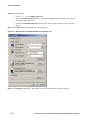
Step 4. Expand All Connections in the Network Security Policy panel and select My Identity.
The displays the My Identity panel (Figure 3-3).
HP ProCurve Secure Access 700wl Series Wireless Data Privacy Guide
3-3
Client Configuration
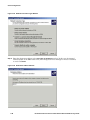
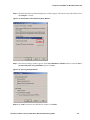
Figure 3-3. Security Policy Editor œ SafeNet Remote Window, My Identity Panel
Make sure that Select Certificate is set to None.
Step 5. Click the Pre-Shared Key button. The Pre-Shared Key window appears (Figure 3-4).
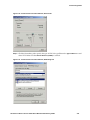
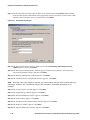
Figure 3-4. Pre-Shared Key Dialog
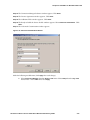
Step 6. Click the Enter Key button and then enter the shared key in the text box. The key must be at least
8 characters long and it must be the same key as you entered when you configured IPSec in the
700wl Series system.
Click OK.
3-4
HP ProCurve Secure Access 700wl Series Wireless Data Privacy Guide
Client Configuration
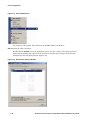
Step 7. Expand Security Policy in the Network Security Policy panel. Also expand all items below
Security Policy, including: Authentication (Phase 1) and Key Exchange (Phase 2) (see Figure 3-5).
The Authentication Proposals correspond to the IKE configuration parameters set in the 700wl
Series system (see “Enabling IPSec” on page 2-5).
Figure 3-5. Security Policy Editor œ SafeNet Remote Window, Authentication Method Panel
Step 8. Setup the authentication method.
Select Proposal 1 below Authentication (Phase 1). Make sure that the Authentication Method is set
to Pre-Shared Key.
Note the default settings of SafeNet SoftRemote work with the default settings of the 700wl Series
system. If a different authentication algorithm is used, make sure that the settings match those
configured on the 700wl Series unit.
Step 9. Setup the key exchange protocol.
Select Proposal 1 below Key Exchange (Phase 2). You may keep the default settings (see
Figure 3-6) because they work with the default IPSec settings on the 700wl Series unit.
HP ProCurve Secure Access 700wl Series Wireless Data Privacy Guide
3-5
Client Configuration
Figure 3-6. Security Policy Editor œ SafeNet Remote Window, IPSec Protocols Panel
Note: The 700wl Series system supports ESP only. Do not select AH.
Step 10. Pull down the File menu and then select Save Changes. Next, pull down the File menu again, and
click Exit.
At this point, your system should be able to establish the secured connection with the server. You should
see the icon as shown below in the Notify area on the lower left corner of the desktop.
Figure 3-7. Connection Icon
If the connection failed, you will not see the yellow key in the icon. In this case, the easiest approach to
resolving the problem is to reboot your system. You must also make sure that the settings on the HP
ProCurve Integrated Access Manager or Access Control Server for IPSec match those on your client
system.
3-6
HP ProCurve Secure Access 700wl Series Wireless Data Privacy Guide
Client Configuration
SSH Sentinel for Windows
This configuration procedure is based on SSH Sentinel version 1.4 (build 137) installed on Windows XP
Professional. You may follow the same procedures for configuring the software on different Windows
platforms.
Note:
This procedure assumes you have already installed the SSH Sentinel software on your system.
To configure the SSH Sentinel IPSec client, do the following:
Step 1. Start SSH Sentinel Policy Editor:
•
From the Start menu select All Programs, then SSH Sentinel, then SSH Sentinel Policy Editor
or
• Right click the Sentinel icon in the notification area (lower-right corner of the desktop) and then
select Run Policy Editor….
Step 2. The SSH Sentinel Policy Editor window appears. Click the Key Management tab and then select
My Keys (Figure 3-8).
Figure 3-8. SSH Sentinel Policy Editor Window, Key Management Tab
Step 3. Click the Add button to start the New Authentication Key wizard (Figure 3-9).
HP ProCurve Secure Access 700wl Series Wireless Data Privacy Guide
3-7
Client Configuration
Figure 3-9. New Authentication Key Wizard
Step 4. Select the Create a pre-shared key option and then click Next>.
Step 5. The Create Pre-Shared Key window appears (Figure 3-10).
Figure 3-10. Create Pre-Shared Key window
Step 6. Type the Pre-shared key name, the Shared secret, and Confirm the shared secret in the
appropriate fields. Click Finish.
3-8
HP ProCurve Secure Access 700wl Series Wireless Data Privacy Guide
Client Configuration
The new entry appears in the My Keys list.
Step 7. Click the Security Policy tab to create a new policy (Figure 3-11).
Figure 3-11. SSH Sentinel Policy Editor Window, Security Policy Tab
Step 8. Select VPN Connections and then click Add.
Step 9. The Add VPN Connection window appears (Figure 3-12).
Figure 3-12. Add VPN Connection Dialog
HP ProCurve Secure Access 700wl Series Wireless Data Privacy Guide
3-9
Client Configuration
Step 10. Do the following:
•
Enter 42.0.0.1 in the Gateway name field.
• Specify the Remote network (default is any – 0.0.0.0/0.0.0.0) that this computer will accessed
through the VPN connection.
• Pull down the Authentication key menu and then select the pre-shared key entry created in
Step 6.
Step 11. Click Properties, the Rule Properties tab will appear.
Figure 3-13. SSH Sentinel Policy Editor Window, Rule Properties Tab
Step 12. Click Settings under IPSec / IKE proposal. The Proposal Parameters window appears.
3-10
HP ProCurve Secure Access 700wl Series Wireless Data Privacy Guide
Client Configuration
Figure 3-14. SSH Sentinel Policy Editor Window, Proposal Parameters Window
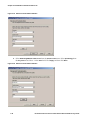
Step 13. Select the desired IKE proposal encryption algorithm, for example 3-DES, and click OK
Note: You cannot use the default IKE proposal encryption algorithm, AES, as the 700wl Series
system does not support AES for IKE encryption.
Step 14. When the Rule Properties window reappears, click OK to save your settings.
Step 15. (Optional) When the Add VPN Connection window reappears, click the Diagnostics button to
test the connection.
Step 16. Click OK to finish the settings.
Step 17. Do the following to establish the VPN connection:
•
Right click on the Sentinel icon in the notification area to display the SSH Sentinel menu.
• Move the pointer to the Select VPN submenu and then select 42.0.0.1 (any), which is the VPN
connection created in the previous section.
HP ProCurve Secure Access 700wl Series Wireless Data Privacy Guide
3-11
Client Configuration
Figure 3-15. Select VPN Submenu
The computer will open the VPN connection to the 700wl Series unit (42.0.0.1).
Step 18. Verify the VPN Connection:
Double click the Sentinel icon in the notification area to view the statistics of the VPN connection.
Notice that the 42.0.0.1 entry appears in the Security Associations panel along with the detailed
information of the encryption protocol (Figure 3-16).
Figure 3-16. SSH Sentinel Statistics Window
3-12
HP ProCurve Secure Access 700wl Series Wireless Data Privacy Guide
Client Configuration
PGPnet for Mac OS 9.x
In this section, the procedures for configuring PGPnet 7.1 on Apple Mac OS 9.x are described.
The following procedures are created based on Mac OS 9.2.2. You may follow the same procedures for
configuring the software on different Mac OS 9.x versions.
Step 1. After the installation and system restart, PGPnet is started automatically. Click the PGPnet icon
on the upper-right corner of the desktop (left of Finder) and then select PGPnet.
The PGPnet window appears.
Figure 3-17. PGPnet Window, Status Tab
Step 2. Select the VPN tab and then click the Add button. The Host/Gateway window appears.
Step 3. Setup the VPN gateway by entering the desired name and IP address in the appropriate text
boxes. Pull-down the menu below IP Address and then select VPN Gateway. Next, select Require
manual connection from the Connection Options.
If the button in the Shared Secret section shows Set Shared Passphrase, you must click on the
button to setup the Pre-shared key. On the other hand, if the button shows Clear Shared
Passphrase but you are not sure that the passphrase is setup correctly, you may click the button
to clear the previous setting and then set up a new one.
Click OK when you are done.
HP ProCurve Secure Access 700wl Series Wireless Data Privacy Guide
3-13
Client Configuration
Figure 3-18. Host/Gateway Window
Based on the above settings, a new entry, named VPN gateway 1, appears in the PGPnet panel.
The following shows how to create a secured connection to the internal network with the address
192.168.0.0 /16 using the VPN gateway created in Step 3.
Step 4. Highlight the entry you created in the previous step and then click Add.
3-14
HP ProCurve Secure Access 700wl Series Wireless Data Privacy Guide
Client Configuration
Figure 3-19. PGPnet Window, VPN Panel
The Host/Gateway window appears.
Step 5. Enter the desired name and IP address in the appropriate text boxes. Pull down the menu below
IP Address and then select Subnet. The Host/Gateway window will be reduced to that shown
below. Make sure that the Subnet Mask value is 255.255.0.0 (/16). Click OK.
HP ProCurve Secure Access 700wl Series Wireless Data Privacy Guide
3-15
Client Configuration
Figure 3-20. Host/Gateway Window
Note that based on the above settings, all traffic going to this subnet will be encrypted.
A new entry appears below the VPN gateway 1 entry (you must expand the VPN gateway 1 entry
to see it) as shown below.
3-16
HP ProCurve Secure Access 700wl Series Wireless Data Privacy Guide
Client Configuration
Figure 3-21. PGPnet Window, VPN Panel
Step 6. Repeat Steps 4 and 5 to create additional subnet/host entries to which your system will encrypt
the traffic and send it through the VPN gateway.
Note: If you plan to encrypt all IP traffic through the VPN gateway, you must create the following
subnet entries:
0.0.0.1 /1 (covers 0.0.0.1 œ 127.255.255.255)
128.0.0.0 /1 (covers 128.0.0.0 œ 255.255.255.255)
Step 7. The last configuration step is to change the order of how the PGPnet client attempts to connect to
the VPN gateway.
a. Pull down the Edit menu and then select Preferences…. The PGP Preferences window
appears.
b.
Select VPN Advanced from the Preference Panels.
c. In the Proposals section, highlight the Shared Key MD5 TripleDES 1024 bits in the IKE
panel and then click Move Up repeatedly until the entry is at the top of the panel.
d. Highlight the None
MD5,TripleDES
None entry in the IPSec panel and then move the entry
up to the top of the panel.
The final settings are shown in the picture below.
HP ProCurve Secure Access 700wl Series Wireless Data Privacy Guide
3-17
Client Configuration
Figure 3-22. PGP Preferences Settings
e.
Click OK.
At this point, PGPnet is ready for connecting to the IPSec gateway.
Step 8. Highlight the VPN gateway (in this example – VPN gateway 1) and then click Connect.
After the VPN connection has been made, you will see a green icon on the SA column of each
entry. Otherwise, you will get a red icon indicating that the VPN connection has failed.
3-18
HP ProCurve Secure Access 700wl Series Wireless Data Privacy Guide
Client Configuration
Figure 3-23. PGPnet Window, VPN Panel
If you have problems connecting to the VPN server, you can click on the Log tab for information.
You may also view additional information from the Log File on the 700wl Series unit.
When you click on the Status tab, you should see the Sent/Rcvd values increase every time traffic
is generated to your defined subnets.
Figure 3-24. PGPnet Window, Status Panel
HP ProCurve Secure Access 700wl Series Wireless Data Privacy Guide
3-19
Client Configuration
VPN Tracker for Mac OS X
In this section, the procedures for configuring VPN Tracker 2.2 on Apple Mac OS X are described.
Note: VPN Tracker requires Mac OS X 10.2 or higher and the BSD subsystem from the Mac OS X
installation to be installed.
The following procedures are created based on Mac OS X 10.2. You may follow the same procedures for
configuring the software on higher versions of Mac OS X.
Step 1. After the installation of VPN Tracker and system restart, start up VPN Tracker.
The main VPN Tracker window appears, Figure 3-25.
Figure 3-25. VPN Tracker Window, Main Window
Step 2. Click New to create a new profile, or select an existing profile and click Edit to modify an existing
profile (in Figure 3-25 MyRacoon is an existing profile).
The profile settings window appears.
Step 3. In the profile settings window, as shown in Figure 3-26, enter a name for the connection profile.
Step 4. In the Connection Type field select Other, then Edit connection types. The Connection Types
window appears, displaying the Phase 1 General tab, Figure 3-27.
Step 5. Select or enter data into the fields as described in Table 3-1 below.
3-20
HP ProCurve Secure Access 700wl Series Wireless Data Privacy Guide
Client Configuration
Figure 3-26. VPN Tracker Window, Profile Settings Window
Table 3-1. VPN Tracker Connection Type Settings, Phase 1 General
Field
Setting
Exchange Mode
main, aggressive
Proposal Check
claim
Nonce Size
16
Send INITIAL-CONTACT message
checked
Support MIP6
checked
Use IPSEC DOI
checked
Use SIT_INDENTITY_ONLY
checked
HP ProCurve Secure Access 700wl Series Wireless Data Privacy Guide
3-21
Client Configuration
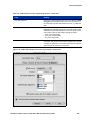
Figure 3-27. VPN Tracker Window, Connection Types Window: Phase 1 General Tab
Step 6. Click Phase 1 Proposal. The Phase 1 Proposal tab setting appear, Figure 3-28.
Step 7. Select or enter data into the fields as described in Table 3-2 below.
Table 3-2. VPN Tracker Connection Type Settings, Phase 1 Proposal
Field
Setting
Encryption Algorithm
Select an algorithm that matches the setting for IKE Encryption under
Wireless Data Privacy in the VPN section of the 700wl Series system
Administrative Console, e.g., 3des.
Hash Algorithm
Select an algorithm that matches the setting for IKE Integrity under
Wireless Data Privacy in the VPN section of the 700wl Series system
Administrative Console, sha1 or md5.
3-22
HP ProCurve Secure Access 700wl Series Wireless Data Privacy Guide
Client Configuration
Table 3-2. VPN Tracker Connection Type Settings, Phase 1 Proposal (Continued)
Field
Setting
DH Group
Select the group used for the Diffie-Hellman exponentiations that matches
the setting for IKE Diffie-Hellman under Wireless Data Privacy in the VPN
section of the 700wl Series system Administrative Console:
•
Diffie-Hellman Group 1 matches modp768
•
Diffie-Hellman Group 2 matches modp1024
•
Diffie-Hellman Group 5 matches modp1024
Lifetime
Defines the encryption lifetime, in hours, which will be proposed in the
phase 1 negotiations.
Send certificate
checked
If checked and certificates are being used for authentication, VPN Tracker
will send your own certificate to the 700wl Series system for verification.
Send request for remote certificate
checked
If checked and certificates are being used for authentication, VPN Tracker
will request the certificate from the 700wl Series system for verification.
Verify remote certificate
checked
If checked and certificates are being used for authentication, VPN Tracker
will verify the 700wl Series system certificate.
Step 8. Click Phase 2. The Phase 2 tab setting appear, Figure 3-29.
HP ProCurve Secure Access 700wl Series Wireless Data Privacy Guide
3-23
Client Configuration
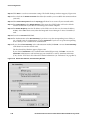
Figure 3-28. VPN Tracker Window, Connection Types Window: Phase 1 Proposal Tab
Step 9. Select or enter data into the fields as described in Table 3-3 below.
Table 3-3. VPN Tracker Connection Type Settings, Phase 2
Field
Setting
PFS Group
Specifies the group of Diffie-Hellman exponentiations for PFS
(Perfect Forward Secrecy) in phase 2. If you do not require PFS,
un-check the check box. Otherwise, select the group used for the
Diffie-Hellman exponentiations that matches the setting for IKE
Diffie-Hellman under Wireless Data Privacy in the VPN section
of the 700wl Series system Administrative Console:
Lifetime
3-24
•
Diffie-Hellman Group 1 matches modp768
•
Diffie-Hellman Group 2 matches modp1024
•
Diffie-Hellman Group 5 matches modp1536
Defines the lifetime, in hours, to be used in the IPsec-SA. The
connection will expire and be reestablished after this period of
time.
HP ProCurve Secure Access 700wl Series Wireless Data Privacy Guide
Client Configuration
Table 3-3. VPN Tracker Connection Type Settings, Phase 2 (Continued)
Field
Setting
Encryption Algorithm
Select one or more algorithms that matches the setting for ESP
Encryption under Wireless Data Privacy in the VPN section of
the 700wl Series system Administrative Console, e.g., 3des and
des.
Authentication Algorithm
Select one or more algorithms that matches the setting for ESP
Integrity under Wireless Data Privacy in the VPN section of the
700wl Series system Administrative Console. The terms used by
VPN Tracker match the ESP integrity settings as follows:
• hmac_md5 matches MD5
• hmac_sha1 matches SHA-1
• non_auth matches Null
Establish unique SAs for multiple networks
Enabled: VPN Tracker will establish an unique Security
Association (SA) for each network when multiple local or remote
networks are specified for a connection. Otherwise, the same SA
will be used for all networks of a connection.
Figure 3-29. VPN Tracker Window, Connection Types Window: Phase 2 Tab
HP ProCurve Secure Access 700wl Series Wireless Data Privacy Guide
3-25
Client Configuration
Step 10. Click Save to save these connection settings. The Profile Settings window reappears, Figure 3-26.
Step 11. Put a check in the Initiate connection check box (this enables you to establish this connection from
your end).
Step 12. Select Host to Everywhere from the Topology pull-down list to secure all your network traffic.
Step 13. For Local Endpoint, select Default Interface. This means that VPN Tracker will use the default
network connection of your Mac for connecting to the remote endpoint.
Step 14. For Remote Endpoint, enter the IP address of the VPN server. In this case, the internal address,
42.0.0.1, of the 700wl Series unit (either the Integrated Access Manager or Access Controller) is
used.
Step 15. Leave the Local Host field blank.
Step 16. For Authentication select Pre-shared key if you have set up the corresponding Access Policy to
use a shared secret for authentication, or select Certificates if you have set up the corresponding
Access Policy to use a certificate for authentication.
Step 17. If you selected Pre-shared key as the authentication method, click Edit… next to the Pre-shared key
radio button to enter the shared secret.
The Pre-shared Key Window appears, Figure 3-30.
If you selected Certificates as the authentication method (Figure 3-26), click Edit… next to the
Certificates radio button to add and manage your certificates as well as certificate authorities
(CAs). See the VPN Tracker User Manual for further information (see “References” on page Ref-1).
Figure 3-30. VPN Tracker Window, Pre-shared Key Window
3-26
HP ProCurve Secure Access 700wl Series Wireless Data Privacy Guide
Client Configuration
Step 18. Enter the shared secret specified in the corresponding Access Policy in the top field.
Click OK when you are done. You return to the Profile Settings Window, Figure 3-26.
Step 19. Click Save to save these profile settings. The main VPN Tracker window reappears, Figure 3-25.
Step 20. In the main VPN Tracker window, put a check mark next to the profile you have created and
click Start IPsec to start an IPSec connection.
PPTP Client Configuration
This section describes how to configure computers running Windows XP, 2000, and 98SE as PPTP clients.
Windows XP Clients
Do the following to configure the Windows XP client:
Step 1. Open the Network Connections window:
Click the Start button and then move the pointer to My Network Places. Right-click on My
Network Places to display the pop-up menu and then select Properties.
The Network Connections window appears.
Step 2. Click on the Create a new connection link on the Network Tasks panel.
The New Connection Wizard window appears.
Step 3. Click the Next> button to go to the Network Connection Type page.
Figure 3-31. New Connection Wizard
HP ProCurve Secure Access 700wl Series Wireless Data Privacy Guide
3-27
Client Configuration
Step 4. Select the Connect to the network at my workplace option and then click the Next> Button.
Figure 3-32. Network Connection Type Window
Step 5. Select the Virtual Private Network connection option. Click Next>.
Figure 3-33. Network Connection Window
3-28
HP ProCurve Secure Access 700wl Series Wireless Data Privacy Guide
Client Configuration
Step 6. Enter the desired connection name in the Company Name text box. Click Next>.
Figure 3-34. Connection Name Window
Step 7. Enter the IP address of the VPN server in the Host name or IP address text box. In this case, the
internal address 42.0.0.1 of the 700wl Series unit (either the Integrated Access Manager or Access
Controller) is used. Click Next>.
HP ProCurve Secure Access 700wl Series Wireless Data Privacy Guide
3-29
Client Configuration
Figure 3-35. VPN Server Selection Window
The Completing the New Connection Wizard page appears.
Step 8. Click the Finish button. You may choose to add a shortcut to this connection to the desktop before
clicking the Finish button.
3-30
HP ProCurve Secure Access 700wl Series Wireless Data Privacy Guide
Client Configuration
Figure 3-36. New Connection Wizard Completion Window
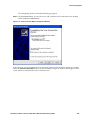
At this point, an icon representing the new connection appears in the Network Connections window
under the Virtual Private Network section. In the meantime, the Sign-on window should appear on the
screen; otherwise, double-click the new connection icon.
HP ProCurve Secure Access 700wl Series Wireless Data Privacy Guide
3-31
Client Configuration
Figure 3-37. Sign-on Window
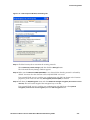
Step 9. You need to customize the properties of your connection to use PPTP and match the settings of
the 700wl Series unit. Click the Properties button to open the connection’s properties window.
Figure 3-38. PPTP Properties Window, General Tab
Step 10. Click the Networking tab to specify the type of VPN.
Pull down the Type of VPN menu and select PPTP VPN. Make sure that Internet Protocol (TCP/IP) is
selected.
3-32
HP ProCurve Secure Access 700wl Series Wireless Data Privacy Guide
Client Configuration
Figure 3-39. PPTP Properties Window, Networking Tab
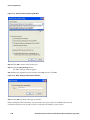
Step 11. Click the Security tab to customize the security protocols.
Select Advanced (custom settings) and then click the Settings button.
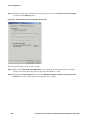
The Advanced Security Settings window appears.
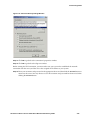
Step 12. Make sure that Microsoft CHAP (MS-CHAP) is not selected. Note that this protocol is selected by
default. You must deselect this option so that only MS-CHAP v2 is used.
Step 13. Pull down the Data Encryption menu and select Maximum strength encryption (disconnect if server
declines). This will set the length of the encryption key to 128 bits.
Step 14. Click OK to go back to the connection’s properties window.
HP ProCurve Secure Access 700wl Series Wireless Data Privacy Guide
3-33
Client Configuration
Figure 3-40. Advanced Security Settings Window
Step 15. Click OK to go back to the Sign-on window.
Before starting the VPN connection, you must make sure your system has established the network
connection with the server, and the server has assigned an IP address to your system.
Step 16. Enter your username and password in the appropriate boxes and then click the Connect button to
connect to the server. You may choose to save this username and password for future uses before
clicking the Connect button.
3-34
HP ProCurve Secure Access 700wl Series Wireless Data Privacy Guide
Client Configuration
Figure 3-41. Sign-on Window
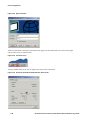
After the connection is made, the connection icon appears in the notification area on the lowerright corner of the screen as shown below.
Figure 3-42. Connection Icon
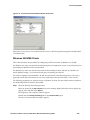
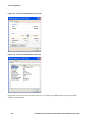
You may double-click on the icon to display the status of the connection.
HP ProCurve Secure Access 700wl Series Wireless Data Privacy Guide
3-35
Client Configuration
Figure 3-43. Connection Status Windows
Notice that your system is now connected to the server via the VPN device using PPTP protocol
with 128-bit session key and MS CHAP v2 authentication.
Windows 2000/NT Clients
In this section, the procedures for configuring a PPTP connection on Windows 2000/NT are described.
The following procedures are created based on a Windows 2000 client. You may follow similar
procedures for configuring PPTP on Windows NT (RAS).
3-36
HP ProCurve Secure Access 700wl Series Wireless Data Privacy Guide
Client Configuration
Step 1. Open the Network and Dial-up Connections window:
Click the Start button. Move the pointer to and select Programs, Accessories, and
Communications, respectively. Click on Network and Dial-up Connections on the Communications
menu.
The Network and Dial-up Connections window appears.
Step 2. Double-click the Make new connection icon.
The Network Connection Wizard window appears.
Figure 3-44. Network Connection Wizard
Step 3. Click the Next> button to go to the Network Connection Type page. Select the Connect to a private
network through the Internet option and then click the Next> button.
HP ProCurve Secure Access 700wl Series Wireless Data Privacy Guide
3-37
Client Configuration
Figure 3-45. Network Connection Type Window
Step 4. Enter the destination address in the Host name or IP address text box. In this case, the internal
address 42.0.0.1 of the 700wl Series unit (either Integrated Access Manager or Access Controller)
is used. Click Next>.
Figure 3-46. Destination Address Window
3-38
HP ProCurve Secure Access 700wl Series Wireless Data Privacy Guide
Client Configuration
Step 5. The network connection wizard will display the Public Network window if other dial-up
connections exist. Select the Do not dial the initial connection option and then click Next>.
If no other dial-up connection is previously created, the Connection Availability window shown
in Step 6 is displayed.
Step 6. Select the desired Connection Availability option, e.g., Only for myself. Click Next>.
Figure 3-47. Connection Availability Window
Step 7. Click the Finish button. You may choose to add a shortcut to this connection to the desktop
before clicking the Finish button.
HP ProCurve Secure Access 700wl Series Wireless Data Privacy Guide
3-39
Client Configuration
Figure 3-48. Network Connection Wizard Completion Window
At this point, an icon, named Virtual Private Network, representing the new connection appears in the
Network and Dial-up Connections window. In the meantime, the Sign-on window should appear on the
screen; otherwise, double-click the new connection icon.
Figure 3-49. Sign-on Window
Step 8. You need to customize the properties of your connection to use PPTP and match the settings of
the 700wl Series unit. Click the Properties button to open the connection’s properties window.
3-40
HP ProCurve Secure Access 700wl Series Wireless Data Privacy Guide
Client Configuration
Figure 3-50. Virtual Private Connection Window, General Tab
Step 9. Click the Networking tab to specify the type of VPN. Next, pull down the Type of VPN menu and
select PPTP. Make sure that Internet Protocol (TCP/IP) is selected.
Figure 3-51. Virtual Private Connection Window, Networking Tab
HP ProCurve Secure Access 700wl Series Wireless Data Privacy Guide
3-41
Client Configuration
Step 10. Click the Security tab to customize the security protocols. Next, select Advanced (custom settings)
and then click the Settings button.
Figure 3-52. Virtual Private Connection Window, Security Tab
The Advanced Security Settings window appears.
Step 11. Make sure that Microsoft CHAP (MS-CHAP) is not selected. Note that this protocol is selected by
default. You must deselect this option so that only MS-CHAP v2 is used.
Step 12. Pull down the Data Encryption menu and select Maximum strength encryption (disconnect if server
declines). This will set the length of the encryption key to 128 bits.
3-42
HP ProCurve Secure Access 700wl Series Wireless Data Privacy Guide
Client Configuration
Figure 3-53. Advanced Security Settings Window
Step 13. Click OK to go back to the connection’s properties window.
Step 14. Click OK to go back to the Sign-on window.
Before starting the VPN connection, you must make sure your system has established the network
connection with the server, and the server has assigned an IP address to your system.
Step 15. Enter your username and password in the appropriate boxes and then click the Connect button to
connect to the server. You may choose to save this username and password for future uses before
clicking the Connect button.
HP ProCurve Secure Access 700wl Series Wireless Data Privacy Guide
3-43
Client Configuration
Figure 3-54. Sign-on Window
After the connection is made, the connection icon appears in the notification area on the lower-right
corner of the screen as shown below.
Figure 3-55. Connection Icon
You may double-click on the icon to display the status of the connection.
Figure 3-56. Virtual Private Network Status Window, General Tab
3-44
HP ProCurve Secure Access 700wl Series Wireless Data Privacy Guide
Client Configuration
Figure 3-57. Virtual Private Network Status Window, Details Tab
Notice that your system is now connected to the server via PPP using 128-bit encryption and MS CHAP
v2 authentication.
Windows 98/95/ME Clients
This section describes the procedures for configuring a PPTP connection on Windows 98/95/ME.
For Windows 95, make sure that Dial-up Networking has been updated to version 1.3 and Virtual Private
Networking for Windows 95 has been installed.
For Windows 98, make sure that the Virtual Private Networking has been updated. You should read
Article Q237691 at http://www.microsoft.com prior to updating the software.
The software updates for both Windows 95 and 98 can be found at the Microsoft web site. The easiest
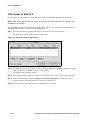
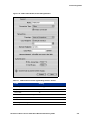
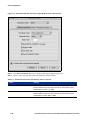
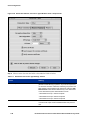
approach to find all the information at once is by searching for the keyword “DUN” at the web site.
The following procedures are created based on a Windows 98 client. You may follow similar procedures
for configuring PPTP on Windows 95 and ME.
Step 1. Open the Dial-Up Networking window:
Move the pointer to the My Computer icon on the desktop. Right-click on the icon to display the
pop-up menu and then select Explore.
The Exploring - My Computer window appears.
Double-click the Dial-Up Networking link on the Network Tasks panel.
The New Connection Wizard window appears.
HP ProCurve Secure Access 700wl Series Wireless Data Privacy Guide
3-45
Client Configuration
Figure 3-58. New Connection Wizard Window
Step 2. Double-click the Make New Connection icon to start the Make New Connection wizard (see
Figure 3-59). Enter the desired connection name in the text box. Pull-down the Select a device
menu and then select Microsoft VPN Adapter. Click Next>.
Figure 3-59. Make New Connection Window, selecting a device
,
Note that if Microsoft VPN Adapter does not appear on the menu, you must cancel the Make New
Connection activities and add the VPN adapter to the Network’s Properties.
3-46
HP ProCurve Secure Access 700wl Series Wireless Data Privacy Guide
Client Configuration
Step 3. Enter the IP address of the VPN server in the Host name or IP address text box. In this case, the
internal address 42.0.0.1 of the 700wl Series unit (either Access Controller or Integrated Access
Manager) is used. Click Next>.
Figure 3-60. Make New Connection Window, VPN server address
Step 4. Click the Finish button to complete the process.
Figure 3-61. Make New Connection Window, Final Dialog Box
At this point, an icon representing the new connection appears in the Dial-Up Networking window as
shown below.
HP ProCurve Secure Access 700wl Series Wireless Data Privacy Guide
3-47
Client Configuration
Figure 3-62. Dial-up Networking Window with new connection icon
Step 5. To set the default gateway for the remote network, right-click on the new connection icon, and
select Properties from the pop-up menu.
Go to the Server Types tab and click the TCP/IP Settings... button. The TCP/IP Settings window
appears (see Figure 3-63).
Check the box for Use default gateway on remote network at the bottom of the window.
Click OK to close the window, and OK in the Properties window.
3-48
HP ProCurve Secure Access 700wl Series Wireless Data Privacy Guide
Client Configuration
Figure 3-63. TCP/IP Settings
Before starting the VPN connection, you must make sure your system has established the
network connection with the server, and the server has assigned an IP address to your system.
Step 6. Double-click the new connection icon to start connecting. The Connect To window appears. Enter
your username and password in the appropriate boxes and then click the Connect button to
connect to the server. You may choose to save this username and password for future uses before
clicking the Connect button.
HP ProCurve Secure Access 700wl Series Wireless Data Privacy Guide
3-49
Client Configuration
Figure 3-64. Connect To Window
After the connection is made, the connection icon appears in the notification area on the lower-right
corner of the screen as shown below.
Figure 3-65. Connection Icon
You may double-click on the icon to display the status of the connection.
3-50
HP ProCurve Secure Access 700wl Series Wireless Data Privacy Guide
Client Configuration
Figure 3-66. Connection Status Window
Notice that your system is now connected to the server via PPP using Microsoft encryption and
Microsoft mutual challenge handshake (MS CHAP) authentication. This PPP connection is
certainly using a 128-bit encryption key and MS CHAP v2 authentication because the server is
configured to accept only this type of the connection.
Warning: If the server rejects the connection, it is highly likely that the 128-bit encryption key does not
work.
You need to access the Rights Manager to modify the Location‘s properties to lower the
minimum encryption key length to 40 bits (see —Configuring the Rights Manager for PPTP“).
L2TP+IPSec Client Configuration
This section describes how to configure computers running Windows XP, Windows 2000, Windows NT,
and Windows 98 or Windows ME as L2TP+IPSec clients.
Windows XP Clients
Before configuring the L2TP+IPSec client, please read Chapter 4 “Scripts for L2TP/IPSec on Windows
2000 or XP”. The instructions in Chapter 4 will guide you through the uses of Microsoft Connection
Manager Administration Kit to create a script for setting up an L2TP+IPSec connection on Windows XP. If
you use the script, you do not need to use the procedure described here.
Do the following to configure the Windows XP client:
Step 1. Open the Network Connections window:
Click the Start button and then move the pointer to My Network Places. Right-click on My Network
Places to display the pop-up menu and then select Properties.
The Network Connections window appears.
Step 2. Click on the Create a new connection link on the Network Tasks panel.
HP ProCurve Secure Access 700wl Series Wireless Data Privacy Guide
3-51
Client Configuration
The New Connection Wizard window appears.
Step 3. Click the Next> button to go to the Network Connection Type page.
Figure 3-67. New Connection Wizard
Step 4. Select the Connect to the network at my workplace option and then click the Next> button.
3-52
HP ProCurve Secure Access 700wl Series Wireless Data Privacy Guide
Client Configuration
Figure 3-68. Network Connection Type Window
Step 5. Select the Virtual Private Network connection option. Click Next>.
Figure 3-69. Network Connection Window
Step 6. Enter the desired connection name in the Company Name text box. Click Next>.
HP ProCurve Secure Access 700wl Series Wireless Data Privacy Guide
3-53
Client Configuration
Figure 3-70. Connection Name Window
Step 7. Enter the IP address of the VPN server in the Host name or IP address text box. In this case, the
internal address 42.0.0.1 of the 700wl Series unit (either Access Controller or Integrated Access
Manager) is used. Click Next>.
Figure 3-71. VPN Server Selection Window
3-54
HP ProCurve Secure Access 700wl Series Wireless Data Privacy Guide
Client Configuration
The Completing the New Connection Wizard page appears.
Step 8. Click the Finish button. You may choose to add a shortcut to this connection to the desktop
before clicking the Finish button.
Figure 3-72. New Connection Wizard, Completion Window
At this point, an icon representing the new connection appears in the Network Connections window
under the Virtual Private Network section. In the meantime, the Sign-on window should appear on the
screen; otherwise, double-click the new connection icon.
HP ProCurve Secure Access 700wl Series Wireless Data Privacy Guide
3-55
Client Configuration
Figure 3-73. Sign-on Window
Step 9. You need to customize the properties of your connection to use L2TP+IPSec and match the
settings of the 700wl Series unit. Click the Properties button to open the connection’s properties
window.
Step 10. Click the Networking tab to specify the type of VPN.
Pull down the Type of VPN menu and select L2TP IPSec VPN. Make sure that Internet Protocol
(TCP/IP) is selected.
3-56
HP ProCurve Secure Access 700wl Series Wireless Data Privacy Guide
Client Configuration
Figure 3-74. L2TP Properties Window, Networking Tab
Step 11. Click the Security tab to customize the security protocols.
Select Advanced (custom settings) and then click the Settings button.
The Advanced Security Settings window appears.
Step 12. Make sure that Microsoft CHAP (MS-CHAP) is not selected. Note that this protocol is selected by
default. You must clear the selection so that only MS-CHAP v2 is used.
If an external LDAP server is used for user authentication with PAP (an Option in the Location
properties), then make sure that only Unencrypted password (PAP) is selected.
Step 13. Pull down the Data Encryption menu and select Maximum strength encryption (disconnect if server
declines). This will set the length of the encryption key to 128 bits.
If an external LDAP server is used for user authentication with PAP, then select Optional
encryption (connect even if no encryption) from the Data encryption menu.
HP ProCurve Secure Access 700wl Series Wireless Data Privacy Guide
3-57
Client Configuration
Figure 3-75. Advanced Security Settings Window
Step 14. Click OK to return to the Security tab.
Step 15. Click the IPSec Settings button.
The IPSec Settings window appears.
Step 16. Enter the appropriate pre-shared key in the Key text box. Click OK.
Figure 3-76. IPSec Settings Authentication Window
Step 17. Click OK to go back to the Sign-on window.
Before starting the VPN connection, you must make sure your system has established the network
connection with the server, and the server has assigned an IP address to your system.
3-58
HP ProCurve Secure Access 700wl Series Wireless Data Privacy Guide
Client Configuration
Step 18. Enter your username and password in the appropriate boxes and then click the Connect button to
connect to the server. You may choose to save this username and password for future uses before
clicking the Connect button.
Figure 3-77. Sign-on Window
After the connection is made, the connection icon appears in the notification area on the lower-right
corner of the screen as shown below.
Figure 3-78. Connection Icon
You may double-click on the icon to display the status of the connection.
HP ProCurve Secure Access 700wl Series Wireless Data Privacy Guide
3-59
Client Configuration
Figure 3-79. Connection Status Window, General Tab
Figure 3-80. Connection Status Window, Details Tab
Notice that your system is now connected to the server via IPSec using 3DES (168-bit) encryption and MS
CHAP v2 authentication.
3-60
HP ProCurve Secure Access 700wl Series Wireless Data Privacy Guide
Client Configuration
Windows 2000 Clients
Before configuring the L2TP+IPSec client, please read Chapter 3 “Scripts for L2TP/IPSec on Windows
2000 or XP”. The instructions in Chapter 3 will guide you through the uses of Microsoft Connection
Manager Administration Kit to create a script for setting up an L2TP+IPSec connection on Windows 2000.
If the script is used, it is not required to follow the instructions described below.
Do the following to configure the L2TP+IPSec connection on Windows 2000:
Step 1. Open the Network and Dial-up Connections window:
Click the Start button. Move the pointer to and select Programs, Accessories, and
Communications, respectively. Click on Network and Dial-up Connections on the Communications
menu.
The Network and Dial-up Connections window appears.
Step 2. Double-click the Make new connection icon.
The Network Connection Wizard window appears.
Figure 3-81. Network Connection Wizard
Step 3. Click the Next> button to go to the Network Connection Type page.
Step 4. Select the Connect to a private network through the Internet option and then click the Next> button.
HP ProCurve Secure Access 700wl Series Wireless Data Privacy Guide
3-61
Client Configuration
Figure 3-82. Network Connection Type Window
Step 5. Enter the destination address in the Host name or IP address text box. In this case, the internal
address 42.0.0.1 of the 700wl Series unit (either Access Controller or Integrated Access Manager)
is used. Click Next>.
Figure 3-83. Destination Address Window
3-62
HP ProCurve Secure Access 700wl Series Wireless Data Privacy Guide
Client Configuration
Step 6. The network connection wizard will display the Public Network window if other dial-up
connections exist. Select the Do not dial the initial connection option and then click Next>.
If no other dial-up connection is previously created, the Connection Availability window shown
in Step 6 is displayed.
Step 7. Select the desired Connection Availability option, e.g., Only for myself. Click Next>.
Figure 3-84. Connection Availability Window
Step 8. Enter the desired name for this connection in the text box and then click the Finish button. You
may choose to add a shortcut to this connection to the desktop before clicking the Finish button.
HP ProCurve Secure Access 700wl Series Wireless Data Privacy Guide
3-63
Client Configuration
Figure 3-85. Network Connection Wizard, Completion Window
At this point, an icon, named Virtual Private Network, representing the new connection appears in the
Network and Dial-up Connections window. In the meantime, the Sign-on window should appear on the
screen; otherwise, double-click the new connection icon.
Figure 3-86. Sign-on Window
Step 9. You need to customize the properties of your connection to use L2TP over IPSec and match the
settings of the 700wl Series unit. Click the Properties button to open the connection’s properties
window.
3-64
HP ProCurve Secure Access 700wl Series Wireless Data Privacy Guide
Client Configuration
Figure 3-87. L2TP Connection Properties Window, General Tab
Step 10. Click the Networking tab to specify the type of VPN. Next, pull down the Type of VPN menu and
select L2TP. Make sure that Internet Protocol (TCP/IP) is selected.
HP ProCurve Secure Access 700wl Series Wireless Data Privacy Guide
3-65
Client Configuration
Figure 3-88. L2TP Connection Properties Window, Networking Tab
Step 11. Click the Security tab to customize the security protocols. Next, select Advanced (custom settings)
and then click the Settings button.
3-66
HP ProCurve Secure Access 700wl Series Wireless Data Privacy Guide
Client Configuration
Figure 3-89. Virtual Private Connection Window, Security Tab
The Advanced Security Settings window appears.
Step 12. Make sure that Microsoft CHAP (MS-CHAP) is not selected. Note that this protocol is selected by
default. You must deselect this option so that only MS-CHAP v2 is used.
If an external LDAP server is used for user authentication with PAP (an Option in the Location
properties), then make sure that only Unencrypted password (PAP) is selected.
Step 13. Pull down the Data Encryption menu and select Maximum strength encryption (disconnect if server
declines). This will set the length of the encryption key to 128 bits.
If an external LDAP server is used for user authentication with PAP, then select Optional
encryption (connect even if no encryption) from the Data encryption menu.
HP ProCurve Secure Access 700wl Series Wireless Data Privacy Guide
3-67
Client Configuration
Figure 3-90. Advanced Security Settings Window
Step 14. Click OK to go back to the connection’s properties window.
Step 15. Click OK to go back to the Sign-on window
Before starting the VPN connection, you must make sure your system has established the network
connection with the server, and the server has assigned an IP address to your system.
Step 16. Enter your username and password in the appropriate boxes and then click the Connect button to
connect to the server. You may choose to save this username and password for future uses before
clicking the Connect button.
3-68
HP ProCurve Secure Access 700wl Series Wireless Data Privacy Guide
Client Configuration
Figure 3-91. Sign-on Window
After the connection is made, the connection icon appears in the notification area on the lower-right
corner of the screen as shown below.
Figure 3-92. Connection Icon
You may double-click on the icon to display the status of the connection.
HP ProCurve Secure Access 700wl Series Wireless Data Privacy Guide
3-69
Client Configuration
Figure 3-93. Virtual Private Connection Status Window, General Tab
Figure 3-94. L2TP-IPSec Status Window, Details Tab
Notice that your system is now connected to the server via IPSec using 3DES (168-bit) encryption and MS
CHAP v2 authentication.
3-70
HP ProCurve Secure Access 700wl Series Wireless Data Privacy Guide
Client Configuration
Windows NT Clients
This section describes how to configure computers running Windows NT as L2TP+IPSec clients. To
configure an L2TP client on a Windows NT computer do the following:
Step 1. Download the Microsoft IPSec VPN Client and install it on your computer.
The Microsoft IPSec VPN Client, along with instructions on how to install it, is found at:
http://www.microsoft.com/windows2000/server/evaluation/news/bulletins/l2tpclient.asp
Step 2. On your Windows computer, click My Computer, then Dial-Up Networking. The Dial-Up
Networking window appears, Figure 3-95.
Figure 3-95. Dial-Up Networking: Initial Window
Step 3. Click New to create a new connection profile. The New Phonebook Entry window appears,
displaying the Basic tab, Figure 3-96.
Figure 3-96. New Phonebook Entry: Basic Tab
Step 4. Under Entry Name enter the name you wish to give this connection.
Step 5. In the Phone number field enter the destination IP address. In this example, the internal address
42.0.0.1 of the 700wl Series unit (either Access Controller or Integrated Access Manager) is used.
HP ProCurve Secure Access 700wl Series Wireless Data Privacy Guide
3-71
Client Configuration
Step 6. Select MRASL2TPM (VPN2) from the drop-down list of devices in the Dial using field, and click
Configure. The Microsoft IPSec VPN Configuration Utility window appears, Figure 3-97.
Figure 3-97. Microsoft IPSec VPN Configuration Utility Window
Step 7. Select the radio button for either Use a specific certificate for IPSec authentication or
Use a pre-shared key for IPSec authentication.
• If you select Use a specific certificate for IPSec authentication, the Select Certificate button will
become active. Click Select Certificate and enter the certificate information. This must match
the certificate settings specified in the VPN settings in the 700wl Series system Administrative
Console.
• If you select Use a pre-shared key for IPSec authentication, enter the shared secret in the Type of
paste a pre-shared key in the text box below field.
Step 8. (Optional) Enter a check mark in the Enable IPSec Logging check box. This is useful if you need to
debug the connection.
Step 9. Click OK to save your IPSec configuration settings. The New Phone Book Entry window appears
(Figure 3-96). Click the Server tab to go to the server settings, Figure 3-98.
Figure 3-98. New Phonebook Entry: Server Tab
3-72
HP ProCurve Secure Access 700wl Series Wireless Data Privacy Guide
Client Configuration
Step 10. Select PPP, Windows NT, Windows 95 Plus, Internet from the Dial-Up server type pull-down list.
Step 11. Enter a check mark in the TCP/IP check box and click TCP/IP Settings…. A PPP TCP/IP Settings
window appears, Figure 3-99.
Figure 3-99. PPP TCP/IP Settings Window
Step 12. Select the Server assigned IP address and Server assigned name server addresses radio buttons.
Step 13. Enter a check mark in the Use default gateway on remote network check box, and click OK to save
your PPP TCP/IP settings. The New Phonebook Entry window returns, Figure 3-98.
Step 14. Click Security to go to the security setting tab, Figure 3-100.
Figure 3-100. New Phonebook Entry: Security Tab
Step 15. Select the Accept only Microsoft encrypted authentication radio button, and put a check mark in
the Require data encryption check box.
Step 16. Click OK to save your connection profile settings.
HP ProCurve Secure Access 700wl Series Wireless Data Privacy Guide
3-73
Client Configuration
Step 17. To connect to the 700wl Series system using your new L2TP client, go back to Dial-Up
Networking and click the icon for the connection you have just created. A connection window
appears, Figure 3-101.
Figure 3-101. Connection Windows
Step 18. Enter your Username and Password (and optionally check the Save password check box) and click
Connect.
Step 19. Once you have successfully connected to the network the connection window will show the
status and details of the connection, Figure 3-102.
Figure 3-102. Connection Windows: Connection Status and Details
Windows 98 Clients
This section describes how to configure computers running Windows 98 as L2TP+IPSec clients. The same
process will work for Windows ME, as well. This example will use Windows 98 Second Edition (SE); the
steps are the same for Windows ME.
To configure an L2TP client on a Windows 98 computer do the following:
Step 1. Download the Microsoft IPSec VPN Client and install it on your computer.
The Microsoft IPSec VPN Client, along with instructions on how to install it, is found at:
http://www.microsoft.com/windows2000/server/evaluation/news/bulletins/l2tpclient.asp
Step 2. On your Windows computer, go to Dial-Up Networking and click Make New Connection. The
Make New Connection window appears, Figure 3-103.
3-74
HP ProCurve Secure Access 700wl Series Wireless Data Privacy Guide
Client Configuration
Figure 3-103. Make New Connection Wizard: Initial Window
Step 3. Enter the name you wish to give this connection.
Step 4. Select Microsoft L2TP/IPSec VPN Adapter 1 for Select a device, and click Next >. The next window
appears, where you specify the host name or IP address, Figure 3-104.
Figure 3-104. Make New Connection Wizard: Specify Host IP Address
Step 5. Enter the destination address in the Host name or IP address text box. In this case, the internal
address 42.0.0.1 of the 700wl Series unit (either Access Controller or Integrated Access Manager)
is used. Click Next>. A confirmation window appears, Figure 3-105. Click Finish to close the
window.
HP ProCurve Secure Access 700wl Series Wireless Data Privacy Guide
3-75
Client Configuration
Figure 3-105. Make New Connection Wizard: Confirmation Window
Step 6. Return to Dial-Up Networking and right-click the icon for the connection you have just created.
Select Properties from the menu that appears. The properties window for your connection
appears, Figure 3-106.
Figure 3-106. Connection Properties Window
Step 7. Click the Server Types tab. The Server types settings appear, Figure 3-107.
Step 8. Make sure Log on to Network is enabled and there is a check mark next to the TCP/IP network
protocol.
3-76
HP ProCurve Secure Access 700wl Series Wireless Data Privacy Guide
Client Configuration
Figure 3-107. Connection Properties Window: Server Types Tab
Step 9. Click TCP/IP Settings…. A TCP/IP Settings window appears, Figure 3-108.
Figure 3-108. Connection Properties: TCP/IP Settings
Step 10. Make sure that Use default gateway on remote network is checked. Click OK. The Connection
Properties window is reactivated.
Step 11. In the Connection Properties window click OK to save your settings.
Step 12. From the Windows Start Menu, select Programs a Microsoft IPSEC VPN a Microsoft IPSEC VPN
Configuration. The Microsoft IPSec Configuration Utility windows appears, Figure 3-109.
HP ProCurve Secure Access 700wl Series Wireless Data Privacy Guide
3-77
Client Configuration
Figure 3-109. Microsoft IPSec Configuration Utility Windows
Step 13. Either select Use a pre-shared key for IPSec authentication and enter the shared secret, or
select Use a specific certificate for IPSec authentication, then click Select Certificate and enter the
certificate information.
Step 14. Click OK to save your settings.
Step 15. To connect to the 700wl Series system using your new L2TP client, go back to Dial-Up
Networking and click the icon for the connection you have just created. A connection window
appears, Figure 3-110.
Figure 3-110. Connection Windows
Step 16. Enter your Username and Password (and optionally check the Save password check box) and click
Connect.
Step 17. Once you have successfully connected to the network the connection window will show the
status and details of the connection, Figure 3-111.
3-78
HP ProCurve Secure Access 700wl Series Wireless Data Privacy Guide
Client Configuration
Figure 3-111. Connection Windows: Connection Status and Details
SSH Client Configuration
There are many Windows-based SSH client programs available for download on the Internet. One of
popular freeware is “PuTTY” which can be obtained from:
http://www.chiark.greenend.org.uk/~sgtatham/ putty/download.html.
This section describes how to configure a computer running Microsoft Windows as an SSH client using
PuTTY.
PuTTY for Windows
The following procedure is based on a Windows XP client. You may follow the same procedures for
configuring the software on different Windows platforms.
Step 1. Start “putty.exe” from the location where you stored the downloaded file
Figure 3-112. The PuTTY desktop icon
Step 2. The PuTTY Configuration window appears.
HP ProCurve Secure Access 700wl Series Wireless Data Privacy Guide
3-79
Client Configuration
Figure 3-113. The PuTTY Configuration window
Step 3. Enter 42.0.0.1 in the Host Name (or IP address) field and then select SSH for Protocol. Note that
once SSH has been selected the Port field is automatically updated to “22”.
Step 4. (Optional) Enter 42.0.0.1 in the Saved Sessions field and then click Save to store the setting so
that it can be reused in the next logon attempt.
Step 5. (Optional) Configure port forwarding tunnels to encrypt application data such as SMTP, POP3,
and IMAP via the SSH session to the appropriate servers inside the network
a. Click Tunnels in the Category panel. The window displays tunneling configuration options
((Figure 3-114).
b.
Type the Source port and Destination address in the appropriate fields.
c.
Click Add.
d. Repeat the above steps to include all desired applications. In the example shown in
Figure 3-114, the Forwarded ports include SMTP, Proxy, POP3, and IMAP).
3-80
HP ProCurve Secure Access 700wl Series Wireless Data Privacy Guide
Client Configuration
Figure 3-114. SSH Tunneling options
Note that, in changing the configuration, you are required to save the settings again so that the
parameters can be reused.
When applicable, clients that use port forwarding must be reconfigured to use localhost or
127.0.0.1 (Loopback) as the server address.
Step 6. Click Open
Step 7. If the client connects to the Integrated Access Manager/Access Controller for the first time, you
will be prompted to save the server’s digital certificate. Select Yes or Save.
Step 8. The PuTTY window displaying the login prompt appears (Figure 3-115).
Step 9. Type the username and press ENTER.
Step 10. Type the password and then press ENTER. You will not see anything you’ve typed for password.
At this point, you should be able to access the network normally. Please make sure to leave the PuTTY
window opened to stay connected.
HP ProCurve Secure Access 700wl Series Wireless Data Privacy Guide
3-81
Client Configuration
Figure 3-115. PuTTY login window
You may logoff the network by selecting the PuTTY window and then typing CTRL-D (CTRL and D keys
together).
3-82
HP ProCurve Secure Access 700wl Series Wireless Data Privacy Guide
SCRIPTS FOR L2TP/IPSEC ON WINDOWS
2000 OR XP
4
This chapter describes the setup of L2TP/IPSec connections on Windows systems. It includes the
following sections:
Scripts Overview . . . . . . . . . . . . . . . . . . . . . . . . . . . . . . . . . . . . . . . . . . . . . . . . . . . . . . . . . . . . 4-1
What’s in the Package? . . . . . . . . . . . . . . . . . . . . . . . . . . . . . . . . . . . . . . . . . . . . . . . . . . . . . . . 4-1
Setting up Windows 2000 . . . . . . . . . . . . . . . . . . . . . . . . . . . . . . . . . . . . . . . . . . . . . . . . . . . . 4-2
Setting up Windows XP . . . . . . . . . . . . . . . . . . . . . . . . . . . . . . . . . . . . . . . . . . . . . . . . . . . . . . 4-5
How to Rebuild a CMAK Package . . . . . . . . . . . . . . . . . . . . . . . . . . . . . . . . . . . . . . . . . . . . . 4-8
The information described in this section is intended for use by an administrator.
Scripts Overview
This section describes how to setup an L2TP/IPSec connection to the 700wl Series system on Windows
2000 and Windows XP.
Two scripts, one for Windows 2000 and the other for Windows XP, are used to streamline the setup
process. Both scripts use Microsoft CMAK (Connection Manager Administration Kit), which allows you
to build a client connection installation package that reflects the customer’s settings. In addition to
CMAK, the script for Windows 2000 made use Microsoft’s ipsecpol.exe command line program, which is
a tool for configuring Internet Protocol Security (IPSec) policies on the computer.
Note: The CMAK package is part of the adminpak that is found on the Windows 2000 Server
distribution CD. For Windows XP, you can download the adminpak for Windows 2003 Server from the
Microsoft download site (search for adminpak).
The ipsecpol tool for Windows 2000 can also be downloaded from the Microsoft download site (search
for ipsecpol).
It should be noted that without the two scripts, you still can create a new L2TP/IPSec connection using
New Connection Wizard available by default on both Windows 2000 and Windows XP.
What‘s in the Package?
The package contains two important subdirectories—win2k and winxp. The list of files in each
subdirectory is shown in Table 4-1.
4-1
Scripts for L2TP/IPSec on Windows 2000 or XP
Table 4-1. Files Contained In Package Subdirectories
Platform
Subdirectory
Files
Windows 2000
win2k
IPSECPOL.EXE
IPSECUTIL.DLL
prohibitIPSec.reg
setupL2TP.cmd
TEXT2POL.DLL
uninstallL2Tp.cmd
u_prohibitIPSec.reg
vn.txt
vnil2tp.exe
vnil2tp.inf
[vnil2tp_PAP]
[vnil2tp_MSCHAP]
Windows XP
winxp
setupl2tp_XP.cmd
uninstalll2tp_XP.cmd
vnil2tp.exe
vnil2tp.inf
[vnil2tp_PAP]
[vnil2tp_MSCHAP]
Note: [vnil2tp_PAP] is the subdirectory containing files for setting up an L2TP connection that uses
PAP (clear text) for authentication. If PAP is required (for instance, if you are using L2TP/IPSec via
LDAP authentication), these files should be used. This is the default set of files, in other words the files
in this directory match the default files found in the win2k or winxp directory. This subdirectory is used
for restoration purposes, in case the files in the main directory have been modified.
[vnil2tp_MSCHAP] is the subdirectory containing files for setting up the L2TP connection that uses MSCHAP v2 for authentication. If you want to use MS-CHAP v2 for authentication, copy all files in this
subdirectory and place them in the win2k directory. This will override the existing files.
Setting up Windows 2000
Do the following to install and configure a new L2TP/IPSec connection on Windows 2000.
Step 1. Download the ZIP package, l2tp_setup.zip, from the 700wl Series system technical support web
site.
Step 2. Extract the ZIP package on to a directory.
Step 3. To setup your IPSec shared secret, use a text editor, such as Notepad, to edit the file, MyL2TP.txt,
and then replace the default shared secret, “mysecret” (see the figure below), with the one that is
set on the 700wl Series unit.
4-2
HP ProCurve Secure Access 700wl Series Wireless Data Privacy Guide
Scripts for L2TP/IPSec on Windows 2000 or XP
Figure 4-1. Editing MyL2TP.txt File
Step 4. Run setupL2TP.cmd. The script will modify the system’s registry to allow the uses of shared
secret and create the MMC IPSec policy, named my_L2TP. In addition, a new Network
Connection shortcut, Shortcut to My L2TP, is created on the desktop.
Figure 4-2. Desktop Shortcut
Step 5. Reboot the system.
Warning: Without rebooting, any attempt to make the L2TP connection will fail.
Step 6. Double-click the Shortcut to My L2TP icon. The L2TP connection window appears.
Step 7. Enter the User name and Password information in the appropriate text box. If required, enter the
Logon domain information in the third text box. You may select the Save password and/or
Connect automatically options by clicking the appropriate checkboxes.
HP ProCurve Secure Access 700wl Series Wireless Data Privacy Guide
4-3
Scripts for L2TP/IPSec on Windows 2000 or XP
Figure 4-3. My L2TP Connection Window
Step 8. (Optional) Click the Properties button to modify the number of Redial attempts and the minutes of
Idle time before disconnecting. After finishing the modification, click OK.
Step 9. Click the Connect button to make the VPN connection to the 700wl Series unit.
Once the connection is made, you will see a new connection icon appeared in the notification tray (lowright corner of your desktop). You may click on the icon to view the connection status.
Figure 4-4. L2TP Status Window, General Tab
4-4
HP ProCurve Secure Access 700wl Series Wireless Data Privacy Guide
Scripts for L2TP/IPSec on Windows 2000 or XP
Figure 4-5. L2TP Status Window, Details Tab
Setting up Windows XP
Do the following to install and configure a new L2TP/IPSec connection on Windows XP.
Step 1. Download the ZIP package, l2tp_setup.zip, from the internal web site
Step 2. Extract the ZIP package on to a directory
Step 3. Run setupL2TP.cmd.
Step 4. You will be prompted to enter the PIN for pre-shared key. Enter the PIN and then click OK. See
details in “How to Rebuild a CMAK Package” on how to rebuild the CMAK package which
includes the information on how to setup the PIN and the pre-shared key.
Figure 4-6. PIN Entry Dialog
Step 5. A new Network Connection shortcut, Shortcut to my L2TP, is created on the desktop.
HP ProCurve Secure Access 700wl Series Wireless Data Privacy Guide
4-5
Scripts for L2TP/IPSec on Windows 2000 or XP
Figure 4-7. Desktop Shortcut
Step 6. Double-click the Shortcut to My L2TP icon. The L2TP connection window appears.
Step 7. Enter the User name and Password information in the appropriate text box. You may select the
Save password and/or Connect automatically options by clicking the appropriate check boxes.
Figure 4-8. Sign-on Window
Step 8. (Optional) Click the Properties button to modify the number of Redial attempts and the minutes
of Idle time before disconnecting. You may click the View Log button to display the connection’s
log. The Advanced tab is used to enable packet filtering for this connection. Click OK to save the
settings.
4-6
HP ProCurve Secure Access 700wl Series Wireless Data Privacy Guide
Scripts for L2TP/IPSec on Windows 2000 or XP
Figure 4-9. L2TP Properties Window, Options Tab
Step 9. Click the Connect button to make the VPN connection to the 700wl Series system.
Step 10. Once the connection is made, you will see a new connection icon appeared in the notification tray
(lower-right corner of your desktop). You may click on the icon to view the connection status.
Figure 4-10. L2TP Status Window, General Tab
HP ProCurve Secure Access 700wl Series Wireless Data Privacy Guide
4-7
Scripts for L2TP/IPSec on Windows 2000 or XP
Figure 4-11. L2TP Status Window, Details Tab
Note: Both PIN and IPSec shared secret are embedded into the CMAK package. The only method to
change either PIN or IPSec shared secret is to rebuild the CMAK package.
See —How to Rebuild a CMAK Package“ for instructions on how to rebuild a CMAK package.
How to Rebuild a CMAK Package
Step 1. Start the CMAK Wizard
Start
→
Run…
→
Enter “cmak” in the Open text box
→
OK
The Welcome window of the CMAK Wizard appears. Click Next>.
4-8
HP ProCurve Secure Access 700wl Series Wireless Data Privacy Guide
Scripts for L2TP/IPSec on Windows 2000 or XP
Figure 4-12. Connection Manager Administration Kit Wizard
Step 2. The Service Profile Selection window appears. Make sure that New profile is selected and then
click Next>.
Step 3. The Service and File Names window appears. Enter the Service name and File name in the
appropriate text box. Click Next>.
Step 4. The Realm Name window appears. Make sure that Do not add a realm name to the user name is
selected. Click Next>.
Step 5. The Merging Profile Information window appears. Click Next>.
Step 6. Select Phone book from this profile. Enter 42.0.0.1 in the Always use the same VPN server text
box and then select Use the same user name and password for VPN and dial-up
connections. Click Next>.
HP ProCurve Secure Access 700wl Series Wireless Data Privacy Guide
4-9
Scripts for L2TP/IPSec on Windows 2000 or XP
Figure 4-13. VPN Support Window
Step 7. The VPN Entries window appears. Select the entry you just created (named after the Service
name specified in Step 3) and then click Edit.
Figure 4-14. VPN Entries Window
4-10
HP ProCurve Secure Access 700wl Series Wireless Data Privacy Guide
Scripts for L2TP/IPSec on Windows 2000 or XP
Step 8. The Edit Virtual Private Networking Entry window appears. Click the Security tab and then click
the Configure… button.
Figure 4-15. Edit Virtual Private Networking Entry Window
Step 9. The Security Settings window appears. Select Use L2TP/IPSec if available and then select the Use a
pre-shared key when using L2TP/IPSec option. Click OK.
Figure 4-16. Security Settings Window
Step 10. Click OK to return to the VPN Entries window. Click Next>.
HP ProCurve Secure Access 700wl Series Wireless Data Privacy Guide
4-11
Scripts for L2TP/IPSec on Windows 2000 or XP
Step 11. The Pre-shared Key window appears. Enter your shared secret in the Enter key field and then
enter the PIN and the confirmation in the appropriate text box. Note that you must enter a PIN;
otherwise the system does not use a shared secret. Click Next>.
Figure 4-17. Pre-Shared Key Window
Step 12. The Phone Book window appears. Make sure that the Automatically download phone book
updates option is cleared. Click Next>.
Step 13. The Dial-up Networking Entries window appears. Select the entry, which is named after the
Service name defined in Step 3 and then click Next>.
Step 14. The Routing Table Update window appears. Click Next>.
Step 15. The Automatic Proxy Configuration window appears. Click Next>.
Note: Note that if the Proxy support is required, you must create a PAC file, which contains the proxy
information. However, this is beyond the scope of this document. The detailed information is not
provided.
Step 16. The Custom Actions window appears. Click Next>.
Step 17. The Logon Bitmap window appears. Click Next>.
Step 18. The Phone Book Bitmap window appears. Click Next>.
Step 19. The Icons window appears. Click Next>.
Step 20. The Notification Area Shortcut Menu window appears. Click Next>.
Step 21. The Help File window appears. Click Next>.
Step 22. The Support Information window appears. Click Next>.
4-12
HP ProCurve Secure Access 700wl Series Wireless Data Privacy Guide
Scripts for L2TP/IPSec on Windows 2000 or XP
Step 23. The Connection Manager Software window appears. Click Next>.
Step 24. The License Agreement window appears. Click Next>.
Step 25. The Additional Files window appears. Click Next>.
Step 26. The Ready to Build the Service Profile window appears. Select Advanced customization. Click
Next>.
Step 27. The Advanced Customization window appears.
Figure 4-18. Advanced Customization Window
Make the following modifications (click Apply after each change):
a. Select Connection Manager from the Section name menu. Select Dialup from the Key name
menu. Enter 0 in the Value field. Click Apply.
HP ProCurve Secure Access 700wl Series Wireless Data Privacy Guide
4-13
Scripts for L2TP/IPSec on Windows 2000 or XP
Figure 4-19. Advanced Customization Window
b. Select Networking&Default L2TP Tunnel from the Section name menu. Select VpnStrategy from
the Key name menu. Enter 3 in the Value field. Click Apply and then click Next>.
Figure 4-20. Advanced Customization Window
4-14
HP ProCurve Secure Access 700wl Series Wireless Data Privacy Guide
Scripts for L2TP/IPSec on Windows 2000 or XP
This will build your files.
Figure 4-21. Connection Manager Administration Kit Wizard, Completion Window
Step 28. Click Finish.
You are now ready to install this connection on a client device. Copy the output files L2TP.exe and
L2TP.inf from C:\Program Files\CMAK\Profile\L2TP to any target directory.
To install, use the following command:
l2tp /q:a /c:“cmstp.exe l2tp.inf /u /s”
l2tp /q:a /c:“cmstp.exe l2tp.inf /s”
The first line will uninstall this connection if it exists and the second line will install the connection.
HP ProCurve Secure Access 700wl Series Wireless Data Privacy Guide
4-15
Scripts for L2TP/IPSec on Windows 2000 or XP
4-16
HP ProCurve Secure Access 700wl Series Wireless Data Privacy Guide
REFERENCES
1.
Microsoft On-line documents:
— “Point-Point Tunneling Protocol (PPTP) FAQ”
http://www.microsoft.com/ntserver/ProductInfo/faqs/PPTPfaq.asp
— “Virtual Private Networking with Windows Server 2003: Overview”
http://www.microsoft.com/windowsserver2003/techinfo/overview/vpnover.mspx
— “Microsoft L2TP/IPSec VPN Client”
http://www.microsoft.com/windows2000/server/evaluation/news/bulletins/l2tpclient.asp
— “L2TP/IPSec NAT-T Update for Windows XP and Windows 2000”
http://support.microsoft.com/default.aspx?scid=kb;en-us;818043
2. B. Schneier and Mudge, “Cryptanalysis of Microsoft’s Point-to-Point Tunneling Protocol (PPTP)”
http://www.counterpane.com/pptp.pdf
3. B. Schneier, D. Wagner, and Mudge, “Cryptanalysis of Microsoft’s PPTP Authentication Extensions
(MS-CHAP v2)” http://www.counterpane.com/pptpv2.pdf
4.
S. Kent and R. Atkinson, “Security Architecture for the Internet Protocol”, RFC 2401, November 1998
5.
S. Kent and R. Atkinson, “IP Authentication Header”, RFC 2402, November 1998
6.
S. Kent and R. Atkinson, “IP Encapsulating Security Payload (ESP)”, RFC 2406, November 1998
7.
D. Piper, “The Internet IP Security Domain of Interpretation for ISAKMP”, RFC 2407, November 1998
8. D. Maughan, M. Schertler, M. Schneider, and J. Turner, “Internet Security Association and Key
Management Protocol (ISAKMP)”, RFC 2408, November 1998
9.
D. Harkins and D. Carrel, “The Internet Key Exchange (IKE)”, RFC 2409, November 1998
10. R. Thayer, N. Doraswamy, and R. Glenn, “IP Security Document Roadmap”, RFC 2411, November
1998
11. B. Patel, B. Aboba, W. Dixon, G. Zorn, and S. Booth, “Securing L2TP using IPsec”, RFC 3193,
November 2001
12. VPN Tracker User Manual, available as a downloadable PDF file from
http://www.equinuxusa.com/download/files/Manual_VPN_Tracker_2.2.0.pdf
13. “HP ProCurve Secure Access 700wl Series Management and Configuration Guide” v 4.0
14. Michael Moy created the scripts and compiled them in ZIP packages.
1
2
HP ProCurve Secure Access 700wl Series Wireless Data Privacy Guide
INDEX
A
Access Policy
IPSec configuration 2-2, 2-3
L2TP configuration 2-10
PPTP configuration 2-7
SSH configuration 2-14
AH 1-2
Audience i-v
Authentication Header 1-2
Authentication protocols 1-2
Windows XP client 3-51
L2TP over IPSec 1-2
client configuration 3-51, 3-71, 3-74
configuration 2-10
setup script for Windows XP 4-5
Windows setup scripts 4-1
Layer-2 Tunneling Protocol 1-2
M
Microsoft Challenge/Reply Handshake Protocol
1-2
CMAK 4-1
rebuilding package 4-8
Microsoft Point to Point Encryption 1-2
MPPE 1-2
MS-CHAP 1-2
D
P
Document Conventions i-v
Point-to-Point Tunneling Protocol 1-2
PPP 1-2
PPTP
client configuration 3-27
configuration 2-7
configure per Access Policy 2-7
enable globally 2-9
overview 1-2
Windows 2000/NT client 3-36
Windows 98/95/ME client 3-45
Windows XP client 3-27
public key cryptography 1-4
C
E
Encapsulating Security Payload 1-2
ESP 1-2
I
IPSec
client configuration 3-1
configuration 2-1
configure per Access Policy 2-3
enable globally 2-5
overview of 1-1
protocols 1-2
SafeNet SoftRemote client for Windows 3-1
SSH Sentinel client for Windows 3-7
L
L2TP
client configuration 3-51, 3-71, 3-74
configuration 2-10
configure per Access Policy 2-10
enable globally 2-13
overview 1-2
setup script for Windows 2000 4-2
setup script for Windows XP 4-5
Windows 2000 client 3-61
S
Secure Shell 1-4
SSH
client configuration 3-79
configuration 2-14
configure per Access Policy 2-14
enable globally 2-16
overview 1-4
PuTTY client for Windows 3-79
V
Virtual Private Network 1-2
VPN
Overview 1-2
IX-1
W
warranty 1-ii
Windows
L2TP client for Windows 2000 3-61
L2TP client for Windows XP 3-51
L2TP over IPSec setup scripts 4-1
PPTP client for Windows 2000/NT 3-36
PPTP client for Windows 98/95/ME 3-45
PPTP client for Windows XP 3-27
PuTTY client for SSH 3-79
SafeNet SoftRemote client for IPSec 3-1
SSH Sentinel client for IPSec 3-7
IX-2
HP ProCurve Secure Access 700wl Series Wireless Data Privacy Guide
© Copyright 2003 Hewlett-Packard Development Company, L.P.
The information contained herein is subject to change without notice.
June 2004
Manual Part Number
5990-8810
*5990-8810*