1
WaveView
Introduction …… 1
Software Startup & Sample Acquisition…… 3
Startup WaveView…… 3
Configure Channels…… 5
Configure Acquisition…… 6
Collect and View Data…… 6
Store Data [and View File Data]…… 7
WaveView, A Detailed Reference ……8
Toolbar Buttons…… 8
Pull-down Menu Commannds …… 8
Input Channel Configuration…… 12
Data Conversion…… 21
Acquisition Configuration…… 22
General Information ….. 22
Trigger Types ….. 23
External Clock and Counter-Timer …… 24
Digital Pattern Trigger…… 25
Pulse Trigger …… 26
Scope Window…… 27
Direct-To-Disk Window… 30
Meters…… 32
Bar Graph Meters …… 32
Analog Meters ……33
Digital Meters …… 34
CH …… 13
Module Type……13
On/Off……13
Label……13
Readings……13
Units……14
Range……15
Auto Zero……15
LPF Mode……15
LPF Cutoff……15
HPF Cutoff……16
Source Level……16
Bridge Type……16
Invert……16
*
Counter Mode ……17
- Counter……17
- Totalize……17
- Frequency……18
- Period……18
- PulseWidth……18
- Timing Mode……19
- Encoder……19
*
Edge Level ……19
*
Edge Type ……20
*
Debounce Time ……20
*
Debounce Edge Detection ……20
*
Tick Duration ……20
*
Timing Intervals ……21
*
The asterisk indicates that the mode applies
only to WBK17 applications.
Introduction
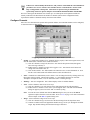
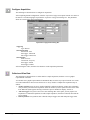
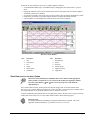
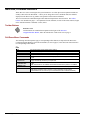
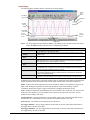
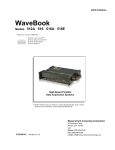
WaveView is a graphical Windows-based program for use in WaveBook applications. The program allows
users to acquire data for immediate viewing or for storage to the PC's hard disk. No previous programming
knowledge is required.
From WaveView you can:
•
•
•
•
•
WaveView
Set up all analog or digital input parameters.
Acquire and save data to disk.
View the acquisition in real-time.
Send data to other Windows applications, such as spreadsheets and databases.
Launch an independent post-data acquisition application, such as DIAdem, PostView, or
eZ-View, to view file data recorded by WaveView. Refer to the applicable document module
for detailed information.
03-05-02
WaveView, pg. 1