1
Material Condition) do not map to the 1001 table. They are supported
by the 1003 font table. The configuration file option
use_iges_font_1003 determines which IGES font table outputs data
to IGES.When you assign an ASCII character to a new symbol, select a
character from either the 1001 or 1003 font table. Use 1001 or 1003
exclusively when you anticipate that a drawing will be exported in an
IGES file. (Refer to your IGES documentation for more information on
IGES font tables.)
How to Edit Pro/ENGINEER Fonts or Create New Fonts
1. Edit an existing or create a new .src file, which resides in
<loadpoint>/text/<language>.
2. Compile the font file by using the compile_font command.
3. Make the new font available locally or for all users.
How to Modify a Pro/ENGINEER Font File
1. Copy the appropriate .src font file into your working directory. The
.src files reside in <loadpoint>/text/<language>.
2. Modify the font file.
3. From the <loadpoint>/text/<language> area, copy the
appropriate index file to your working directory.
4. Copy the compile_font command to your working area. If you are
working on a UNIX machine, copy the executable compile_font to
your working directory. The executable is in the following directory:
<loadpoint>/<machine_type>/obj.
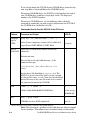
5. To compile the font, enter the following command for each font file
you modify: compile_font fontfilename.src
fontfilename.fnt
Note: If you modify the ASCII font definitions, it alters the appearance
of the default font in every Pro/ENGINEER module.
How to Create a User-Defined Font File
1. Define a new font in a file with the extension .src. Store the new
font in your working directory.
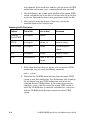
2. Create an index file that includes the new font file. Make sure the
index file contains fonts with unique codesets.
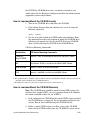
3. Copy the compile_font command to your working area. If you are
working on a UNIX machine, copy the executable compile_font
from <loadpoint>/<machine_type>/obj into your working
directory.
B-20
Pro/ENGINEER Installation and Administration Guide