1
Installation Manual
Version 1.3
November 22, 2000
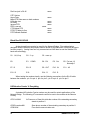
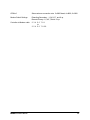
Information in this document is subject to change without notice. No part of this document may
be reproduced, copied, adapted, or transmitted, in any form or by any means, electronic or
mechanical, for any purpose, without the express written consent of Galaxy Control Systems.
Copyright protection claims include all forms and matters of copyrighted material and
information, including but not limited to, material generated from the software programs which
are displayed on the screen such as icons, look and feel, etc.
Revision History
1.0
1.1
1.2
1.3
First Release 06/29/2000
Release 08/18/2000 – Updated diagrams, backplane references
Release 08/29/2000 – New I/O diagrams, Lantronix-to-PC diagrams
Release 11/22/2000 – Added Lantronix Configuration section
Galaxy Control Systems
3 North Main Street
Walkersville, MD 21793
Phone: (301) 845-6600
Fax: (301) 898-3331
Email: [email protected]
Internet: http://www.galaxysys.com
Copyright © 2000 Galaxy Control Systems All Rights Reserved
2
Satellite Installation Manual
Table of Contents
TABLE OF CONTENTS .................................3
INTRODUCTION ............................................5
4 Overview ...............................................................................................................5
4 The Satellite Hardware ..........................................................................................5
Satellite Controllers ....................................................................................................... 5
Card Readers/Keypads.................................................................................................. 6
The Input/Output Port (I/O) ............................................................................................ 6
The Computer System ................................................................................................... 6
Simple System Configuration ....................................................................................... 7
CONTROLLER INSTALLATION ...................9
4 Site Plan ................................................................................................................9
4 Installation Procedure..........................................................................................9
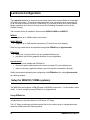
4 The Satellite Controller ......................................................................................10
Specifications ...............................................................................................................10
Mounting the Controller ...............................................................................................11
Central Processing Unit ...............................................................................................11
PORT CONFIGURATION ............................17
4 Reader Port.........................................................................................................17
Infrared Swipe Readers and Keypads .........................................................................19
Wiegand Swipe Reader.................................................................................................20
Satellite Installation Manual
3
Magnetic Stripe Reader ................................................................................................21
Barcode Readers ..........................................................................................................22
Essex keypads ..............................................................................................................23
Proximity Readers ........................................................................................................25
Parallel Reader Module.................................................................................................27
Door Contact/Request to Exit ......................................................................................28
Lock Wiring ...................................................................................................................29
Programming Reader....................................................................................................30
4 Input/Output Ports..............................................................................................32
Inputs.............................................................................................................................32
Outputs ..........................................................................................................................32
COMMUNICATIONS AND POWER
CONFIGURATION .......................................34
4 Network Connections ........................................................................................34
Direct Connection .........................................................................................................34
Line Drivers ...................................................................................................................35
Network Bridge: Asynchronous Controller Communication .....................................36
4 PC Connections .................................................................................................40
Direct Connection .........................................................................................................40
Dial up Connection .......................................................................................................40
TCP/IP Connection........................................................................................................41
4 Power Connections............................................................................................41
4 Lantronix Configuration ....................................................................................42
Setup for MSS100 (100Mb systems) ............................................................................42
Setup for MSS1/MSS1T2 (10Mb systems) ...................................................................46
4 J16 Connector ....................................................................................................50
APPENDIX ...................................................51
4 Unit Number Table .............................................................................................51
4
Satellite Installation Manual
Introduction
Overview
Satellite is an easy to install, easy to use, high performance access control and security
management system. Designed for use in a wide variety of security applications, the Satellite
system allows users to monitor and control many facility control and security functions. The
Microsoft Windows® based software and graphical user interface facilitate its use by individuals
of all skill levels. Microsoft Windows® was chosen because of its graphical user interface (GUI),
ease of use and wide acceptance. The GUI is consistent throughout most Windows-based
programs. Once familiar with the basic Windows concepts, most applications or programs are
easily learned.
The Satellite system provides integrated access control and many security management
functions. With the software and hardware that make up the Satellite, a user can control a
complete facility or multiple facilities. The Satellite system was designed to combine Access
Control, Alarm Monitoring, Photo Imaging/Badging, Photo Verification, HVAC and Lighting
within a facility.
The Satellite system consists of both electronic hardware and software components that
work together to control and monitor a facility. The software components are used to configure
and monitor the operation of the hardware while the hardware components implement the actual
security and control functions.
This manual is written around the features of the Satellite software and the Satellite
Controller. Both of these are required to take advantage of all the features discussed in this
guide. Please contact Galaxy Control System’s Technical Support with any questions.
The Satellite Hardware
The Satellite system hardware consists of four major components: the Satellite Control
Units, Card Readers, Input/Output Ports, and the Personal Computer.
Satellite Controllers
Satellite Installation Manual
5
This is the heart and brains of the hardware. All system functions, such as cards being
granted access and alarm devices monitoring the system, are controlled by this unit. In
addition, all system events, such as card reads and alarm events, are recorded by the Satellite
control units.
Card Readers/Keypads
The GCS Satellite system supports most of the industry’s major card readers and
technologies. The supported technologies and readers include but are not limited to:
-
Galaxy Control System’s infrared swipe readers, keypads, and card reader keypad
combinations.
Wiegand format readers including Proximity, Wiegand swipe, Wiegand key, keypads,
and most biometric technologies.
ABA format readers including magnetic stripe readers, barcode readers and keypads.
Additionally, the Parallel reader module allows a pair of readers to be connected to the
same controller port. This allows both entry and exit door control through the use of a
single port.
Galaxy is continually expanding its range of supported readers. If you have a particular
installation requirement, please contact Galaxy Control System for assistance.
The Input/Output Port (I/O)
This type of port allows up to four alarm devices to be monitored and provides two form
C relay outputs and 2 open collector outputs. The open-collector outputs are suitable for driving
low-current circuits such as LEDs or low-current relay coils. The output is pulled low by the
controller when the output is on (current flowing). External components must complete the
circuit by providing an electrical pull-up to positive voltage. See the Input/Output section for
more detail.
The Computer System
Minimum Requirements for PC Configuration
-
6
IBM Compatible PC with an Intel® Celeron ® 500 MHz processor (or higher)
64 Mb of RAM
Windows 95®, 98®, or Windows NT® Workstation 4.0 with Service Pack 5
Microsoft® Internet Explorer version 4.0 or higher (cannot be replaced by Netscape®
Navigator)
Satellite Installation Manual
-
-
2 GB of free hard drive space to install Satellite; more space needed depending on size
of database.
Standard graphics card capable of 24-bit color at 1024 x 768 resolution
17”monitor (or larger)
Standard Parallel Port
COM (serial) ports as required:
- One COM port per loop
- An additional COM port if using an RS-232 programming reader
One COM port if using a serial Port UPS
One serial Port UPS (recommended)
Any Windows® compatible printer for report printing
The above specifications are minimum requirements only and are subject to change with
the addition of software modules. Please contact Galaxy Control System to ensure these are
the latest specifications.
NOTE: ANY deviation from these minimum requirements can cause Satellite to not
function, or to operate with degraded performance.
Simple System Configuration
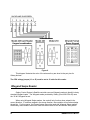
The basic system
configuration would be one controller
and one card reader. The card
reader and door controls would, of
course, be located at the point of
entry. Cabling between the card
reader and the controller allows data
to be sent to the controller and status
information to be sent back to the
reader indicator lights. Additional
cabling allows for the control of a
door release and a sensor signal to
be sent to the controller when the
door is opened. A manual access
switch can be added to the system so
that personnel without cards may be
visually recognized and the door
opened for them. The processor
board provides the surge protection
necessary to protect the CPU in the
event that the reader receives a
surge.
Figure 1
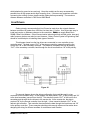
Most installations will consist of at
least two entry points controlled by
one primary controller. For systems with more than two points of entry, multiple controllers are
connected in a loop configuration with one controller acting as the primary unit and the others as
Satellite Installation Manual
7
secondary units. In a loop of this type, all controllers work in a similar fashion to make access
decisions, but only the primary controller is connected to a PC. This means that regardless of
the size of the network, only one connection is needed for system programming or for logging
activity. Such a design allows for the installation of a large enough system to accommodate up
to 256 points of entry and also provides the capability for upgrading or expanding at any time
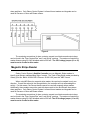
Figure 2
An expanded configuration of the system would consist of several Satellite controllers,
each controlling up to two points of entry as shown. Only one personal computer is required to
program the system regardless of the number of controllers in a system.
8
Satellite Installation Manual
Controller Installation
Site Plan
The first step to a successful installation is to make a site plan. This is a drawing
indicating the location of each component of the access system. It should include the
controllers, power supplies, PC, card readers and/or keypads, door contacts, door strike
sensors, all alarm points and all wiring lengths. Have the customer provide blueprints of the
building or buildings to assist you with this task. It is very helpful to have access to the electrical
drawings as well. Always remember to have your site plans approved by the local
regulatory agency to assure that your installation will conform to all safety codes. When
drawing any site plan, keep the following items in mind:
1. Keep all wire (power, network, strike, door sensor, alarm and reader) well away from high
frequency and high power lines. If the crossing of these lines is unavoidable, do so at a 90degree angle. This minimizes the electrical interference, which could disrupt the system’s
normal operation.
2. Use 22 AWG (Beldon #9946) shielded wire for readers; 22 AWG shielded twisted pair for
controller to controller (loop) wiring (Beldon #8723); and 18 AWG shielded wire for door
release connections. All system wiring should be in dedicated conduit, with the shields
grounded at the controller end only.
3. The controller should be centrally located in reference to the doors and/or alarm points that
it controls. This will prevent many long wire runs. It should also be located in a secure area
to prevent tampering.
4. If the distance between networked controllers exceeds 1000 feet (at 9600 baud), line drivers
or short haul modems are required.
Installation Procedure
1.
2.
3.
4.
5.
6.
7.
Mount chassis.
Wire network (J17).
Wire power supply (J17). DON’T PLUG IN AC AT THIS TIME.
Set Options, Unit No., and Baud Rate Switches on the CPU Board.
Connect the personal computer and modem if necessary.
Connect AC Power and make sure the three LEDs are illuminated.
Put Option Switch One in the down position.
Satellite Installation Manual
9
The Satellite Controller
Specifications
Controller Enclosure Dimensions: 21.00” x 14.00” x 4.00”: The controller enclosure is
designed to be wall mounted.
Input Power: 12 VDC @ 2 amps; minimum: 11.5 V, maximum: 14.0 V. This powers all PC
boards and readers. Lock Power must be provided separately. Most biometric readers
must also be separately powered. Be sure to common the grounds between the supplies.
Port Output: Form-C SPDT contacts; 24 VDC @ 1.5 amps maximum. Each port circuit
provides relay contacts for controlling external devices.
PC to Controller Communications: Serial Asynchronous RS-232. Interfaces at 2400, 4800
and 9600 baud.
Connections: Straight lead barrier strips. All cable should be shielded and connected to the
Power Supply Ground. DO NOT USE THE CONTROLLER CHASSIS FOR GROUND!
Connection
Distance
Wire
Beldon #
PC to controller (RS-232):
50 ft.
22 AWG 4 conductor twisted pair
8723
Controller to Modem (RS-232):
50 ft.
22 AWG 4 conductor twisted pair
8723
Controller to Controller at 9600 baud: 1000 ft.
22 AWG 4 conductor twisted pair
8723
Galaxy-provided line drivers can be used to go longer distances
All Galaxy readers:
2500 ft.
22 AWG 10 conductor
9946
All other readers:
500 ft.
22 AWG 10 conductor
9946
Lock Hardware:
18 AWG 2 conductor minimum
10
Satellite Installation Manual
Mounting the Controller
The controller enclosure is designed to be wall
mounted. Its specifications are 21.00” x 14.00” x 4.00”. Four
tear-dropped shaped mounting holes are available as shown
below. It is not necessary to remove the back plane board to
hang the unit. Typically, 1/4” wood screws or anchors with
sheet metal screws would be used.
When selecting a mounting location, keep the
following points in mind:
• Clean, reasonably dust-free environment
• Temperature should be between -10° C and +60° C.
• Location should have limited access for security purposes.
• Do not mount to metal studs. Do not connect Chassis
to Cold Water Ground.
• Avoid power transformers and high frequency devices.
Figure 3
Central Processing Unit
The Central Processing Unit (CPU) is the “Heart and Brains” of the Satellite system. It is
responsible for all decisions made by the system. Its inputs consist of card/PIN codes, door
sensors, manual egresses, alarm conditions, network messages and PC data. Control signals
for the door releases, reader LEDs, output relays, network and PC communications make up
the CPU’s outputs.
The illustration on the following page is of a Satellite CPU.
The CPU includes Option Switches, Unit Number Switches, Baud Switches, a Reset Switch,
LEDs, and Batteries. Each of these elements is discussed in the following sections.
Satellite Installation Manual
11
Supervision
- Low battery,
- AC Failure,
- Tamper
Dry input normally closed
Optional
Input/Output
Jumpers J7, J12
(I/O Port Voltage)
8 inputs/ 8 outputs
2 Readers
Jumpers J1, J5
Door contact,
Exit request
inputs
(Reader Voltage)
Figure 4
12
Satellite Installation Manual
Unit Number Switches (S2)
To the immediate left of the eight OPTION switches is a bank of switches labeled UNIT
NO. The combination on this bank determines the Unit Identification number of the controller.
The local primary controller hooked to the computer is always Unit Number “000.” If there are
additional controller, each one MUST have its own unique ID number. Other controller numbers
range from numbers 001 through 127, allowing for systems of up to 128 controllers. There
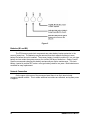
cannot be two controllers on a system with the same Unit Number. It is recommended that
secondary units be assigned unit numbers in ascending order starting with Unit ‘001’. The table
on the following page lists the different switch settings for Unit Numbers 000-05. Appendix A
lists the switch settings for unit numbers 0 through 99.
0 = Switch Down, OFF
1 = Switch Up, ON
Switch #
Value
1
1
2
2
3
4
4
8
5
16
6
32
7
64
8
128
0
1
0
1
0
1
0
0
1
1
0
0
0
0
0
0
1
1
0
0
0
0
0
0
0
0
0
0
0
0
0
0
0
0
0
0
0
0
0
0
0
0
0
0
0
0
0
0
Unit #
00
01
02
03
04
05
Option Switches (S3)
The OPTION (S3) switch bank is the second of three sets of dip switches located along
the left side of the CPU board. This bank of switches enables certain unique functions for the
panel. Below is a description of these switch functions.
Switch 1 – Reset Mode
In the up position, this switch initializes, wipes clean, or “COLD STARTS” the controller
memory when the controller is reset.
The controller is shipped with this switch in the up position so that it gets a clean start when
it is initially powered on at the site. Switch 1 should be placed in the down position upon
power-up of the controller.
With Switch 1 ON, anytime the system is reset, a “COLD START” will occur.
With Switch 1 OFF (down), the system will reset with a “WARM START.” A warm start does
not wipe out the controller memory.
A system reset can occur for any of these reasons:
Satellite Installation Manual
13
1.
2.
3.
4.
The reset button is depressed.
The CPU system voltage drops below 11.5 volts
The CPU automatically resets itself based on a built-in watchdog timer.
A Power surge occurs.
In the down position (switch 1 off), and with a fresh Lithium memory-backup battery
installed, a warm reset will occur when any of these conditions occur.
Switch 2 – Not Used at this time
Switches 3 and 4 - Communication Method
Combinations of settings for switches set the method of communication between the
controller and the PC or Network to which it is connecting.
Switch 3 down
Switch 3 up
Switch 3 down
and
and
and
Switch 4 down
Switch 4 down
Switch 4 up
= Direct cable connection
= Modem connection
= Ethernet/network connection
Switch 3 up and Switch 4 up = invalid setting.
If you are setting up a modem connection, make sure the controller has a “direct” phone
number. It cannot use an extension or other type of phone connection that is interrupted by
a switching system that would require dialing more numbers or being connected by a
receptionist.
If you are setting up an Ethernet/network connection, you must use a device (such as a
Lantronix device) that converts an RS 232 signal into an Ethernet signal (10-100 Mb).
The network must also use a TCP/IP format.
Switches 5 and 6 – Network Bridge
Extending secondary – Switch 5 up, Switch 6 down
Switch 5 in the up position makes that controller an extending secondary. Being an
extending secondary allows the controller to asynchronously communicate with another
controller loop. This allows multiple remote sites to be monitored by the same PC. For
more information on asynchronous communication between controllers, please see the
“Network Connections” section titled “Network Bridge: Asynchronous controller
communication.”
Remote Primary – Switch 5 down, Switch 6 up
Switch 6 in the up position makes that unit a primary controller no matter what the unit
number is. Unit 000 is still always a primary and should not have this switch in the up
position. Switch 6 would be used when a customer needs local and remote sites to behave
as one system. This enables two sites or controller loops to communicate asynchronously.
Please see the “Network Connections” section titled “Network Bridge: Asynchronous
controller communication.”
14
Satellite Installation Manual
Switches 7 and 8 - are unused at this time.
Baud Switches (S5)
To the right of the UNIT NO. switches, there is a bank of four switches labeled BAUD.
These are used to select communication parameters and must be compatible with those
selected on your PC or modem. Following is a list of the possible switch combinations and the
settings associated with each of them.
9600: All switches in the ON (up) position. (Factory Default)
4800: Switches 1 and 3 in the ON (up) position,
Switches 2 and 4 in the OFF (down) position.
2400: All switches in the OFF (down) position.
These switches correlate to the settings within the communications options of the
Satellite Software. Consult the Satellite User’s Guide for further information on PC to controller
communication.
Reset Switch (S6)
The final switch on the CPU is a push-button labeled RESET. When the controller is
powered up, certain operations are performed, including the reading of the UNIT No. and
OPTIONS switches. If any of the OPTION or UNIT NO. switches are changed, a reset must be
performed. Simply press the button and release. The new parameters will then take effect.
ALWAYS MAKE SURE OPTION SWITCH ONE IS IN THE DESIRED POSITION
BEFORE RESETTING.
LEDs
There are three indication LEDs to provide some basic information about the system.
Each is labeled by its function. The PWR LED tells if the system is receiving power. The other
two report the controller loop line status. XMIT is for the transmit signal while the RECV
indicates that data is being received through the network input path. During normal operation,
all three should be lit, however, the RECV and XMIT LEDs will be slightly dimmer than the PWR
LED.
The PWR LED will light with less than 12 VDC. Always check DC voltage between J17
pins 8 and 9 to verify that the controller is receiving approximately +13.8 VDC.
Satellite Installation Manual
15
Figure 5
Batteries (B1 and B2)
The CPU memory and clock components are under battery backup protection in the
event of power loss. The batteries may be removed from their respective sockets to save
battery life before the unit is installed. The memory battery, located in position B1, is a coin type
battery and can retain the system memory for a total of 90 days of down time. Galaxy Control
System recommends changing this battery semiannually as routine maintenance. The clock
battery, located in position B2, is also a coin type battery rated for ten years. Both batteries are
socketed for easy replacement.
Network Connection
On the upper right corner of the processor board there is an 8 pin terminal strip
connector labeled network. This is where additional controllers are attached, and system power
is applied.
16
Satellite Installation Manual
Port Configuration
Each port on a Satellite controller can be used as a reader port or an Input/Output Port.
Only one device can be used on a port at a time. The port type is specified in the Satellite
software (in the Controller Properties window). Consult the Satellite User Manual for
instructions on how to program the software.
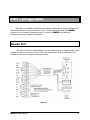
Reader Port
The basic wiring for a Galaxy Reader Port can consist of the 5 or 6 reader wires, a door
contact, a request to exit device, a lock of some sort and a device such as a sounder. This
diagram shows the how a typical reader port is wired.
Figure 6
Satellite Installation Manual
17
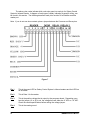
The above color codes indicate which color wire goes into each pin for Galaxy Control
System’s Infrared Reader. A diagram of each type of reader, indicating its specific wiring, can
be found in this section. The following describes each pin’s function for a Satellite controller
reader port.
Note: If you do not use door contacts, place a jumper between the Common and Sense pins.
Figure 7
Pin 1:
This is the green LED for Galaxy Control System’s Infrared readers and the LED line
for all others.
Pin 2:
This is Data 1 for the reader.
Pin 3:
This is the positive voltage that is output by the processor board. Depending upon
how the jumper (J1 or J5) is set, the voltage here will either be +5 VDC or +12 VDC.
Check the reader specifications before setting the voltage jumper.
Pin 4:
This is the reader ground.
18
Satellite Installation Manual
Pin 5:
This is Data 0 for the reader.
Pin 6:
This is the red LED for Galaxy Control System’s Infrared format readers. Because
most other readers support only one LED this is unused for all other readers.
Pin 7:
This pin is the common pin for the Door Contact and the Request to Exit Device.
Pin 8:
This pin is the sense pin. The Door contact should wire between this pin and pin 7
(common). When the door is closed, the panel must see a contact closure between
these pins. If contacts are not being used, the jumper associated with that port (J3
and J5) must be placed in the marked position (marked with a white line next to the
jumper).
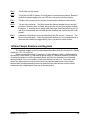
Pin 9:
A Request to Exit Device can be wired between this Pin and pin 7 (common). This
Device is normally open. When the panel sees a closure, it can be programmed to
shunt the door contact and trigger Relay One or just shunt the door contact.
Infrared Swipe Readers and Keypads
The following diagram of the Processor Board describes each pin’s function for a Galaxy
reader port. Pin 1 is on the left.
Galaxy recommends using 10 conductor, 22 AWG (Beldon # 9946), shielded cable for
the reader (6), door sense (2), and manual egress wiring (2). Maximum distance is 2500 feet.
All cables should be run inside a grounded conduit with only the controller end of the cable
shield grounded. Do not run cables in conduit that already has wire in it. The reader, door
sensor and egress device wires should be kept in a separate cable from the relay output,
because door releases generally draw more power than the other devices and may cause
interference and voltage spikes if both are in the same jacket.
Satellite Installation Manual
19
Figure 8
This diagram illustrates the color of the wires as they are wired to the port pins for
Galaxy devices.
The CPU voltage jumper (J1 or J5) must be set to 12 volts for this reader.
Wiegand Swipe Reader
Galaxy Control System’s Satellite controller can use Wiegand readers to identify industry
standard Wiegand cards. The Wiegand reader provided by Galaxy (Part # 90-0724-00) uses
the “26 bit”Wiegand format
When using Wiegand Swipe readers, the card will only function when swiped in the
correct direction. If cards are swiped in the wrong direction, the controller will not acknowledge
the activity. For this reason, the Duress feature cannot be used with Wiegand Swipe readers.
Additionally, these readers cannot be used with alarm cards to Arm and Disarm the systems
20
Satellite Installation Manual
alarm partitions. Only Galaxy Control System’s Infrared format readers and keypads can be
used for Duress or to Arm and Disarm alarms.
Figure 9
The remaining connections for door contacts, request to exit devices and output relays
can be found in the “Door Contact/Rex” and “Lock Wiring” sections. The maximum controller to
reader distance using 22 AWG shielded cable is 500 feet. The CPU voltage jumper (J1 or J5)
must be set to 5 volts for this reader.
Magnetic Stripe Reader
Galaxy Control System’s Satellite Controller can use Magnetic Stripe readers to
identify most industry standard Mag Stripe formats. The Track II Mag Stripe reader provided by
Galaxy (Part #’s: Black: 90-0010-00 & Chrome: 90-0011-00) uses the “ABA” format.
When using MR Sensor’s magnetic stripe reader, the card can be swiped in only one
direction. If cards are swiped in the wrong direction, the controller will not acknowledge the
activity. For this reason, the Duress feature cannot be used with magnetic stripe readers.
Additionally, these readers cannot be used with alarm cards to Arm and Disarm the systems
alarm partitions. Only Galaxy Control System’s Infrared format readers and keypads can be
used for Duress or to Arm and Disarm alarms.
The remaining connections for door contacts, request to exit devices and output relays
can be found in the “Door Contact/Rex” and “Lock Wiring” sections. The maximum controller to
reader distance using 22 AWG shielded cable is 500 feet. The CPU voltage jumper (J1 or J5)
must be set to 5 volts for this reader.
Satellite Installation Manual
21
Figure 10
Barcode Readers
Galaxy Control System’s Satellite Controller can use a barcode reader to identify most
industry standard barcode formats. The Barcode reader provided by Galaxy (Part # 90-084000) uses the “ABA”(Magnetic Stripe) format.
Figure 11
When using a standard barcode reader, the card does not provide a “direction.” For this reason,
the Duress feature cannot be used with barcode readers. Additionally, these readers cannot be
used as alarm cards to Arm and Disarm the systems alarm partitions. Only Galaxy Control
22
Satellite Installation Manual
System’s Infrared format readers and keypads can be used for Duress or to Arm and Disarm
alarms.
The remaining connections for door contacts, request to exit devices and output relays
can be found in the “Door Contact/Rex” and “Lock Wiring” sections. The maximum controller to
reader distance using 22 AWG shielded cable is 500 feet. The CPU voltage jumper (J1 or J5)
must be set to 5 volts for this reader.
Essex keypads
Galaxy offers three formats of the Essex keypad: Infrared, ABA, and Wiegand. These
formats are available so that Pin Required can be used with Infrared, Magnetic Stripe and
Wiegand format stand alone readers. Below are the wiring diagrams for the ABA and Wiegand
formats. The Infrared format diagram can be found in the “Infrared Swipe Reader and Keypads”
section. Please contact Galaxy Control System’s Technical Support to find out which format of
Essex keypad is best for your application.
ABA Format
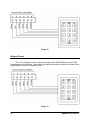
The “ABA”version of the Essex keypad (Part # 90-0050-00) provides “ABA Track II” format data
to the controller. When using this diagram make sure the label on the back of the keypad
identifies it as the “ABA Track II”format.
Alarms cannot be Armed or Disarmed and the Duress feature cannot be used with NonInfrared format keypads. Only Galaxy Control System’s Infrared format readers and keypads
can be used for Duress or to Arm and Disarm alarms.
The remaining connections for door contacts, request to exit devices and output relays
can be found in the “Door Contact/Rex” and “Lock Wiring” sections. The maximum reader-tocontroller distance is 500 feet when using 22 AWG shielded cable The CPU voltage jumper
(J1 or J5) must be set to 12 volts for this reader.
Satellite Installation Manual
23
Figure 12
Wiegand Format
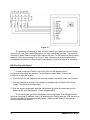
The “26 bit Wiegand” version of the Essex keypad (Part #90-0060-00) provides 26 Bit
Wiegand data to the controller. When using this diagram make sure the label on the back of the
keypad identifies it as the “Wiegand”format.
Figure 13
24
Satellite Installation Manual
Alarms cannot be Armed or Disarmed and the Duress feature cannot be used with NonInfrared format Keypads. Only Galaxy Control System’s Infrared format readers and keypads
can be used for Duress or to Arm and Disarm
The remaining connections for door contacts, request to exit devices and output relays can be
found in the “Door Contact/Rex” and “Lock Wiring” sections. The maximum reader-to-controller
distance is 500 feet when using 22 AWG shielded cable. The CPU voltage jumper (J1 or J5)
must be set to 12 volts for this reader.
Proximity Readers
Galaxy Control System’s Satellite Controller supports HID as well as most other
Proximity devices which are Wiegand format outputs. There are also portal and road loop
readers available; however, these models are not discussed in this manual. For information on
these systems, contact Galaxy Control System’s Technical Support Staff. The Proximity
readers provided by Galaxy use the “26 Bit Wiegand” format.
Alarms cannot be Armed or Disarmed and the Duress feature cannot be used with NonInfrared format readers. Only Galaxy Control System’s Infrared format readers and keypads
can be used for Duress or to Arm and Disarm alarms.
Do Not install the read head/antenna in close proximity to devices that could emit radio
frequency interference such as computer monitors, cordless telephones, and radio transmitters.
Any device that emits RF interference in the area of the read head/antenna will reduce the
overall read range. Some large computer monitors can emit RF for up to 40 feet. In addition,
do not install the read head/antenna on metallic surfaces of any kind. The metal will greatly
reduce the read range. Most window glass in today’s buildings contain some percentage of
metallic silver used to reflect ultraviolet rays. These metallic qualities will reduce the maximum
read range that can be achieved. Proper grounding is crucial for optimum read ranges to be
achieved.
When wiring the device, the shield and ground (Black) wires from the reader CANNOT
be connected together, otherwise a ground loop condition may occur. This will cause the
maximum read range to be reduced.
Satellite Installation Manual
25
Figure 14
The remaining connections for door contacts, request to exit devices and output relays
can be found in the “Door Contact/Request to exit” and “Lock Wiring” sections. The maximum
controller to reader distance using 22 AWG cable is 500 feet. For HID and most other proximity
readers the CPU jumper setting (J1 or J5) is 12 volts. Please check the documentation that
accompanies the reader or contact Galaxy Control System’s Technical Support for assistance.
HID Prox Pro with Keypad
In order to adjust the Facility Code for the Prox Pro with Keypad a set of
configuration/reset cards are required. Contact Galaxy to obtain these. Follow these
instructions to reset the keypad
1. Once the Prox Pro with keypad is wired and the keypad is connected, power on the device.
2. After the initialization beeping for the reader has stopped, pass the Reset card over the
reader. The reader should beep again.
3. After the beeping stops again, pass the configuration card over the reader and type the
desired facility code followed by #. Galaxy suggests 096#.
To test the keypad, go into the Cardholders window and add a 26-bit Wiegand format
card (see user guide for adding a card). If 96 appears as the Facility code and 1234 comes in as
the card code then the procedure worked properly. Please contact Galaxy if you have any
questions about this procedure.
26
Satellite Installation Manual
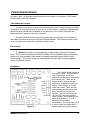
Parallel Reader Module
In certain cases, it is desirable to attach more than one reader to a single port. The Parallel
Reader Module makes this possible.
Two readers on one port
A customer who does not need to differentiate the direction of travel but wants to control
the entrance and exit through a given door can do so with one port. Installing a Parallel Reader
Module allows two readers to be installed on the same port--one on either side of the door.
Both readers then appear as one to the controller.
The Anti-Passback function cannot be implemented on a particular door if readers on
both sides of that door are wired into the same Parallel Adapter. This is because there is then
no way to assign each reader into a different Passback Area.
Pin required
The Satellite controller can be programmed to require both a card and PIN code for
entry. This can be accomplished with either the Model 225 Card Reader/Keypad Combination
reader or by using a separate card reader and keypad connected together with a Parallel
Reader Module. This option can also be exercised with Wiegand output devices, Magnetic
Stripe, and Barcode readers.
Installation
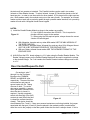
Figure 15
Satellite Installation Manual
The Parallel Reader Module is
very easy to install. There are three
sets of connectors, two for the
readers and a third which connects to
the controller port. There are six
terminal pins for each of the three
connectors, all labeled according to
Galaxy Control System’s infrared
reader color code. There are also
three separate jumpers which must
be set correctly for the device to
function. Two of the three jumpers
(JP1 and JP2) are used to select
reader voltage. Each reader can be
powered by either +12 V or +5 V,
depending on the reader
requirements. The third jumper (JP3)
is used to select the reader type. If
these jumpers are not set correctly,
27
the device will not operate as intended. The Parallel Interface can be used in two modes:
Infrared or Other Reader formats. To select Infrared, Jumper JP3 should be placed on the left
hand two pins. In order to use the module for other readers, JP3 is placed on the right most two
pins. Both readers used in the module must put out the same format. For example, an Infrared
reader would not work with a proximity reader through a parallel reader interface, but a proximity
reader will work with a Wiegand format Essex keypad.
NOTES:
1) Install the Parallel Reader Module as close to the readers as possible.
2) Use 18 AWG wire rather than 22 AWG. This is required to
provide sufficient current to the readers.
Figure 16
3) When using the PIN-required option, always choose the correct
version of Essex Keypad.
v With Magstripe, barcode and any other ABA reader USE THE ABA VERSION OF
THE ESSEX KEYPAD.
v With Proximity, Wiegand Swipe, Wiegand Key, and any other 26 bit Wiegand format
USE THE 26 BIT WIEGAND VERSION OF THE ESSEX KEYPAD.
v With any Galaxy Infrared format reader USE THE INFRARED FORMAT OF THE
ESSEX KEYPAD
4) ALWAYS set the CPU board voltage to +12 V when using the Parallel Reader Module. The
Reader Voltage jumpers on the Parallel Reader Module will be used to regulate the voltage
to the desired voltage. For 5 volt readers the Parallel Reader Interface voltage must be set
to +5 V
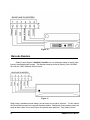
Door Contact/Request to Exit
On each port, pins 7
through 9 on the Processor
Board are the COMMON,
SENSE, and MANUAL pins,
respectively. These are the door
contact/sensor and manual
egress inputs with Pin 7 being
common to both. To use the
door sense capability, a sensor,
which generates a closed circuit
when the door is closed, is
required. Usually a magnetic
switch with Normally Open (NO)
contacts is used (When the door
Figure 16
is closed the contact should be
closed). This device should be
wired between Pins 7 and 8. If door open sensors/contacts are not being installed, the jumper
associated with that port (J3 and J5) must be placed in the marked position (marked with a
white line next to the jumper) so that the system thinks that the door is always closed. If this is
28
Satellite Installation Manual
not done, once the readers are powered up, both reader LED’s will come on (This indicates a
Forced Open condition) and eventually both LED’s will go off (This indicates a Door Left Open
condition. Default time is 15 seconds before both LED’s turn off). In addition, the readers will
not recognize any card swipes.
The manual egress Request to Exit input allows the lock control relay (Relay 1) and door
contact to be activated by means other than a card. The egress device can be anything which
produces a momentary contact closure between Pins 7 and 9. Two examples of manual egress
devices are a push button switch and a motion detector with contacts.
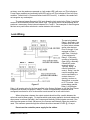
Lock Wiring
The port pins labeled
Relay 1 and Relay 2 are
outputs which are used
to control a door release
and/or other devices.
Pins 10 through 12 are
assigned to Relay 1,
while Pins 13 through
15 are assigned to
Relay 2. Each relay
consists of a Normally
Open (NO), a Normally
Closed (NC) and a
common contact.
Typically, Relay 1 is
used for strike/lock
control. Relay 2 can be
used for anything that
can be controlled by a
contact closure or
opening, such as an
alarm shunt, a sounder
or CCTV control. Upon
Figure 17
access being granted,
Relay 1 will energize.
Relay 1 will remain active for the time specified in the System Software or until the Door Sensor
indicates that the door has opened. Relay 2, if used, is independently timed and can be
configured to activate for all of its door alarm events as well as its own valid unlock.
When wiring door releases, the output contacts should act like a switch between the
strike lock and its power supply. For devices which need power applied to lock and release only
when power is removed (fail-safe), the Common and Normally Closed outputs are used. If the
strike requires power to unlock (fail-secure), the Common and Normally Open pins would be
used. The maximum power through the contacts should not exceed 24 VDC @ 1.5 amps.
Do not use the controller power supply for the strikes.
Satellite Installation Manual
29
Programming Reader
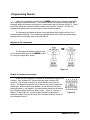
Cards can be swiped or learned into the Satellite system using a Galaxy provided RS232 Programming Reader/Interface. This interface allows Transmissive Infrared, ABA and
Wiegand reader technologies to plug into a communication port on the back of the PC. Cards
can still be added to the system through a reader on a controller, however. The RS-232
Programming reader does not occupy a port on the Satellite controller.
The Programming Reader Interface can be purchased from Galaxy with any of our
provided readers attached. The Programming Reader works well for dial up systems where
swiping cards into a system used to be quite difficult.
Interface to PC connection
The Programming Reader Interface wires
into a communication port on the Satellite system
PC using the configuration shown.
Figure 18
Reader to interface connections
There are two connectors for readers to be attached on the RS-232
interface. One is labeled INT (internal) and the other is labeled EXT
(external). The internal connection is usually already wired from the
factory. The External connection can be used for any Galaxy supported
reader type. Both connectors are labeled 1-6 with the pins having the
properties shown in the diagram. An infrared reader would wire as shown,
but a Wiegand reader would wire, Brown to pin 1, White to 2, Red to 3,
Black to 4, and Green to 5, just as a regular Wiegand reader would.
Additional reader wiring can be found in the individual reader’s section of
the Installation manual.
30
Figure 19
Satellite Installation Manual
Voltage jumper
There is a voltage jumper on the RS-232 Reader Interface. The jumper must be set to
5 volts for all 5 volt readers or the readers and the Interface will be damaged.
INT/EXT Switch
This switch is used to tell the interface which connector, internal or external, it should be
receiving data through. Be sure to flip the INT/EXT switch accordingly when changing from
using the internal reader to the external reader or visa versa.
Dip Switches
The bank of dip switches is used to tell the RS-232 interface what type of data, Infrared,
Wiegand, or ABA, it should be receiving from the reader and transmitting to the computer. This
is how the switches need to be set for the three different data formats.
Infrared: All OFF
Wiegand: #1 ON, all others OFF
ABA: #2 ON, all others OFF
Satellite Installation Manual
31
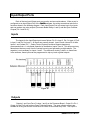
Input/Output Ports
Each of the two Input/Output ports can monitor and annunciate alarms. When a port is
configured as an Input/Output Port in the Satellite software, the wiring connections take on the
functions shown in the following diagram. Each Input/Output Port can accept up to four inputs
and can produce two relay outputs (Processor Board Relays 1 and 2) and two Open Collector
Outputs (Pin 1 and Pin 6).
Inputs
The Inputs for the Input/Output port are as follows: Pin 2 is Input 3, Pin 5 is Input 4, Pin 8
is Input 1 and Pin 9 is Input 2. All inputs are normally closed. Inputs 3 and 4 share Pin 4 while
Inputs 1 and 2 share Pin 7. Galaxy Control System’s technical support department
recommends that a .1 microfarad capacitor be installed on Inputs 3 and 4. This will prevent any
false alarms that may result from the contact bouncing and generating multiple alarms. The
capacitor is not necessary for Inputs 1 and 2. The debounce circuitry is built in to these lines.
In the software, these inputs can be programmed to trip any local or global outputs.
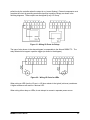
Figure 20
Outputs
Outputs 1 and 2 are Form C relays 1 and 2 on the Processor Board. Output 3 is Pin 1,
Output 4 is the Pin 6 and both are Open Collector Outputs. The open collector outputs are
suitable for driving low-current circuits such as LEDs or low-current relay coils. The output is
32
Satellite Installation Manual
pulled low by the controller when the output is on (current flowing). External components must
complete the circuit by providing an electrical pull-up to positive voltage, as shown in the
following diagrams. These outputs can be tripped by any I/O Group.
Figure 21 –Wiring I/O Ports for Relays
The type of relay shown in the above diagram is comparable to the Altronix RBSN-TTL. The
relay selected must support a positive trigger (as shown in the diagram).
Figure 22 – Wiring I/O Ports for LEDs
When wiring an LED from the I/O port, a 150 ohm resistor is the typical (minimum) resistance.
A higher resistance will result in a dimmer LED.
When wiring either relays or LEDs, do not attempt to connect a separate power source.
Satellite Installation Manual
33
Communications and Power
Configuration
J17 is a 8-position screw terminal connector located on the upper right corner of
the Processor Board, labeled NETWORK. This is where networked controllers are
attached and controller power is applied. J15 is a 6-position screw terminal connector
also located at the top of the Processor Board , labeled PWR/MODEM RELAY. This is
the modem relay connections are made.
Network Connections
In a Satellite controller network, the controllers form a daisy-chain loop around which the
controller data travels for all units to utilize as necessary. The main controller is designated as
the primary controller while the rest are called secondaries. The maximum number of
controllers in one network is 128.
The four pins on the right of the terminal connector are labeled IN, IN, and OUT, OUT.
All controllers transmit network information through the OUT pins to the next controller. The
next unit receives the data on the IN pins, then retransmits it out on the OUT pins. The data
travels completely around the network loop in this manner and is eventually received in by the
primary unit’s IN pins. Each Processor Board comes with two jumper wires between each set of
IN/OUT pins. These jumpers are required for a stand alone primary so that the controller
network is complete. THESE JUMPERS MUST BE REMOVED WHEN MORE THAN ONE
CONTROLLER IS ON THE NETWORK.
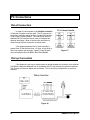
Direct Connection
This figure illustrates network wiring for 1, 2
and 3 controller systems. If larger systems are
required, simply wire the additional units into the
network in the same fashion as shown with the three
controller illustration. It is necessary to observe
polarity when wiring the network. The OUT of one
unit must go to the IN of the next unit and likewise
with the other IN/OUT pins.
Figure 23
34
When wiring the network, use 4 conductor,
22 AWG (Beldon #8723) shielded, twisted pair
cable. It should be in its own grounded conduit with the
Satellite Installation Manual
shield attached to ground at one end only. Keep the conduits as far away as reasonably
possible from all high power and/or high frequency lines. If there are any questions or doubts
concerning the running of wires, please contact Galaxy before proceeding. The maximum
distance between controllers is 1000 feet at 9600 Baud.
Line Drivers
Galaxy strongly recommends that Line Drivers be used when the network distance
between controllers is greater than 1000 feet, but less than 1.5 miles. Line Drivers are easy to
install and require no hardware changes to the controllers. Galaxy can supply Black Box’s
SHMB-2 Short Haul Modem. Other communication technologies such as fiber optics, laser and
radio frequency devices can also be used, however, Galaxy Control System’s Engineering Staff
should be consulted prior to installing these types of devices.
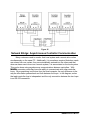
This diagram shows how the line drivers are connected in a one controller to one
controller setup. The data comes “OUT”of the primary controller, passes through the line
drivers and “IN”to the secondary controller. The data then completes the loop by passing
“OUT”of the secondary controller, back through the line drivers and then “IN” to the primary.
Figure 24
The second diagram shows the wiring configuration that would be used in a two
controller to two controller setup. In this diagram, the data passes “OUT” of the primary and “IN”
to the local secondary (second from the left). The data then travels “OUT” of the local or first
secondary and through the line drivers to the remote site. At the remote site, the data is
received “IN”by the second controller from the right. It then transmits the data “OUT”to the
farthest right controller. That controller then transmits the data through the line drivers and “IN”
to the primary controller. These examples should provide enough reference information when
designing the wiring for different numbers of controllers at each location.
Satellite Installation Manual
35
Figure 25
Network Bridge: Asynchronous Controller Communication
Many customers need to monitor their local system and a remote site or sites
simultaneously on the same PC. Additionally, it is sometimes required that when cards
are entered into one system, they are automatically entered into the others and that
when an alarm event occurs on a remote system, it is annunciated on the local system.
This can be done using asynchronous communications between controllers. With
Satellite, secondary controllers have the ability to communicate with other controller
loops. All programming is still done from the local computer; the only difference is the
way the information passes back and forth between the loops. In the diagram, notice
that each controller loop is independent and the only connection between the two loops
is an RS-232 connection.
36
Satellite Installation Manual
Figure 26
There are several different kinds of devices that can be used as a Network bridge
between controllers. Each type of device has advantages and disadvantages. Please
contact Galaxy Control System’s Engineering staff to determine which would be best for
your system.
Lantronix MSS1
The Lantronix MSS1 is an Internet communication device that enables RS-232 format
data to travel between points on a Computer Network. Because Computer Network Traffic can
greatly affect how the Satellite panels communicate, it is necessary to consult Galaxy’s
Engineering Support before specifying or installing these devices.
See the “Lantronix Configuration”for instructions on configuring the device (p. 42).
Motorola UDS v.3225
Digital leased lines can also be used to create a Network Bridge between controllers.
Below is a description of how the Motorola UDS v.3225 needs to be configured.
EXTENDING SECONDARY
Modem Options
DCE rate is 9600 Trellis
Normal Originate
4 Wire
Tx level --15 dBm
Satellite Installation Manual
REMOTE PRIMARY
same
Forced Answer
same
same
37
Dial Line jack is RJ-45
same
DTE Options
Async Data
Make DTE Rate same on both modems
8 Bit char size
No Parity
Ignores DTR
DCD is normal
CTS follows RTS
RTS-CTS delay is 0ms
DTE Fallback-disabled
same
same
same
same
same
same
same
same
Black Box 201 BC/AS
Analog leased lines can also be used for the Network Bridge. The settings below
designate how the switches and jumpers need to be set for the Black Box 201BC/AS devices to
function properly. Analog lines can only communicate at 2400 baud so set the Satellite CPU
baud rate accordingly.
S1: 1,4,6,8 up
S2: 2 up
S3: none up
E2:
E3
E4: RX
E5: Out
E6: For test -12
Normally 0
E7: B
E8: B
E9: OUT
E10: IN
E11: -45
E12: B
E13:
E14: D
E15: D
CGND
When testing the modems locally, use the following connections for the RJ-45 cable
between the modems: pin 3 to pin 4; pin 4 to pin 3; pin 5 to pin 6; pin 6 to pin 5
US Robotics Courier V. Everything
A standard US robotics Courier modem may be used for certain applications of the
Network Bridge. The following AT commands need to be sent to the modem at the Remote
Primary
ATS13=16&W
AT&Z0=number&W
AT&B1&W
38
At Power on or Reset this dials the number of the extending secondary
stored at position 0
Store phone number of the extending secondary at position 0.
Fixes serial communication rate
Satellite Installation Manual
AT&N=6
Sets maximum connection rate. 6=9600 baud; 4=4800; 3=2400
Modem Switch Settings:
Extending Secondary: 1,2,4,5,6,7, and 9 up
Remote Primary: 1,2,4,6,7,9 and 10 up
Controller to Modem cable:
2 3 4 5 6 7 8 1
to
3 2 4 5 6 7 8 20
Satellite Installation Manual
39
PC Connections
Direct Connection
In order to communicate to the Satellite controller,
a Personal Computer must be used. The PC connects to
the primary controller using the 8-pin female DB connector
(J14) on the Processor Board. The connection uses the
standard RS-232 interface and is used to configure and
observe the system. Most of the time the connection is
made through a direct connection as shown here.
If the distance between the PC and controller is
greater than 50 feet but less than 1.5 miles, a line driver or
short haul modem can be used. Galaxy Control System
can provide Black Box’s SHMB-2 Short Haul Modem.
Figure 27
Dial up Connection
If the distance is too long or cable cannot be pulled between the locations, then external
US Robotics Sportster Modems can be installed at the PC and the primary controller locations.
The Primary can then be dialed and connected. This is the wiring configuration for a dial up
scenario.
Figure 28
40
Satellite Installation Manual
While at the controller location, be sure to record the Primary unit’s serial number for system
registration.
Each US Robotics Sportster modem must have switches 3, 5, and 8 in the ON position
and all other switches must be OFF. Place Option switch 3 on the Satellite CPU board in the up
position to enable dial up.
TCP/IP Connection
When connecting to the PC from the Primary Controller using TCP/IP, a
Lantronix device is used. The Lantronix device is attached to the TCP/IP
Network (LAN/WAN), then to the primary controller’s J14 connector.
This diagram shows the Lantronix-to-Primary controller connections.
See the “Lantronix Configuration”for instructions on configuring the
device (p. 42).
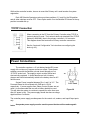
Power Connections
The controller requires a +12 volt battery-backed DC power
supply with a minimum 2 ampere continuous output. These power
supplies come with the Satellite unit and should actually put out
13.8 VDC under load. The supply’s output must be filtered and
electronically regulated. It should also have a built in battery
charger and should automatically switch to the battery when an AC
failure occurs.
System Power is applied between Pins 1 and 2 of J17. The
Processor Board is silk-screened with GND and +12V IN
respectively. If power supplies from Galaxy Control System are not
used, it is recommended that one with a battery backup be used.
This will allow the system to continue to operate for some time even
after AC power is lost. The power supply should also have a voltage
ripple less than 2 millivolts.
Figure 29
The controller power supply provides power for the control unit, readers, and Input/Output ports
only.
A separate power supply must be used to power the door strikes and magnetic
locks.
Satellite Installation Manual
41
Lantronix Configuration
The Lantronix device is an Internet communication device that converts Ethernet format data
to RS-232 format data. This allows Galaxy controllers to be connected to their supporting PC
via an Ethernet connection (such as a LAN/WAN), or to connect to each other over a Network
Bridge created by two Lantronix devices (one at the Extending Secondary and one at the
Remote Primary).
The Lantronix device is available in three models: MSS100, MSS1 and MSS1T2.
MSS100
• supports up to 100Mb network connections
MSS1/ MSS1T2
• supports up to 10Mb network connections (T2 version has coax adapter)
Setup for any model can be accomplished using either EZWebCon or Hyperterminal.
EZWebCon
• allows you to plug the device into any available Ethernet port
• provides a user-friendly graphical interface for the configuration
Hyperterminal
• generally more reliable than EZWebCon
• requires a special cable between the device and setup PC (sent with devices)
• does not have any graphical interface (you must type the commands in directly)
Galaxy recommends attempting the configuration with EZWebCon first, using Hyperterminal
as a backup method.
Setup for MSS100 (100Mb systems)
The MSS100 model supports 100Mb Ethernet (LAN/WAN) connections. It is the smaller, newer
model. It can be configured using EZWebCon or Hyperterminal.
Using EZWebCon
Included with your Lantronix device is a CD and a 3.5” floppy.
The 3.5”floppy contains pre-configured setup files for the various types of configurations and
Lantronix models used with Galaxy systems.
42
Satellite Installation Manual
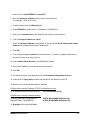
1. Use the CD to install EZWebCon on the PC.
2. Note the Hardware address on back of the Lantronix device.
For example: 00.80.a3.21.5f.63
3. Connect the device to an Ethernet port.
4. Open EZWebCon. (Start button >> Programs >> EZWebCon)
5. Click on the Lantronix box in the lower left had corner to open the menu.
6. Click on Assign IP address to server.
7. Enter the Hardware address from the back of the device and the IP address and subnet
address (as provided by the local IT department).
8. Click OK.
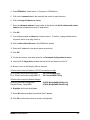
9. You will be prompted to reboot the Lantronix device. To do this, unplug the device from
the power source, then plug it back in.
10. Click on Micro-Serial Servers in the EZWebCon window.
11. Enter the IP address for the device (same as previous).
12. Click OK.
13. On the next screen, scroll down and click on Download Configuration to server.
14. Insert the 3.5” floppy disk provided with the device into the drive of the PC.
15. Browse to one of the following files on that disk:
If Device will be used for Ethernet (TCP/IP) connections to loop:
PC to Primary connection using MSS100
../IP Connect/MSS100.cfg
If Device will be used for Network Bridges:
Extending secondary using MSS100
../RS232 Bridge/MSS100/ExtSec.cfg
Remote Primary using MSS100
../RS232 Bridge/MSS100/RemPri.cfg
16. Highlight the file and click Open.
Satellite Installation Manual
43
17. Select NO when prompted to download the IP address.
18. Click OK to reboot the device to save the configuration.
Using Hyperterminal
1. Connect the MSS100 to the Serial port of the configuring PC using the special cable
included with the device. The cable provides the following connections:
MSS100 DB-25
2
3
7
PC Serial Port
9 Pin 25 Pin
2
3
3
2
5
7
2. Start Hyperterminal. It is usually found at Start button >> Programs >> Accessories >>
Hyperterminal.
If it is not available, you can add it using Add/Remove Programs in the Control Panel.
3. Once Hyperterminal opens, enter a name for your connection and select an icon.
4. In the Connect To window, select the COM port to which the cable is connected.
5. Click OK.
6. In the COM Port Properties, use the following settings:
Bits per second
Data bits
Parity
Stop bits
Flow Control
9600
8
None
1
None
7. Click OK.
8. Cold reset the device:
•
•
•
•
Unplug the device from the power source.
Press and hold the reset button (usually requires an unbent paper clip).
Still holding the reset button, plug in the device to the power source.
Continue to hold the reset button until the Local prompt is displayed.
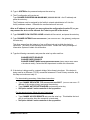
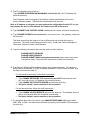
9. Type in SET PRIV and press the enter key.
This sets the privilege level so configuration commands can be issued.
44
Satellite Installation Manual
10. Type in SYSTEM as the password and press the enter key.
11. The IP configuration will now be set.
Type CHANGE IPADDRESS ###.###.###.### (###.###.###.### = the IP address) and
press the enter key..
The IP address must be assigned by the facility’s network administrator to fit into the
facility’s address scheme. Otherwise the communication will not work.
After an IP address is assigned, you may continue the configuration from the PC, or you
may connect the device to the network and Telnet to port #23 of the device.
12. Type CHANGE FLOW CONTROL NONE to disable all flow control, and press the enter key.
13. Type CHANGE GATEWAY nnn.nnn.nnn.nnn (nnn.nnn.nnn.nnn = the gateway), and press
the enter key.
This allow access from the Internet or from a different sub-net to which the device is
connected. The facility’s valid Gateway must be used. Contact the Facility’s Manager of
Information Systems to obtain this information.
14. Type the following commands, and press the enter key after each line:
CHANGE BOOTP DISABLED
CHANGE RARP DISABLED
CHANGE SUBNET MASK mmm.mmm.mmm.mmm (mmm.mmm.mmm.mmm
= the subnet mask); Contact the MIS department to obtain this information.
15. If the device is being used for a network bridge, follow these instructions. If the device is
being used for an Ethernet (TCP/IP) connection between a PC and Primary controller, skip
this step and continue at step 16.
For the extending secondary, follow these instructions
• Type CHANGE DEDICATED TCP nnn.nnn.nnn.nnn:3001T. (nnn.nnn.nnn.nnn = IP
address of the remote primary) and press the enter key.
• Type CHANGE AUTOSTART ENABLED and press the enter key.
• Set Option switch 5 on the controller in the up position.
For the remote primary, follow this set of instructions
• Type CHANGE ACCESS REMOTE and press the enter key. This disables the local
port for configuration after this connection is terminated.
• Set Option switch 6 on the controller in the up position.
Satellite Installation Manual
45
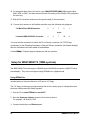
16. To change the baud rate of the device, type CHANGE SPEED #### (#### equals either
9600, 4800, or 2400 - this baud rate must match the setting of the Satellite CPU) and press
the enter key.
17. End the PC connection and remove the special cable (if still connected).
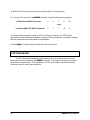
18. Connect the Lantronix to the Satellite controller using the following wiring diagram.
J14 Back Plane DB-8Connector
2
3
7
6
1
20
6
to pin
Lantronix MSS100 DB-25 Connector
2
3
7
You must test the connection for either the PC to Primary connection (for TCP/IP loop
connections) or the Extending Secondary to Remote Primary connection (for Network bridges)
after the controllers have been added to the database.
Contact Galaxy’s Technical support department with any question.
Setup for MSS1/MSS1T2 (10Mb systems)
The MSS1/MSS1T2 models support 10Mb Ethernet (LAN/WAN) connections (MSS1T2 has a
coax adapter). They can be configured using EZWebCon or Hyperterminal.
Using EZWebCon
Included with your Lantronix device is a CD and a 3.5” floppy.
The 3.5”floppy contains pre-configured setup files for the various types of configurations and
Lantronix models used with Galaxy systems.
1. Use the CD to install EZWebCon on the PC.
2. Note the Hardware address on back of the Lantronix device.
For example: 00.80.a3.21.5f.63
3. Connect the device to an Ethernet port.
46
Satellite Installation Manual
4. Open EZWebCon. (Start button >> Programs >> EZWebCon)
5. Click on the Lantronix box in the lower left had corner to open the menu.
6. Click on Assign IP address to server.
7. Enter the Hardware address from the back of the device and the IP address and subnet
address (as provided by the local IT department).
8. Click OK.
9. You will be prompted to reboot the Lantronix device. To do this, unplug the device from
the power source, then plug it back in.
10. Click on Micro-Serial Servers in the EZWebCon window.
11. Enter the IP address for the device (same as previous).
12. Click OK.
13. On the next screen, scroll down and click on Download Configuration to server.
14. Insert the 3.5” floppy disk provided with the device into the drive of the PC.
15. Browse to one of the following files on that disk:
If Device will be used for Ethernet (TCP/IP) connections to loop:
PC to Primary connection using MSS1
../IP Connect/MSS1.cfg
PC to Primary connection using MSS1T2 ../IP Connect/MSS1T2.cfg
If Device will be used for Network Bridges:
Extending secondary using MSS1
../RS232 Bridge/MSS1/ExtSec.cfg
Remote Primary using MSS1
../RS232 Bridge/MSS1/RemPri.cfg
16. Highlight the file and click Open.
17. Select NO when prompted to download the IP address.
18. Click OK to reboot the device to save the configuration.
Satellite Installation Manual
47
Using Hyperterminal
1. Connect the MSS1 to the Serial port of the configuring PC using the special cable included
with the device. The cable provides the following connections:
MSS1/MSS1T2 DB-25
2
3
7
PC Serial Port
9 Pin 25 Pin
2
3
3
2
5
7
2. Start Hyperterminal. It is usually found at Start button >> Programs >> Accessories >>
Hyperterminal.
If it is not available, you can add it using Add/Remove Programs in the Control Panel.
3. Once Hyperterminal opens, enter a name for your connection and select an icon.
4. In the Connect To window, select the COM port to which the cable is connected.
5. Click OK.
6. In the COM Port Properties, use the following settings:
Bits per second
Data bits
Parity
Stop bits
Flow Control
9600
8
None
1
None
7. Click OK.
8. Cold reset the device:
•
•
•
•
Unplug the device from the power source.
Press and hold the reset button (usually requires an unbent paper clip).
Still holding the reset button, plug in the device to the power source.
Continue to hold the reset button until the Username prompt is displayed.
9. At the Username> prompt, log in using any name. A Local prompt should then appear.
10. Type in SET PRIV and press the enter key.
This sets the privilege level so configuration commands can be issued.
11. Type in SYSTEM as the password and press the enter key.
48
Satellite Installation Manual
12. The IP configuration will now be set.
Type CHANGE IPADDRESS ###.###.###.### (###.###.###.### = the IP address) and
press the enter key.
The IP address must be assigned by the facility’s network administrator to fit into the
facility’s address scheme. Otherwise the communication will not work.
After an IP address is assigned, you may continue the configuration from the PC, or you
may connect the device to the network and Telnet to port #23 of the device.
13. Type CHANGE FLOW CONTROL NONE to disable all flow control, and press the enter key.
14. Type CHANGE GATEWAY nnn.nnn.nnn.nnn (nnn.nnn.nnn.nnn = the gateway) and press
the enter key.
This allow access from the Internet or from a different sub-net to which the device is
connected. The facility’s valid Gateway must be used. Contact the Facility’s Manager of
Information Systems to obtain this information.
15. Type the following commands, and press the enter key after each line:
CHANGE BOOTP DISABLED
CHANGE RARP DISABLED
CHANGE SUBNET MASK mmm.mmm.mmm.mmm (mmm.mmm.mmm.mmm
= the subnet mask); Contact the MIS department to obtain this information.
16. If the device is being used for a network bridge, follow these instructions. If the device is
being used for an Ethernet (TCP/IP) connection between a PC and Primary controller, skip
this step and continue at step 16.
For the extending secondary, follow these instructions
• Type CHANGE DEDICATED TCP nnn.nnn.nnn.nnn:3001T and press the enter
key. (nnn.nnn.nnn.nnn = IP address of the remote primary).
• Type CHANGE AUTOSTART ENABLED and press the enter key.
• Set Option switch 5 on the controller in the up position.
For the remote primary, follow this set of instructions
• Type CHANGE ACCESS REMOTE and press the enter key. This disables the local
port for configuration after this connection is terminated.
• Set Option switch 6 on the controller in the up position.
17. To change the baud rate of the device, type CHANGE SPEED #### (#### equals either
9600, 4800, or 2400 - this baud rate must match the setting of the Satellite CPU) and press
the enter key.
Satellite Installation Manual
49
18. End the PC connection and remove the special cable (if still connected).
19. Connect the Lantronix to the Satellite controller using the following wiring diagram.
J15 Back Plane DB-25 Connector
2
3
7
6
20
20
6
to pin
Lantronix MSS1/1T2 DB-25 Connector
2
3
7
You must test the connection for either the PC to Primary connection (for TCP/IP loop
connections) or the Extending Secondary to Remote Primary connection (for Network bridges)
after the controllers have been added to the database.
Contact Galaxy’s Technical support department with any question.
J16 Connector
The AC Failure and Low Battery connections on the J16 Connector allow the unit’s
power status to be monitored by the Satellite’s software. The Tamper connection connects to
an enclosure Tamper switch. The Low Battery, AC Fail, and Tamper must all be Normally
Closed dry inputs to report safe conditions.
50
Satellite Installation Manual
Appendix
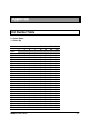
Unit Number Table
0 = Switch Down
1 = Switch Up
Switch #
Value
1
1
2
2
3
4
4
8
5
16
6
32
7
64
8
128
0
1
0
1
0
1
0
1
0
1
0
1
0
1
0
1
0
1
0
1
0
1
0
1
0
1
0
1
0
0
1
1
0
0
1
1
0
0
1
1
0
0
1
1
0
0
1
1
0
0
1
1
0
0
1
1
0
0
0
0
1
1
1
1
0
0
0
0
1
1
1
1
0
0
0
0
1
1
1
1
0
0
0
0
0
0
0
0
0
0
0
0
1
1
1
1
1
1
1
1
0
0
0
0
0
0
0
0
1
1
1
1
0
0
0
0
0
0
0
0
0
0
0
0
0
0
0
0
1
1
1
1
1
1
1
1
1
1
1
1
0
0
0
0
0
0
0
0
0
0
0
0
0
0
0
0
0
0
0
0
0
0
0
0
0
0
0
0
0
0
0
0
0
0
0
0
0
0
0
0
0
0
0
0
0
0
0
0
0
0
0
0
0
0
0
0
0
0
0
0
0
0
0
0
0
0
0
0
0
0
0
0
0
0
0
0
0
0
0
0
0
0
0
0
Unit #
00
01
02
03
04
05
06
07
08
09
10
11
12
13
14
15
16
17
18
19
20
21
22
23
24
25
26
27
Satellite Installation Manual
51
Switch #
Value
1
1
2
2
3
4
4
8
5
16
6
32
7
64
8
128
0
1
0
1
0
1
0
1
0
1
0
1
0
1
0
1
0
1
0
1
0
1
0
1
0
1
0
1
0
1
0
1
0
1
0
1
0
1
0
1
0
1
0
1
0
0
0
1
1
0
0
1
1
0
0
1
1
0
0
1
1
0
0
1
1
0
0
1
1
0
0
1
1
0
0
1
1
0
0
1
1
0
0
1
1
0
0
1
1
0
1
1
1
1
0
0
0
0
1
1
1
1
0
0
0
0
1
1
1
1
0
0
0
0
1
1
1
1
0
0
0
0
1
1
1
1
0
0
0
0
1
1
1
1
0
1
1
1
1
0
0
0
0
0
0
0
0
1
1
1
1
1
1
1
1
0
0
0
0
0
0
0
0
1
1
1
1
1
1
1
1
0
0
0
0
0
0
0
0
1
1
1
1
1
0
0
0
0
0
0
0
0
0
0
0
0
0
0
0
0
1
1
1
1
1
1
1
1
1
1
1
1
1
1
1
1
0
0
0
0
0
0
0
0
0
0
0
0
0
1
1
1
1
1
1
1
1
1
1
1
1
1
1
1
1
1
1
1
1
1
1
1
1
1
1
1
1
1
1
1
1
0
0
0
0
0
0
0
0
0
0
0
0
0
0
0
0
0
0
0
0
0
0
0
0
0
0
0
0
0
1
0
0
0
0
0
0
0
0
0
0
0
0
0
0
0
1
1
1
1
1
1
1
1
1
0
0
0
0
0
0
0
0
0
0
0
0
0
0
0
0
0
0
0
0
0
0
0
0
0
0
0
0
0
0
0
0
0
0
0
0
0
0
0
0
0
0
0
0
0
Unit #
28
29
30
31
32
33
34
35
36
37
38
39
40
41
42
43
44
45
46
47
48
49
50
51
52
53
54
55
56
57
58
59
60
61
62
63
64
65
66
67
68
69
70
71
72
52
Satellite Installation Manual
Switch #
Value
1
1
2
2
3
4
4
8
5
16
6
32
7
64
8
128
1
0
1
0
1
0
1
0
1
0
1
0
1
0
1
0
1
0
1
0
1
0
1
0
1
0
1
0
1
1
0
0
1
1
0
0
1
1
0
0
1
1
0
0
1
1
0
0
1
1
0
0
1
1
0
0
0
1
1
1
1
0
0
0
0
1
1
1
1
0
0
0
0
1
1
1
1
0
0
0
0
1
1
1
1
1
1
1
0
0
0
0
0
0
0
0
1
1
1
1
1
1
1
1
0
0
0
0
0
0
0
0
0
0
0
1
1
1
1
1
1
1
1
1
1
1
1
1
1
1
1
0
0
0
0
0
0
0
0
0
0
0
0
0
0
0
0
0
0
0
0
0
0
0
0
0
0
0
1
1
1
1
1
1
1
1
1
1
1
1
1
0
1
1
1
1
1
1
1
1
1
1
1
1
1
1
1
1
1
0
0
0
0
0
0
0
0
0
0
0
0
0
0
0
0
0
0
0
0
0
0
0
0
0
0
0
Unit #
73
74
75
76
77
78
79
80
81
82
83
84
85
86
87
88
89
90
91
92
93
94
95
96
97
98
99
Satellite Installation Manual
53