1
CHAP. 5 Set Up
5-2. DISPLAY SETUP
Setting up parameters for monitor and display on screen.
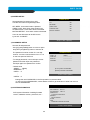
Enter into SYSTEM MENU-DIPLAY SETUP.
DISPLAY SETUP
LIVE
PLAYBACK
SCREEN DISPLAY
MONITOR SETUP
VGA SETUP
COLOR BAR TEST
SELECT MENU : ▲▼, & [ENTER]
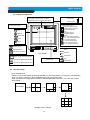
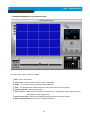
1) SCREEN DISPLAY
1
2
Setting up the screen display in LIVE mode
and PLAYBACK mode.
3
4
Select the sub-menu which you would like to set using
direction buttons and then change ON/OFF with
[ENTER] button.
1. TIME/DATE : Display time & date
2. DVR STATUS : Display system setting status
3. ICON DISPLAY : Display function setting status
4. REC/PLAY BAR : Display record / playback status
5. CAMERA TITLE : Display camera title
5
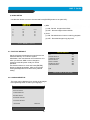
2) MONITOR SETUP
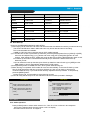
VGA SETUP : VGA option card enables to connect TFT LCD monitor or CRT type PC monitor to
DVR unit. To connect TFT LCD monitor or CRT type PC monitor to DVR unit, select
resolution as follows using [+] or [−] button. After setting the below option, press
[ENTER] button then the DVR unit will set VGA resolution automatically.
VGA option card supports following resolution, and choose best resolution that
match TFT LCD monitor or CRT type PC monitor to be connected to DVR unit.
- 640X480 / 60Hz
- 800X600 / 60Hz
- 1024X768 / 60Hz
- 640X480 / 75Hz
- 800X600 / 75Hz
- 1024X768 / 75Hz
※ NOTICE : In the booting process,
DVR unit with VGA option
card takes some seconds
more to set parameters.
COLOR BAR TEST : Adjust color tone of monitor.
(Color bar test is Not available for monitor through VGA)
20