1
7. Tools
A. Virtual Keyboard
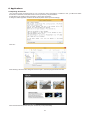
(1) In some cases, you may need to input letters by means of keyboard during you use i-Pro. In this case, you can input letters
using virtual keyboard that will appear on screen.
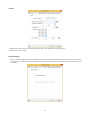
(2) Click virtual keyboard submenu in main menu of i-Pro. The virtual keyboard will be appeared on the screen. Input letters by
pressing virtual keyboard.
Virtual keyboard is activated.
B. Spot Light
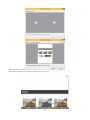
(1) To attract audience’s attention, emphasizing a target part of a note is necessary. A spot light function is provided in i-Pro.
(2) Spot light function is activated by selecting ‘Spot Light’ function in Tool of main menu.
(3) After spot light function is activated, color of note area becomes dark gray and spot light will appear. You can move the spot
light by dragging with Interactive pen.
C. Blind
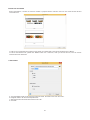
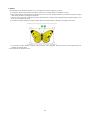
(1) Like a blind in the glass window, Blind of i-Pro blinds all screen area and open by dragging from side of window so that part
of note is exposed.
You can open note from any side of windows frame.
(2) Click Blind function in Tools menu in main menu of i-Pro. And then all note is blinded and closing button will appear on right
and left upper corners.
24