1
Registrador PINGÜIM
Resetting the logger
The Penguin can be reset by keeping pressed the START button for
10 seconds. The STATUS led will light up for 1 second, acknowledging
the reset. Following a reset, the Penguin will go to the stand-by state; if
it was logging data, it will interrupt the process. The configuration is not
lost, and the logging will resume according to the configuration stored
in the logger. The data remains intact and can be read any time
(provided a new configuration has not been loaded)
4
INTERFACE INSTALLATION
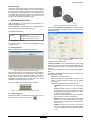
Model IR-LINK3/RS232 – this is an adaptor for IR that makes use of
the RS232 COMM port of the PC.
Model IR-LINK3/USB – converts USB to IR. A dedicated Windows
driver is required and is provided in the installation CD.
LOGCHART II SOFTWARE
Ambiente de operação
do software
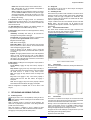
Figure 5 – Wand and Penguin communication setup
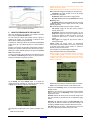
A screen named Parameters Configuration is presented, showing
general information about the logger and fields for configuration of the
logger operating mode.
Software Configurador, para Windows 95, 98,
NT, 2000 e XP.
Menus em português, inglês ou espanhol.
Configura, lê e apresenta dados na tela.
4.1 Installing the LogChart II
To install the LogChart II, execute the LC_II_Setup.exe program
provided in the CD.
4.2 Running LogChart II
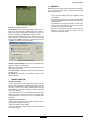
The LogChart opening screen is shown below in Figure 3.
Figure 6 – Configuration screen
Figure 3 – Openning screen of the LogChart II software
The LogChart II requires a communication port to talk to the Penguin.
Clicking on the menu Port, all free communication ports available in
the computer will be listed, including the USB port if the driver is
installed. Select one and connect the corresponding wand (IRLINK3/RS232 or IR-LINK3/USB) to it. The chosen port will be
remembered next times the LogChart II is initiated.
Once a port is selected, the icons shown below are enabled.
Figure 4 – Icons enabled when the communication port is valid.
4.3 Logger Configuration
With the communication wand installed and pointed to the Logger (1m
maximum distance) as shown in Figure 5, click on
1- Title: Instrument or process name.
2- General Information: shows logger identification (model, serial
number, firmware version, memory size) and status (internal clock with
date and time, PC date and time, current number of reading stored in
memory)..
This information is updated every second once the communication is
active.
3- Channel 1 and Channel 2: show the fields for configuring input
operating features, as follows:
Tag: Defines a name for the channel.
Type: Temperature input always enable in channel 1; For
channel 2 (relative humidity), the logging may be disabled
(option none)
Value: Defines the way the values are to be assumed:
Instantaneous: The instant value read at the logging
time.
Average: arithmetic average of 10 consecutive samples
equally spaced over the logging interval. The minimum
logging interval for this option to be enabled is 50s, based
on 5s minimum sampling interval.
NOTE: The average is implemented only for the Penguin
RHT. The Penguin T does not have this option.
Minimum: The value to be recorded in memory is the
minimum value of 10 consecutive readings in the logging
interval. The minimum logging interval for this option to be
enabled is 50s.
Maximum: The value to be recorded is the maximum
value of 10 consecutive readings in the logging interval.
The minimum logging interval for this option to be enabled
is 50s.
NOVUS PRODUTOS ELETRÔNICOS LTDA. – WEBSITE: www.novus.com.br - FONES: RS: (51) 3323-3600 SP: (11) 3675-0366 PR: (41) 372-8476