1
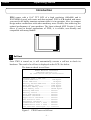
If any of the above items does not pass a self-test, it will be noted with “Failed”
next to the item and the “Error! Press screen to continue” message will also show
up on the bottom of the screen. If power to PWS or PC was interrupted while
downloading, the item “Firmware Checksum” or “Application Checksum” will not
pass a self-test and will be noted with “Failed” after power is restored. The
situation is normal and users can simply follow the download procedures to redownload an application or data. After downloading, all items should pass the next
self-test.
2
System Menu
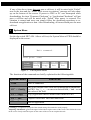
Set the dip switch SW7=ON. After a self-test, the System Menu of PWS should be
displayed on the screen:
Wait command…
Link port: COM1
F2
F3
F4
F5
Confg
Copy
Set
Run
Link
Figure 2. PWS System Menu
The functions of the commands are briefly explained in the following table:
System Menu
Link
Function
PWS is connected.
F2 - Confg
Set up the internal time clock and communication parameters
in PWS. Use ↑ ↓ ← → to move to desired field; + and − to set
the value of the field.
F3 - Copy
Copy application data to another same model of PWS
F4 - Set
Adjust Touch Panel2 and clear data RAM
F5 - Run
Run an application.
1
In Confg, it is required to set up all of the related settings for terminal to work properly.
Adjusting Touch Panel:Touch the upper-left and lower-right corners of the screen. Next follow the route
on the screen. Lastly touch the square on the center of the screen to complete the task.
1
2