1
3
Keypad
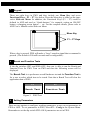
There are eight keys in PWS and they include one Menu Key and seven
Functional Keys – F1 ~ F7. See below. Press the Menu key to slide out the innovative Slide-out Menu. In addition, the Functional Keys (F1 ~ F7) could be
defined in ADP and used as “Quick-buttons,” for example, setting an ON/OFF
button, a changing screen button … etc. For the complete details, please refer to
ADP User’s Manual on the Slide-out Menu.
Menu Key
F1 ~ F7 Keys
When a key is pressed, PWS will make a “beep” sound to signal that a command is
pressed. (The default is 200 milli-seconds and is configurable.)
4
Bench and Function Tests
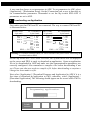
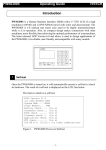
If the dip switches SW3 and SW4=OFF, then one is able to run the Bench and
Function Tests for PWS. Turn on PWS and then the following screen will be
displayed.
The Bench Test is to perform an overall hardware test and the Function Test is
for a user to select which item to be tested. Note that a Bench Test will clear the
application data of PWS.
F1
F2
Bench Test
Function Test
Figure 3. PWS Test
5
Setting Parameters
There are two options to configure working parameters: a user can set parameters in
PWS or ADP. To set parameters in PWS, select F2 – Confg in the System Menu.
Remember to set the dip switch SW5=ON if parameters are set in PWS.