1
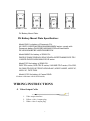
Video Input Cable 1. 2. 3. Video input interface. Yellow: video 1 input plug. White: video 2 input plug. MENU SETTING Before setting the functions, please make sure the device is connected correctly. Shortcut keys The image menu When power on, press “< / >” key on the device, brightness will appear at the bottom of the screen, then press the MENU button to select brightness, sharpness, contrast, saturation, volume, tint, MENU and Exit. User can adjust the parameters of the selected item with “< / >”button to meet their needs. F1-F2 user-definable function buttons Long press any F1-F2 key for 3-5 seconds to pop-up shortcut menu directly. As shown in Figure (default menu button in white font). Use “< / >” buttons to select the desired option. Finally, use the “ENTER” key to confirm the selected item as default. Functions of F1-F3 buttons can also be customized: Center Marker, Safety Marker, Check Field, Color Bar, Aspect Ratio, Camera, Image Flip, Zoom, Pixel-to-Pixel, Freeze Input, Underscan, H/V delay. Icon Display Icons will display on screen when signal connected. Select “Marker” on menu, and turn off “FPV Marker. And the icons will be invisible on screen.” 8