1
O P E R A T I N G
H I N T S
&
A D V A N C E D
F E A T U R E S
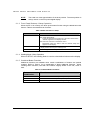
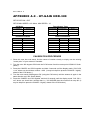
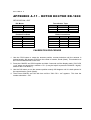
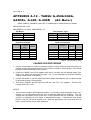
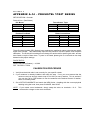
6. Your RT-21 comes set for your rotor type from the factory. (if we know it) If not, the
factory defaults are for a 36 VDC motor (mid-voltage) and a potentiometerpositioning indicator system. The offset value is 180, which needs a CCW & CW
endpoint of South, and a North center-of-rotation. You can return to these default
settings at any time by pressing the CANCEL, CW, and CCW buttons at the same
time and holding until the unit resets.
7. The RT-21 is protected by a fuse on the rear panel. If the controller shows no sign
of power, the fuse may be blown. The fuse is an International Standard GMA 5mm
x 20mm type, and should be replaced with a 3A fuse for 115 VAC operation, or a
2A fuse for 230 VAC operation. Replacement fuses are available at most
electronics parts distributors, including Radio Shack.
5.2
COMPUTER CONTROL OF RT-21
The RT-21 is equipped with a fully operational RS-232 port and a USB ‘B’ connection.
Virtually all programs that support rotor control via a COM port can be used with the RT-21
on either port. The RT-21 USB port implements the standard COM port emulation that
works with standard Windows drivers. See 5.2.2 for installation instructions.
The protocol implemented in the RT-21 is based on the Hy-Gain® DCU-1 protocol and runs
at 4800 8N1 using a straight through serial cable with at least pins 2-2, 3-3 and 5-5
wired. It reports headings and turns to headings with the same commands implemented in
DCU-1. Set your software to use DCU-1 protocol at 4800 8N1 if your program does not
have a Green Heron setting. Many additional commands are provided for the advanced
features that only your RT-21 can perform. These include the ability to computer track to
1/10th degree using GH Tracker, or operate your controller as part of an IP network using
GH Everyware software from Green Heron.
5.2.1 You cannot use the USB to interconnect RT-21s for the purpose of Master/Slave, or
Counter-rotate functions.
NOTE: The EIA-232 Port (dB-9) MUST be used for interconnection to other RT-20,
or RT-21 controllers AND for loading new software updates from Green Heron. (RT21 v3 allows USB software updates, see page iii)
5.2.2 USB INSTALLATION (Prior to Rt-21v3 ONLY)
The RT-21 requires a driver settings file (INF) file to be installed on your system.
When your system first sees an RT-21 connected to a USB port on your computer,
the New Hardware Wizard will appear. Although the exact procedure will vary
depending on your operating system, Windows will ask you for the location of the
Driver for an RT-21 controller. You browse to the driver info file, “RT21usb0.inf”,
and then install the driver. You may ignore the “digital signature” error if you get
one.
NOTE:
5.3
RT-21 v3 uses drivers that are standard on most versions of windows. Do not
browse for the inf file described above. USB installation is typically completely
automatic on v3 units. See page iii for more info.
CALIBRATION OF SIDEARM INSTALLATION
17