1
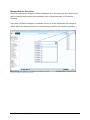
Reset Smartpens By resetting each smartpen you do the following: Delete all written notes and audio recordings from the smartpen. Remove the registration certificate from the smartpen so another student can use it. To manually reset each smartpen, follow the steps below: 1. Go to www.livescribe.com/support. 2. Mouse over the Support tab and select Knowledge Base. 3. For Windows, type 29001 in the Search field and click the Go button. For Mac, type 29101 in the Search field and click the Go button. 4. For Windows, click on the article link named: 29001 - Windows Master Reset and firmware update utility. For Mac, click on the article link named: 29101 - Mac Master Reset and firmware update utility. 5. Download the latest smartpen reset utility and follow the directions in the article. Rename Smartpens After performing a Master Reset on all of your smartpens, they will need to be renamed for future students. To rename a smartpen on Windows: 1. 2. 3. 4. Launch Livescribe Desktop. Connect the smartpen to be renamed. Choose Tools > Smartpen > Rename. Type a new name and click OK. To rename a smartpen on Mac OS X: 1. 2. 3. 4. Launch Livescribe Desktop. Connect the smartpen to be renamed. Choose File > Rename Smartpen. Type a new name and click Rename. Livescribe Education Deployment Guide 21