1
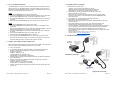
5. Turn on One Button Record Mode
7. Using Data and Video in TraqStudio
“One Button Mode On” forces the camera to automatically begin recording video once the
camera is turned on. In “One Button Mode On” the camera is either on and recording or
powered off. The SHUTTER/SELECT button is disabled in “One Button Mode On” and will
not start or stop the recording while the camera is on.
HERO1
a. Press the POWER/MODE button to power up the camera.
b. Press the POWER/MODE button repeatedly until SEt is displayed on the camera LCD.
c. Press the SHUTTER/SELECT button. onF should be displayed on the LCD.
d. Press the SHUTTER/SELECT once so that onO (One Button Mode On) is showing on
the screen.
e. Press and hold the POWER/MODE button for 3 seconds until the camera turns off.
HERO2
a. Press the POWER/MODE button to power up the camera.
b. Press the POWER/MODE button repeatedly until a wrench icon is displayed on the
camera LCD.
c. Press the SHUTTER/SELECT button. The mode menu should be displayed on the LCD.
Make sure the video camera icon is shown indicating video mode.
d. Press the POWER/MODE button seven times so that One Button menu is showing on
the screen.
e. Press the SHUTTER/SELECT button once to display OFF / ON.
f. Press and release the POWER/MODE button to select ON.
g. Press and hold the POWER/MODE button for 3 seconds until the camera turns off.
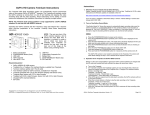
a. Move Data from Traqmate to PC
TraqDash – Copy .tqm file from MySessions on SD card
Traqmate Complete – Download using TraqStudio and USB cable
Traqmate Basic – Download using TraqStudio and serial cable
b. Open data file on PC using TraqStudio. You should see the track map.
c. Open the video file one of three ways.
Remove SD card from GoPro camera and insert into PC slot or SD card reader
Plug GoPro camera into PC via the USB cable and press POWER/MODE button
Copy video file to PC
d. In TraqStudio, click on Setup button at top of Dashboard window.
e. Put checkmark next to Video and select OK.
f. Select the video matching the data from the DCIM / 100GOPRO folder on the GoPro
camera or SD card.
g. Video should appear in a window. Click the > Play button at the bottom of the
TraqStudio window. Press the Show Dash button to see a gauge overlay.
h. You can set the Date on the HERO camera to help you find the correct video files when
you are combining your data and video during the review process. More information
about setting the date can be found in the HERO camera user manual. It is not
recommended to remove the battery from the HERO camera, some settings can be lost.
i. Instructional videos:
Opening a Data and Video File http://youtu.be/AP2tZnH4ijc
Creating a Video http://youtu.be/zlxNFkVRt7A
8. Traqmate Interface Module Connections
The GoPro HD camera is now ready for connection to the Traqmate. The camera will
retain these settings so steps 1-5 should not be required in the future.
GoPro HD
Camera
(rear)
Traqmate
Sensor Unit
6. Operation of the Traqmate and GoPro HERO camera
NOTE: It is the user’s responsibility to ensure the GoPro camera battery is charged and the
SD card is inserted and has sufficient free space to record your video.
a. Turn on the Traqmate
b. On Traqmate Complete and TraqDash systems an icon will indicate the camera is
properly connected to the TraqData Pro or TraqSync Pro interface module.
c. Select a recording mode
TraqDash – Go Racing / Laps
Traqmate Complete – Record Data / Laps
Traqmate Basic – Press Red button or AutoRecord
d. When GPS signal is acquired and the data starts recording, the GoPro camera will turn
on and start recording.
e. When the on-track session is finished, stop the data recording on the Traqmate.
TraqDash – Press red << Back icon
Traqmate Complete – Press red << Back button
Traqmate Basic – Press Red button or AutoStop
f. When the Traqmate stops recording data, the GoPro camera will stop recording video
and turn off.
Switch inside enclosure
for Electronic or Coil
Operation. Default is
Electronic.
TraqData Pro
Module
RJ45 Plug
TraqData Pro Connection
GoPro HD
Camera
(rear)
TraqData / GoPro
Interface Cable
Traqmate
Sensor Unit
RJ45 Coupler
TraqData / GoPro
Interface Cable
TraqSync Pro
GoPro Camera
Interface
Switch inside hood
for Electronic or Coil
Operation. Default is
Electronic.
RJ45 Plug
RJ45 Plug
Blue Wire to Tach
Use Included
Crimpless Connector
TraqSync Pro Connection
GoPro Camera – Traqmate Instructions Version 1.3
Page 3 / 4
GoPro Camera – Traqmate Instructions Version 1.3
Page 4 / 4