1
User Guide
Operation
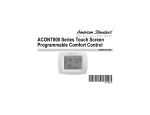
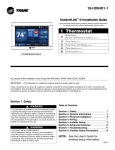
The model TCONT624AS42DAA Comfort Control provides typical operation of a forced air heating and cooling HVAC system. The TCONT624
comfort control also features a Z-Wave™ module for remote control.
:
PM
F
Hold
Menu
Cooling
Cool
Sched
Mode
Auto
Fan
Normally, the Comfort Control displays the Home Screen as shown above.
Item
Description
Notes
Clock Display
The current time is displayed in the upper left corner
of the main screen. The time will blink when the clock
has not been set.
See TIME/DATE for more information. If the control
is connected to Nexia Home Intelligence the clock will
be updated by the Nexia portal.
Dynamic Labels and Function Control Buttons
The buttons are defined by the dynamic labels in each
button. As you navigate through menus, the labels for
the buttons will change.
Setpoint Display and Setpoint Up/Down Buttons
The current heat or cool setpoint is displayed. These
The setpoints will push each other if they are adjusted
setpoints may be set using Nexia Home Intelligence,
to within the minimum heat/cool separation setting.
the Control’s internal schedule, or by pressing the Set- This is normally 3 degrees.
point Up/Down buttons. Pressing the setpoint button
changes the setpoint screen. The current mode is displayed at the top of the screen. Adjust the setpoint by
pressing the up or down arrows. To change setpoint
mode press the MODE button.
Temperature Display
The Comfort Control displays the current temperature
as sensed by the internal temperature sensor.
The internal temperature sensor can be adjusted as
necessary.
Menu Button
Button used to access other Comfort Control menus
Other Comfort Control menus can be accessed by
pressing the MENU button.
System Mode Button
Button used to change the system mode
Off: System off
Heating: Heating only
Cooling: Cooling only
Auto: Heating/Cooling as necessary
EM Heat: Indoor Heat only
Fan Mode Button
Button used to change the fan mode:
Auto: Fan on when cooling/heating is necessary
On: Fan constantly on
Circ: Fan on for a user-selected number of minutes
per hour.
Schedule Mode Button
Button used to change the schedule mode:
Hold: System maintains the current temperature setpoints. Schedules are disregarded.
Run: Run the system schedule
Energy Saving Mode (ESM): Temperature setpoints in
ESM Setpoints are maintained.
3