1
ADVANCED BLUETOOTH
WIRELESS HEADPHONES
with Touch Control and Headset Functionality
USER MANUAL
model: AF65
EN
PACKAGE CONTENTS
R
Air-Fi Touch
Stereo
Bluetooth
Wireless
Headphones
Micro-USB
charging
cable
Premium
protective
carrying
case
Stereo audio
cable for
wired use
User
manual
MEElectronics and its logo are registered trademarks of S2E, Inc. All rights reserved.
1
iPhone®, iPad®, iPod touch®, and Siri® are registered trademarks of Apple Inc.
Android™ is a registered trademark of Google Inc.
Windows® Phone is a registered trademark of Microsoft Corporation in the United States and other countries.
The Bluetooth® word mark and logos are registered trademarks owned by Bluetooth SIG, Inc.
and any use of such marks by MEElectronics is under license. Other trademarks and trade names
are those of their respective owners.
PRODUCT OVERVIEW
EN
Stereo Bluetooth Wireless Headphones
with Touch Control and
Headset Functionality
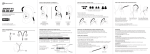
Right Earcup
A Charging connector
B Charging indicator
light
Left Earcup
C Multifunction button (MFB)
D Touch control panel
E Audio jack for wired use
F Status indicator light
G Built-in microphone
2
USING THE TOUCH CONTROL PANEL
Left ear cup shown
3
Swipe up to
increase volume
Swipe down to
decrease volume
Swipe backward to
go to beginning of
track / previous track
Swipe forward
to skip track
USING THE TOUCH CONTROL PANEL (Continued)
Left ear cup shown
Multifunction
button
Use Multifunction button to turn on/off, enable pairing
mode, play/pause, and answer/hang up phone calls
4
CHARGING
*** You must completely charge the headset
before the first use ***
Connect the Micro-USB charging cable to any powered USB port and to the
charging jack of the Air-Fi Touch. Make sure it is plugged in fully. Charge time
is approximately 2-3 hours.
The red charging indicator light will stay lit while the headphones are charging
and turn off when the headset is ready for use. When the battery is low, the
headset will produce an audible tone and the status indicator light will flash
red several times every 60 seconds.
Apple® devices such as the iPhone®, iPad®, and iPod® Touch will display an
on-screen headset battery indicator when the Air-Fi Touch is connected.
TURNING ON AND OFF
To turn on, press and hold the Multifunction button for approximately 3
seconds. The headphone will produce a tone and the status indicator light
will flash blue several times.
To turn off, press and hold the Multifunction button for approximately 4
seconds. The headphone will produce a tone and the status indicator light
will flash red.
5
PAIRING WITH BLUETOOTH® DEVICES
*** Your headset must be paired to a Bluetooth device before it can be used.
It is only necessary to pair your headset once with each device ***
1. Open the Bluetooth menu on the device you wish to pair (see Locating
the Bluetooth menu section below for more details). Some devices
require you to select “search for devices” or “add new device” in order to
create a Bluetooth pairing.
2. With the headset turned off, press and hold the Multifunction button for
approximately 6 seconds or until you hear the second tone. The status
indicator light will flash red and blue in an alternating pattern while the
Air-Fi Touch is in pairing mode. (Note: The Air-Fi Touch will enter standby
mode if not paired within 3 minutes)
3. Wait until you see “Air-Fi Touch” on your device screen.
4. Select “Air-Fi Touch” on your device and follow any further prompts to pair.
Use “0000” if a pin is required.
LOCATING THE BLUETOOTH MENU:
iPhone, iPad, and iPod Touch
a) On your device, go to Settings
b) Select Bluetooth. If Bluetooth is not on, turn it on.
The iPhone/iPad/iPod will automatically search for new devices
Android™ Phones and Tablets
a) On your device, go to Settings menu
b) Select Bluetooth (on older Android devices Bluetooth is found in
the Wireless & Networks menu). If Bluetooth is not on, turn it on.
Select “Search for Devices” if your phone or tablet does not
automatically search for new devices
Windows® Phone 8 devices
a) On your device, open the Settings menu
b) Select Bluetooth. If Bluetooth is not on, turn it on.
The phone will automatically search for new devices
Computers, Laptops, and Other Devices
Visit www.meelec.com/bluetooth for pairing, connecting, and setup
information.
If pairing fails after several tries, please refer to your device’s user manual
for further information. Visit www.meelec.com/bluetooth for pairing videos,
troubleshooting, and additional information.
6
CONNECTING TO PAIRED DEVICES
Once the Air-Fi Touch is turned on, it will automatically connect with the last
paired Bluetooth device that is on and within range. If the Air-Fi Touch does
not connect automatically, tap the multifunction button once to initiate
connection with last paired device. If the headset still does not connect,
open the Bluetooth menu on your device and select “Air-Fi Touch” from the
Bluetooth device list.
Note: On some computers, Bluetooth audio must be enabled manually every
time you connect.
Status Indicator Light
On and not connected to
bluetooth device
Blue status indicator light
flashes every second
On and connected to
bluetooth device
Solid blue status indicator light
CONTROLS
The Air-Fi Touch can control media and phone calls from a smartphone or
tablet.
Adjusting Volume
Function
Increase volume
Decrease volume
Operation
Notes
Swipe up on touch control panel
Headset will produce a
short tone when the volume
reaches the minimum or
Swipe down on touch control panel maximum level.
Note: Volume can be adjusted only while media is playing or during a phone call.
Volume adjustments will change the volume of the headset independently of the
connected device while media is playing. Raise or lower device volume as needed to further increase or decrease the volume. During phone calls the headset
will directly control device volume.
7
CONTROLS (Continued)
Controlling Phone Calls
Status
Incoming call
Call in progress
Call in progress,
second incoming
call
One call active,
one on hold
Function
Operation
Answer call
Press the Multifunction button
Reject call
Press and hold the Multifunction button
for 2 seconds
End call
Press the Multifunction button
Answer new call and
Press the Multifunction button
put current call on hold
Reject incoming call
Press and hold the Multifunction button
for 2 seconds until you hear a tone
End current call and
switch to call on hold
Press the Multifunction button
Controlling Media Playback
Status
Function
Operation
No media playing*
Play media
Press the Multifunction button
Media playing
Pause media playback
Press the Multifunction button
Skip to next track**
Swipe forward on touch control panel
Restart the track/
previous track**
Swipe backward on touch control panel
Media playing or
paused
You may need to focus on the media player application by bringing it up on the screen for initial
playback to start.
**
Not all media players support this functionality.
*
Note: If you answer or make a call while listening to media, the media will be paused
until the call has ended.
Additional Functionality
Function
*
Operation
Notes
Redial last call*
Double press the
Multifunction button when
no call is in progress
Headset will produce a short tone
Activate Siri/voice
command/dialing*
Touch and hold the touch
control panel for 2 seconds
Headset will produce a tone and
media will be paused. Press and
hold Touch Panel again to cancel
Not all devices support this functionality. For more information, refer to the user manual for your device.
8
USING AS A WIRED HEADPHONE
The Air-Fi Touch can be used as a wired headphone by plugging one end of
the included stereo audio cable into the left earcup and the other end into any
audio device with a standard 3.5mm headphone jack. This allows use when
the battery is depleted and with devices that do not have Bluetooth (such
in-flight entertainment systems) or aren’t paired.
The Air-Fi Touch can be used wired while also connected via Bluetooth to
another device; Bluetooth audio takes precedence over wired audio. Wired
audio will be partially muted whenever a signal is transmitted via Bluetooth
and will resume approximately 4 seconds after the Bluetooth transmission
ends.
Note: the built-in microphone of the Air-Fi Touch will not work when the
headphones are used only in wired mode.
SAFETY AND CARE
a) When not in use, power the headphones off and store in the included
protective carrying case.
b) Clean with a soft cloth, damp with diluted soap water solution if
necessary. Do not use chemical cleaners.
c) There are no user replaceable/reparable parts in the headphones.
Disassembling it will void your warranty.
d) Do not expose the headphones to liquids. If the device comes in contact
with liquids, quickly wipe away. If submersed in water, do not turn the device on until completely dried. Note: liquid submersion voids the warranty.
e) Do not use around flammable gasses as fire or explosion may occur
f) Battery performance will be severely decreased when stored in extreme
temperatures: below -10°C/14°F or above 45°C/113°F including direct
sunlight.
g) Replacement parts and accessories are available online at
www.meelec.com
SPECIFICATIONS
See the Air-Fi Touch product page at www.meelec.com for product
specifications.
TROUBLESHOOTING
Visit www.meelec.com/bluetooth for additional Bluetooth information and
troubleshooting.
WARRANTY:
The Air-Fi Touch is covered by a 1-year manufacturer warranty. For more
information, visit www.meelec.com/warranty.
9
www.meelec.com