1
Troubleshooting
192
Solving print problems
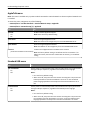
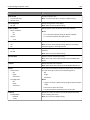
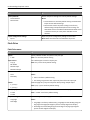
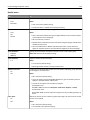
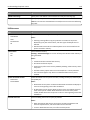
Printing problems
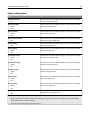
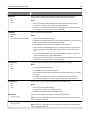
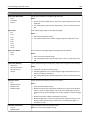
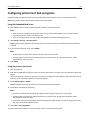
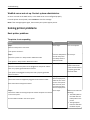
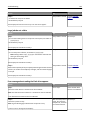
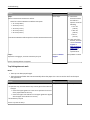
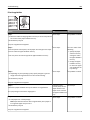
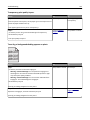
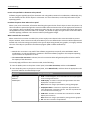
Incorrect characters print
Action
Yes
No
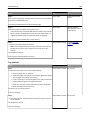
Step 1
Deactivate Hex Trace
mode.
Go to step 2.
Contact customer
support.
The problem is solved.
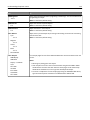
Action
Yes
No
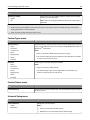
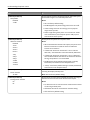
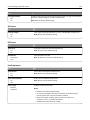
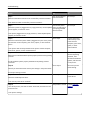
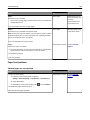
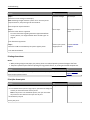
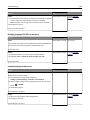
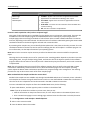
Step 1
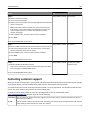
a Check if you are printing on paper that is supported by the tray.
The problem is solved. Go to step 2.
Make sure the printer is not in Hex Trace mode.
Note: If Ready Hex appears on the printer display, then turn off the
printer, and then turn it back on to deactivate Hex Trace mode.
Is the printer in Hex Trace mode?
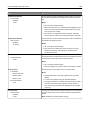
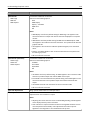
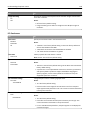
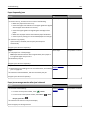
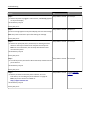
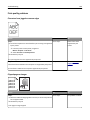
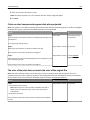
Step 2
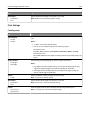
a From the printer control panel, select Standard Network or
Network [x], and then set SmartSwitch to On.
b Resend the print job.
Do incorrect characters print?
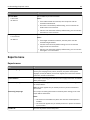
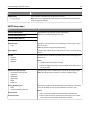
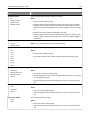
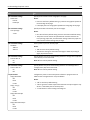
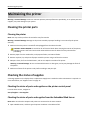
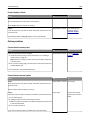
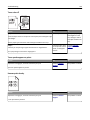
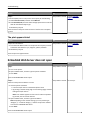
Job prints from the wrong tray or on the wrong paper
b Resend the print job.
Did the job print from the correct tray or on the correct paper?
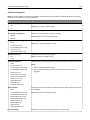
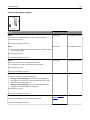
Step 2
The problem is solved. Go to step 3.
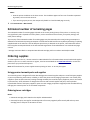
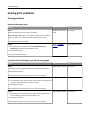
a From the Paper menu on the printer control panel, set the paper size
and type to match the paper loaded in the tray.
b Resend the print job.
Did the job print from the correct tray or on the correct paper?
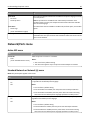
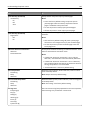
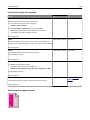
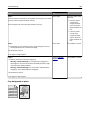
Step 3
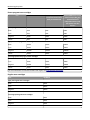
a Depending on your operating system, open Printing Preferences or
the Print dialog, and then specify the paper type.
b Resend the print job.
Did the job print from the correct tray or on the correct paper?
The problem is solved. Go to step 4.