1
Profiles
Compass
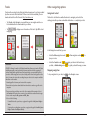
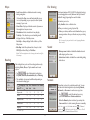
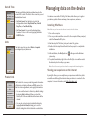
The Profile entry screen displays the existing profile(s).
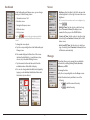
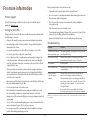
The Compass calibration function allows you to calibrate
the built-in compass of the device.
• You can set up to 6 profiles on the device.
To calibrate the compass:
• Tap Create new profile and enter the personal data
(including Name, Birth date, Weight, Gender, and Bike
Type*) to create a new profile entry.
a.Move away from any sources of interference such as
microwave oven and magnetic devices.
*Y
ou can select the Bike Type as City bike, Mountain bike, or
Race bike. The system will create different routes depending
on the bike type. For example, Mountain bike will use
unpaved routes which will be avoided by using Race bike.
b.Tap Start calibration.
c.Move the device by waving your arm in a figure ∞
pattern (as shown on the screen) for several seconds.
d.When done, the message “Compass calibration
succeeded” will appear on the screen.
If you see the message “Compass calibration failed”,
redo the movement again until calibration succeeds.
• Select an existing profile entry and then do one of the
following:
• Tap
to edit the name of the entry.
• Tap
to delete the entry.
Note: While using the built-in electronic compass, place the
device away from the objects that generate magnetic fields, such
as electric appliances, magnets or high-voltage tower. This might
cause your device point to the wrong direction.
GPS
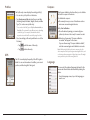
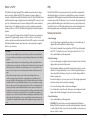
The GPS screen displays the quality of the GPS signal in
detail. You can see the number of satellites, your current
position, and the strength of the signals.
Language
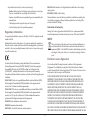
You can select the preferred language displayed for the
menus and other interface features while operating the
device.
• From the Language screen, tap on the language you
want to use.
21