1
2
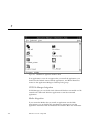
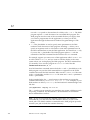
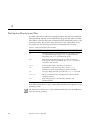
As installation nears completion, the Wabi Tools group and Microsoft Windows
Main, Games, Accessories, and StartUp groups open. When installation is
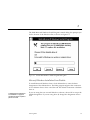
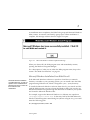
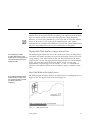
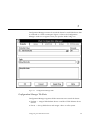
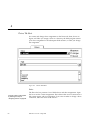
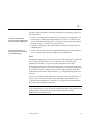
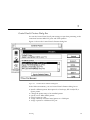
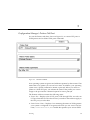
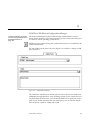
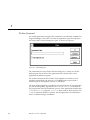
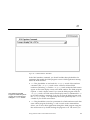
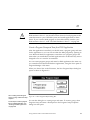
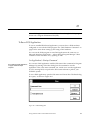
complete, the message window shown in Figure 2-3 opens.
Figure 2-3
Microsoft Windows Install Completion Message
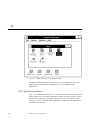
When you choose OK, the Wabi program exits and immediately restarts,
opening the Windows Program Manager.
For a description of what you see when the Wabi program starts, skip to the
section “The Wabi User Interface” on page 21.
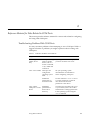
Microsoft Windows Installation From Wabi Drive R
“Microsoft Windows Installation
on a Network Server” on page 16
explains how to install Microsoft
Windows to a server so users can
then install it on their
workstations.
If the Microsoft Windows software is copied on a hard drive or network
directory accessible to your operating system, you can install it into the Wabi
program using Wabi drive R, which is assigned to your / (root) directory.
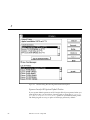
To install the Microsoft Windows software from drive R, you enter R: and the
path the Wabi program can use to locate the Windows files. You can also use
the Browse button to navigate through the directories accessible to your system
and locate the Microsoft Windows files.
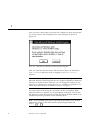
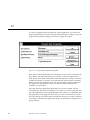
For example, suppose the Microsoft Windows 3.1 diskettes are copied into
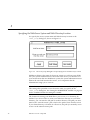
/usr/apps/install/win31.dsk. In the entry field of the Wabi Microsoft
Windows Install Program’s initial dialog box (shown in Figure 2-1), you would
enter the following path:
R:\usr\apps\install\win31.dsk
Starting Wabi
15