1
PhotoKit SHARPENER 2.0 New Feature Highlights and User Interface
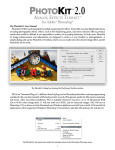
PixelGenius has worked hard to add new features and address previous users’ requests. As a result, we
have redesigned the user interface (UI) to take advantage of what we call the PixelGenius Toolbox. First
introduced with the release of PhotoKit Color 2, the Toolbox UI provides for an image preview as well as
additional functionality as shown in the figure below. The red letters highlight the changes and additions.
The basic PixelGenius Toolbox dialog window showing PhotoKit SHARPENER 2.0.
A - The new dialog window in PKS 2 now includes a preview button that allows seeing a preview of the
selected sharpening effect. The preview will only be accurate when the preview window is zoomed to 100%.
B - The cursor inside of the preview window shows the area of the image that will be zoomed in when you
click the mouse.
C - New to PKS 2 (but previously available in PhotoKit Color 2) is the ability to have effects with multiple
layers and layer groups returned as a single combined pixel layer. This feature can help keep file sizes down
although it does impact the flexibility of individual layer adjustments after an effect has been applied.
D - The Create Layer Mask options allow all PKS 2 effects to be brushed in or out depending on the Hide or
Show effect options. The Hide Effect returns a layer with a layer mask set to black. The Show Effect returns
a white layer mask that shows the final effect. To paint in an effect with a Hide Effect layer mask, paint with
white. To remove the effect on a Show Effect layer paint with black.
E - The Show Batch Options allow stacking multiple effects to be run one after the other. So if you have a
common capture, creative and output sharpening series you use, you can add those effects to a batch list.
The batch list can be saved and loaded.
4