1
Create New Repository
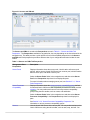
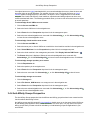
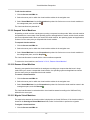
To create a storage repository for your server pool:
1. Select the Repositories tab.
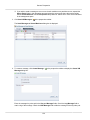
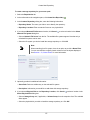
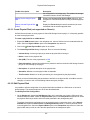
2. In the toolbar above the navigation pane, click Create New Repository
.
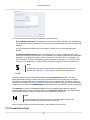
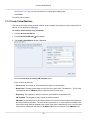
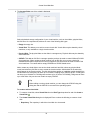
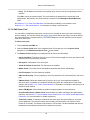
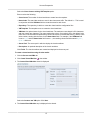
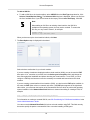
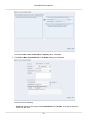
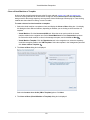
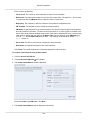
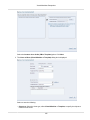
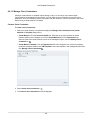
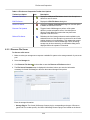
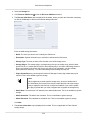
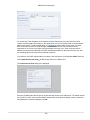
3. In the Create a Repository dialog box, enter the following information:
• Repository Name: The name you wish to use to identify the repository.
• Repository Location: Either a network file server or a physical disk.
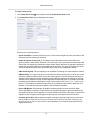
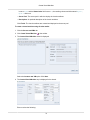
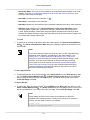
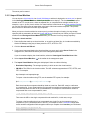
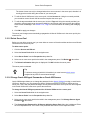
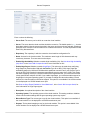
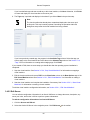
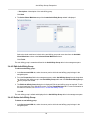
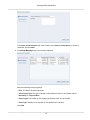
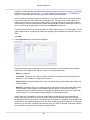
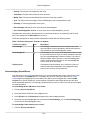
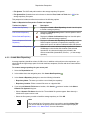
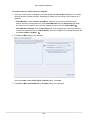
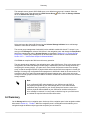
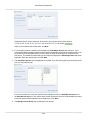
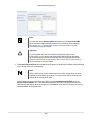
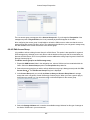
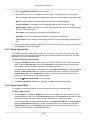
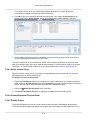
4. If you selected Network File Server as location, click Search
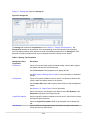
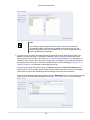
Network File System dialog box:
to select a location in the Select
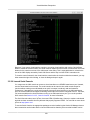
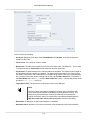
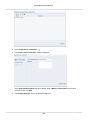
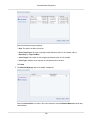
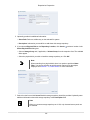
• Select a Network File Server from the list. The available file systems appear. Note that only a
refreshed file system can be used.
• Select the file system you wish to install the storage repository on. Click OK.
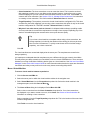
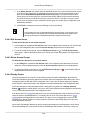
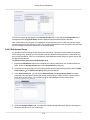
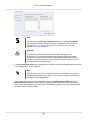
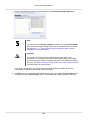
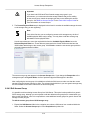
Note
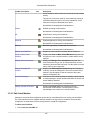
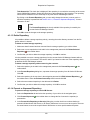
When searching for a file system, there is an option to provide a Name Filter.
You can use this filter to specify search criteria to limit the objects displayed.
See Section 1.13, “Name Filters” for more information.
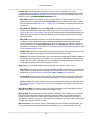
5. Optionally provide this additional information:
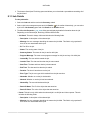
• Share Path: Path to a subdirectory on the selected file system.
• Description: Information you would like to add about this storage repository.
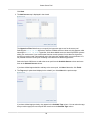
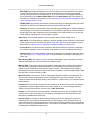
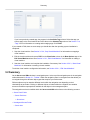
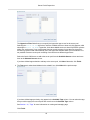
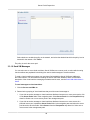
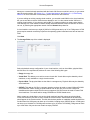
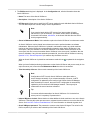
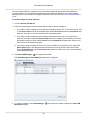
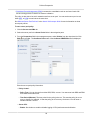
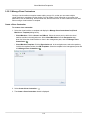
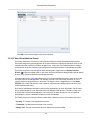
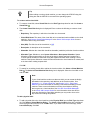
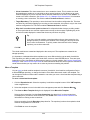
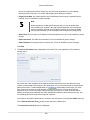
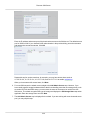
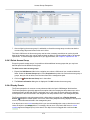
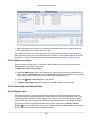
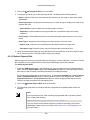
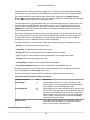
6. If you selected Physical Disk as the Repository Location, click Search
Select Physical Disk dialog box:
to select a location in the
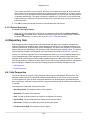
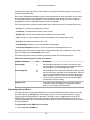
• Select a Storage Array and, if applicable, a Volume Group from the respective lists. The available
disks appear.
• Select the physical disk you wish to install the storage repository on. Click OK.
177