1
Object Icon Colors
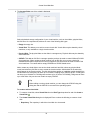
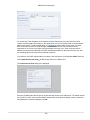
clicking on the down arrow icon sorts in descending order. Columns in a tabular view can be resized or
rearranged through drag-and-drop style behavior.
A View menu that appears alongside the drop-down Perspectives menu at the top of the management
pane provides alternative mechanisms to change sort order, the order of the fields presented in each
column and to control which columns are displayed within a view.
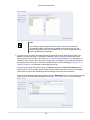
Where additional information about an object or element is available, an additional expansion arrow is
provided as a link alongside the item, usually on the left-hand side of a row when the data is presented
in tabular format. Clicking on the expansion arrow expands the view for the selected element to display
further information. Where this information is categorized according to related sub-elements, the expanded
view may display tabs for the content related to each sub-element. Clicking through each of these tabs
exposes the information related to each sub-element.
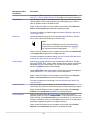
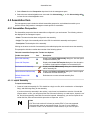
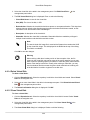
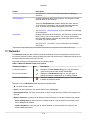
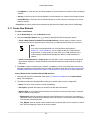
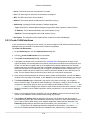
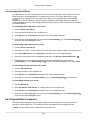
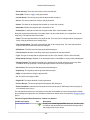
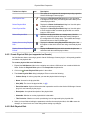
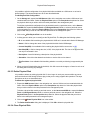
1.8 Object Icon Colors
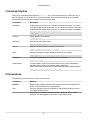
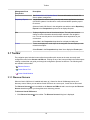
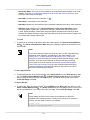
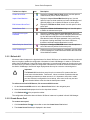
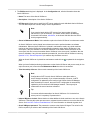
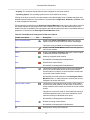
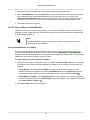
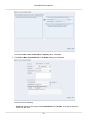
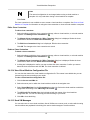
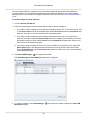
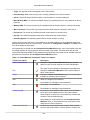
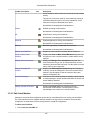
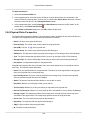
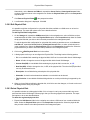
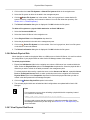
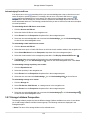
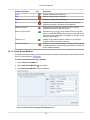
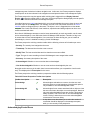
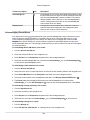
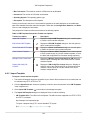
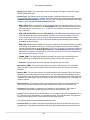
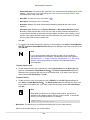
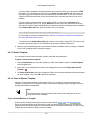
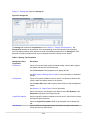
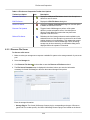
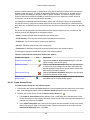
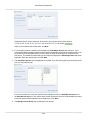
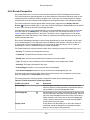
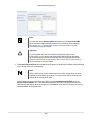
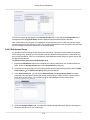
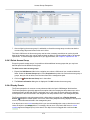
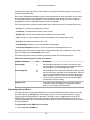
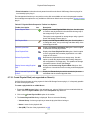
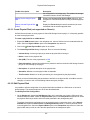
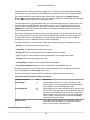
The icon for an object may be one of three colors: gray, yellow or red. These colors represent the status of
the object and the color meanings are listed in table Table 1.5, “Object Icon Colors”.
Table 1.5 Object Icon Colors
Icon Color
Icon Example
Status
Gray
Normal. No warning or error events.
Yellow
The object has a warning event associated with it.
Red
The object has an error event associated with it.
Blue
The object is in an unknown state.
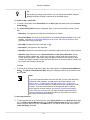
To see the events associated with an object, select the object in the navigation tree. Select Events in the
management pane's Perspective drop-down list. All the events for that object is listed in the table.
1.9 Changing Default UI Behaviour
Oracle VM Manager makes use of certain default values while performing particular operations or while
presenting particular screens within the UI. The default values should be sufficient for the majority of
environments, however there are particular cases where changing these default values may improve
usability.
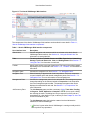
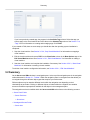
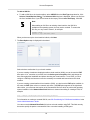
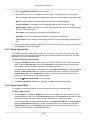
Default Oracle VM Manager parameters can be easily edited from within Oracle VM Manager Web
Interface by clicking on the Tools and Resources tab and then clicking on the Preferences link in the
toolbar.
The configuration parameters can be changed with instant effect. No restart of Oracle VM Manager is
required.
See Section 7.3, “Preferences” for more information about the parameters available, their meaning and
how to set them.
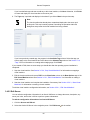
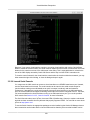
1.10 Drag and Drop
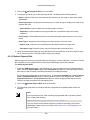
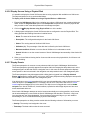
You can drag and drop one or more Oracle VM Servers (either from the table in the management pane, or
from the navigation tree) to another server pool, or the Unassigned Servers folder in the navigation tree.
11