1
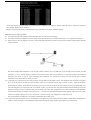
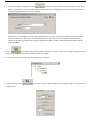
All the ports displayed in the interface are occupied and not available for use. Select any number within the range of 1024~65535 other than
those numbers displayed in the interface.
Attention: The ports in the tracker, router and system setup of the map monitor center should be identical.
Step IV: Router Port Mapping Method
4.1 For ADSL subscribers with routing function disenabled, there is no need for port mapping.
4.2 For internal subscribers surfing the internet via ADSL router automatic dial-up or co-shared internet access, it is compulsory to map ports.
4.3 What is necessity for port mapping? Let’s focus on how GPS data in the tracker to transfer to the personal computer with the monitor platform
software installed.
The tracker transfers GPS information to the network operator's machine room via GPRS first of all. Through wireless network, the GPS
information is sent to internet and then a public IP associated with the router. The personal PC is connected with the internal network
allocated by the router. In order to realize transferring GPS information to a personal PC correctly, the router must be able to transfer
information received from WAN to the PCs in a LAN.
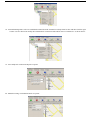
4.3.1 In the first place, open the IE explorer and type in the router IP address in the address column. This IP address refers to neither a non-public
IP nor IP in the personal PC but the router IP address which can be obtained from the user’s manual of router.
Enter the IP address
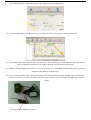
mentioned above and then put the default user name and password as well into the password entry dialogue box shown up subsequently. The
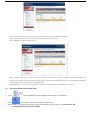
user name and password can be found in the user’s manual of router. Log into the router configuration interface and find out the option of port
mapping or transfer protocol. Set up the transfer port according to the tracker port configuration. Put in 7070 and then the internal IP address
for information transfer. For example, enter 192.168.1.10 (192.168.1.10 is the internal IP address for the computer where the monitor center
software is installed)and select TCP or ALL as protocol. Click Save and quit. The configuration is done at this point.
The following takes ALCATEL511 as an example to demonstrate how to map a port.
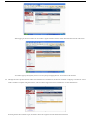
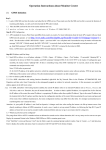
4.3.2 Open the IE explorer and enter 10.0.0.138 (IP address of ALCATEL511's Control Interface) into the address column. When the IP address is
typed in correctly, IE displays corresponding information about the built-in control interface of ALCATEL511 as shown below.