1
7. Continue to follow the instructions
in the InstallShield Wizard through
the rest of the installation until you
reach the final page.
8. On the InstallShield Wizard
Completed page, select the Log Off
Windows Now check box if it is not
already selected.
Thermo EASY-nLC for Xcalibur VI
requires you to log off and log back
on to complete the installation.
9. Click Finish to close the wizard and
automatically log off.
The installation is complete when
you log back on.
Removing a
Previous
Version
Log off required
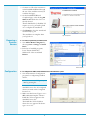
Y To remove a previously installed version
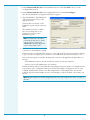
1. Start Add or Remove Programs by
choosing Start > Settings > Control
Panel.
2. In the list of installed programs,
locate Thermo EASY-nLC
Xcalibur VI. Select it and click
Remove.
Remove button
Configuration
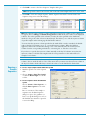
Y To configure the EASY-nLC VI software for the Xcalibur data system
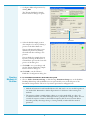
1. Start the Instrument Configuration
program for configurating Xcalibur
devices.
Note You can access Help at any
time by pressing F1.
All available devices are listed in the
Available Devices box; all configured
devices are listed in the Configured
Devices box.
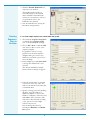
2. Make sure that Device Types is set to
All or AS (AutoSampler). Thermo
EASY-nLC VI now appears in the
Available Devices box.
The EASY-nLC VI for Xcalibur
device does not appear if the device
type is set to LC.
3