1
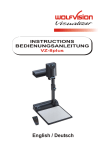
#30 ZOOM
The ZOOM keys work like the ZOOM WHEEL on the camera
head of the Visualizer. Using the ZOOM keys (wheel) also
switches auto iris on again.
#31 LASER POINTER key
Important: Do not stare directly into the beam.
This would be bad for your eyes!
#32 PRESETS (programmable settings)
32
For storing a preset, press one of the PRESET keys for more
Than 2 seconds. For recalling a preset, press the PRESET key
34
Quickly (see page 9).
#33 IMAGE TURN Mode
For picking up vertical (portrait) pages with higher resolution
36 37
(see page 10).
#34 Manual FOCUS
When the FOCUS keys are pressed the Visualizer switches off
the autofocus function. The next time the AF-key is pressed the
autofocus is switched on again.
#35 Manual IRIS (brightness adjustment)
When the IRIS keys are pressed, the Visualizer switches off the
42
Auto iris function. The next time the ZOOM keys/wheel are used
the auto iris is switched on again.
30
31
33
35
38
39
41
40
43
For specialists: The overall iris level can be changed in the on-screen menu (see page 10).
#36 AUTO FOCUS (AF) key
Switches the auto focus on and off.
#37 TEXT ENHANCEMENT
Improves the contrast for better readability (especially with text - see page 9).
#38 EXT/INT key
Switches between Visualizer image and external input (see page 8).
#39 ALL key
For displaying all 9 pictures of the memory as split image (see page 10).
#40 MEMORY keys 1 - 9
For saving and recalling pictures (see page 10).
#41 SELECT keys (Double function of MEMORY keys 2, 4, 6 and 8)
For navigating through the on-screen menu (see page 10).
#42 HELP/RESET key for on-screen menu (double function of MEMORY key 5)
While you are in the on-screen menu you can activate the on-screen help by pressing the
Number 5 key. Pressing this key for 2 seconds resets the selected menu item (see page 10).
#43 MENU
Pressing this key for 1 second activates the on-screen menu (see page 10).
If you want to work with more than one Visualizer in the same room, the units should be set
to different infrared codes, in order to control them all individually.
To change the IR-code, enter the on-screen menu, go to "Misc. Settings" and set the "IR
Code" to A, B, C or D (code A is default). To change the IR-code on the remote control,
simultaneously press PRESET 1, PRESET 2 (#32) and ZOOM TELE (#30) - each time this
key combination is used, the code switches from A to B, C, D ... A ...etc. For resetting the
remote control to code A simultaneously press PRESET 1, PRESET 2 and ZOOM WIDE.
5