1
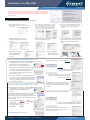
Installation for Mac OSX
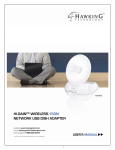
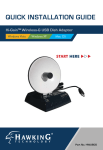
Hi-GainTM Wireless-N USB Network Dish Adapter
Package Contents
• 1 x Wireless-N USB Dish Adapter
• USB Extension Cable
• CD: User Manual & Driver (Mac & PC)
Important: Do not connect the USB adapter until you install the driver from the CD and
are instructed to do so. Otherwise, the USB adapter may not operate correctly. Be sure to
save all your work before continuing. Your computer will automatically restart after the
driver installation.
Requirements
• PC or Mac Laptop or Desktop
• Windows XP/Vista or Max OS X 10.4 or later
• One Available USB port
• An available Wireless 802.11b/g/n Network
Mac OS 10.4 or later
The Installation Screens may vary depending on your Mac OS.
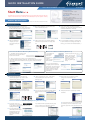
1. Insert the Setup CD and a menu page will
2. Select the Mac OS X consistent with your computer.
automatically appear on your screen. Select “Click
Here To Start”.
3. Welcome to the Hawking HWDN2 Hi-Gain Adapter
Driver Installer. Select “Continue”. Read the Important
information in the following screen and click
“Continue”.
If you are uncertain about which Mac OS you are
using, click on the APPLE icon on the upper-left
corner of the Finder Menu bar and select “About
this Mac” to view your current Mac OS X version.
4. Software License Agreement: select
5. Select a destination and click “Continue”. Select
“Continue” and “Agree” in the following
screen.
6. If your computer is password protected, please
“Install ” on the following screen.
7. Please wait while the wizard
Part No. HWDN2
enter your password to continue. Then, select
“Continue Installation” in the following
screen.
8. Plug in the Hawking
installs the HWDN2 Driver.
Select “Restart” when
prompted.
Wireless-N Adapter after
your computer restarts.
Connect To A Wireless Network (Mac 10.5 or later)
A. After plugging in the Adapter, the Hawking HWDN2 Wireless Utility will
C. Select “Ethernet Adapter (....).” Then click “Apply.”
automatically pop up. You will be asked to enable
your WLAN card. When the NOTICE appears,
select “OK”. Then, select “Network Preferences.”
Please note the “Ethernet Adapter (en15)”network interface. You will need
to enable this in the Network preference. The screen
above shows “Ethernet Adapter (en15)” network
interface, however the en number will vary from
one computer to another.
D. In the “Available Network”tab, select a wireless
network and click on “Connect.”
Encryption/ Password Protected: If your selected
network is password protected, please enter the
network key and confirm it.
B. Enabling the USB Adapter in your Network Preferences.
Note: In order for the Wireless-N Adapter to work properly,
you must turn off any previously installed airport cards.
To do this, go to the top right hand corner of your finder
and select “Turn Airport Off”.
F. Congratulations! You are now connected. To view
Connect To A Wireless Network (Mac 10.4~10.4.9)
A. After plugging in the Adapter, the Hawking HWDN2 Wireless Utility will
automatically pop up. You will be asked to enable
your WLAN card. When a NOTICE comes up,
select “OK”.
your link status go to “Link Status” tab. For more
information, please refer to the manual located in
the CD.
D. Select the Newly Installed Port and click “Apply.”
B. Enabling the USB Adapter in your Network Preferences.
Note: In order for the Wireless-N Adapter to work properly,
you must turn off any previously installed airport cards. To do
this, go to the top right hand corner of your finder and select
“Turn Airport Off”.
a) Click on the APPLE
icon in the top
left-hand corner and
then select SYSTEM
PREFERENCES.
a
b) Select
the NETWORK
icon
F. Now go to the Hawking HWDN2 Wireless Utility
and select a wireless network and click on “Connect.”
b
Encryption/ Password Protected: If your selected
network is password protected, please enter the
network key and confirm it.
C. A New Network Port has been detected.
Support Information
Tel: 1.888.202.3344
Email: [email protected]
RMA: [email protected]
www.hawkingtech.com