1
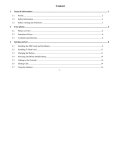
Table of Contents FCC ID:C89CENIOR 1. SECURITY.................................................................................. 4 2. GETTING STARTED................................................................ 9 2.1. Batteries...................................................................... 9 2.1.1. Installing and uninstalling the battery ....10 2.1.2. Charging the battery ....................... 10 2.1.3. Using the battery............................. 10 2.1.4. Battery level indicator..................... 11 2.2. Connecting to the Network ...................................... 11 2.2.1. SIM card ......................................... 11 2.2.2. Installing and uninstalling the SIM card .......................................... 11 2.2.3. Unlock the SIM card....................... 12 2.2.4. Connecting to the network.............. 12 2.3. Text Input Method.................................................... 13 3. CALL FUNCTION................................................................... 13 3.1. Phone power on/off .................................................. 13 3.2. Dial ........................................................................... 13 3.2.1. Direct dial ....................................... 14 3.2.2. Dial from the Phonebook................ 14 3.2.3. Unanswered call.............................. 14 3.3. Answer call............................................................... 15 3.4. During a phone call .................................................. 15 3.5. Emergency service ................................................... 16 4. MAIN MENU ............................................................................ 16 5. MULTIMEDIA ......................................................................... 16 5.1. Camera ..................................................................... 16 5.2. Image Viewer ........................................................... 17 5.3. Video recorder .......................................................... 17 5.4. Video player ............................................................. 18 5.5. Audio Player............................................................. 18 5.6. Sound Recorder ........................................................ 19 5.7. FM radio ................................................................... 20 6. APPLICATIONS ...................................................................... 21 6.1. Magnifier .................................................................. 21 6.2. Calculator ................................................................. 21 6.3. Currency Converter .................................................. 21 6.4. Stopwatch ................................................................. 21 1 6.5. Calendar ................................................................... 21 6.6. Tasks......................................................................... 22 6.7. Alarm........................................................................ 22 7. SERVICES ................................................................................ 22 7.1. Internet service ......................................................... 22 7.2. STK .......................................................................... 23 8. SETTINGS ................................................................................ 23 8.1. Speed Dial ................................................................ 23 8.2. Dual SIM switch....................................................... 23 8.3. Dual SIM settings ..................................................... 23 8.4. Phone settings........................................................... 24 8.5. Audio Profiles .......................................................... 24 8.6. Network settings....................................................... 25 8.7. Security settings ....................................................... 25 8.7.1. SIM1 security.................................. 26 8.7.2. Phone security................................. 26 8.7.3. Auto keypad lock ............................ 26 8.7.4. Privacy protection ........................... 26 8.7.5. Mobile tracker................................. 27 8.8. Connectivity ............................................................. 27 8.8.1. Bluetooth......................................... 27 8.8.2. Data account ................................... 27 8.9. Restore factory settings ............................................ 27 8.10. Sound effects .......................................................... 27 9. CONTACTS .............................................................................. 27 10. MESSAGES ............................................................................ 28 10.1. Write message ........................................................ 28 10.1.1. Text message (SMS)..................... 28 10.1.2. Multimedia Messages(MMS) .. 29 10.2. Inbox....................................................................... 30 10.3. Drafts ...................................................................... 31 10.4. Outbox .................................................................... 31 10.5. Sent messages......................................................... 32 10.6. Broadcast messages ................................................ 32 10.7. Messages Settings .................................................. 32 10.7.1. Text message ................................ 32 10.7.2. Multimedia message ..................... 33 11. CALL CENTER ..................................................................... 33 11.1. Call logs.................................................................. 33 11.2. Call settings ............................................................ 35 11.2.1. SIM1/2 call settings ...................... 35 11.2.2. Advance settings ........................... 35 2 12. FILE MANAGER................................................................... 35 13. APPENDIX.............................................................................. 35 13.1. FAQ ........................................................................ 35 13.2. Error Message ........................................................ 36 13.3. Care and maintenance ............................................ 36 Notice to Manufacturers This user guide is for reference only and may not be fully matched to the actual product. Mobile product manufactures should prepare another document based on their own specifications. 3 General Information Thank you for selecting ICEMOBILE GSM/GPRS mobile phone. This user guide will provide you with the general information and operation instructions. Note: Use only accessories approved by the phone manufacturer to ensure safety. Failing to comply with this will violate the terms and conditions of the warranty. If the contents and displays described in this user guide do not match the actual operation of the phone set, please use the display of the actual phone set. We reserved the rights to change the mechanisms of the phone without notice. This user guide is subject to change without notice. 4 1. Security Emergency call In any country, you can dial 112 (or other emergency call number) for emergency help. Note: Based on the nature of cellular networking, the success of the emergency call cannot be guaranteed. For your safety Switch off the phone in hospitals and aircraft. Obey any restrictions. Wireless devices can affect the medical treatment and cause interference in aircraft. Some medical devices such as hearing aids and pacemaker may be sensitive to external radio frequency emissions. Consult the device manufacturers or your doctor before using the phone around the medical devices. Pay special attention to the ring tone volume and vibration settings if you have a heart problem. In areas with potentially explosive atmosphere, such as gas stations, fuel or chemical transfer or storage facilities, obey all signs and instructions. You phone will emit radio frequency even in the standby mode. Turn off you phone when so instructed. Always obey all the local laws and regulations. Do not use your phone while driving. Use Hands-free operation, if available, and give full attention to driving and to the road. Pull off the road and park before making or answering a call if driving conditions so require. If your phone is lost or stolen, notify your service provider immediately to stop the SIM card from being used. When you contact your service provider, they will need your 5 IMEI number. It is printed on the back of your phone set (you can find it when you remove your battery), or call *#06# to look up your IMEI number. Copy this number and save it for future need. To prevent your phone from misuse, lock your SIM card or phone, and change passwords when necessary. Do not remove the battery without tuning off the phone. Failure to follow this instruction may result in data lost. When you leave your vehicle, take the phone with you or place it in the glove compartment to avoid theft. Keep the phone, battery or charger out of reach of children. Notices for your phone use Do not keep the phone near magcards and other object with magnetism. The phone’s magnetism may clear the information stored on floppy disk, pre-paid phone card and credit card. Use the phone near land phone, television, radio and office automatic devices may cause interference and affect the function of the mobile phone. Keep the phone dry, all kinds of liquid can erode the electronic circuit. Keep the phone away from extreme temperatures. Keep the phone away from hot places where the temperature may exceed 60°C, such as the dash board, windowsill, near fire or a lighted cigarette. Do not paint the phone. Do not drop the phone or violently crush or shake the phone. Do not disassemble or modify your phone. This can damage the phone, cause leakage and break the internal circuit. Use only damp cloth or non-static cloth to clean your phone. Do not use alcohol, thinner, benzene or other chemicals or 6 abrasive cleaner to clean your phone. The phone will become warm under normal use and while in battery charging. Do not leave the phone with battery uninstalled or with the battery empty for a long period of time. This may cause data loss. The metal parts of the phone may irritate your skin depending on your health condition. Do not put the phone in the back pocket. Sitting on it may damage the phone. Do not put the phone on the bottom of a bag. You may crush it. When the vibrate mode is on, place the phone carefully to avoid it being dropped from a height or being moved to a heat source due to the vibrating. Use only the stylus approved by the phone manufacturer. Do not press the touch screen with needles, pen point or other sharp objects, otherwise it can damage the LCD and violate the terms of the warranty. Handle the stylus with care. Place it back to its proper storing place when not in use. Keep it away from children. Notice for batteries use Do not disassemble or modify your batteries, otherwise it can cause leakage, over heat, fire or explosion. Disposing battery in a fire can cause fire or explosion. Old batteries should be returned to your dealer or be disposed according to local regulations. Do not dispose the battery as household waste. Do not short the circuit of the battery with wires, needles or other metal objects, or store the batteries with necklace or other metal objects, otherwise it can cause leakage, over heat, fire or explosion. 7 There is a risk of blinding if the liquid of the batteries gets into your eyes. In case of this, do not rub your eyes, you should rinse your eyes well with fresh water and go to the hospital immediately. If the leaked liquid of the battery touches the skin, it can burn the skin. Please wash your skin with fresh water and go to the hospital immediately. Never put the battery in your month. The liquid of the battery can be toxic. Stop using the battery when you find it became hotter, and change color and shape abnormally during use, charging or storing. Keep the batteries dry. Do not use or store batteries near fire, heater and other place with high temperature, otherwise it can result in leakage, over heat, fire or explosion. Store the battery in a cool and ventilated place without direct sun light. Do not charge the battery for more than 24 hours. The battery can be charged and discharged for hundreds of times but it will eventually wear out. The battery life is shortened with each charging. When replacing the battery, use only the batteries approved by the phone manufacturer. Damage resulting from using un-authorized batteries will not be covered by warranty. Traffic safety Do not use your phone when driving a vehicle. Give full attention to driving and to the road. Provided there is an emergency, stop your vehicle in a safe place and then use your phone. Please obey all the local traffic laws and regulations. Normally the electronic systems in the vehicle should not be 8 affected by the RF (Radio Frequency) signals from your wireless phone. However if you suspect any damage is resulting from the RF of your phone, contact your car dealer. Stop using your phone in the car until a qualified technician clears the problem. Only qualified technician can install your phone in your vehicle. If your vehicle is equipped with an air bag, do not place the phone above the air bag, or in the air bag deployment area. If in-vehicle wireless equipment is improperly stored or installed and the air bag inflates, serious injury could result. Turn off your phone when in the gas station or any place where using wireless equipment is prohibited. Do not place or transport your phone with inflammables or explosives, the internal sparkle may cause fire. Airplane safety Power off your phone before boarding, the use of a wireless phone in an airplane will be dangerous to the operation of the airplane and disrupt the wireless telephone network and maybe illegal. Failure to observe these instructions may lead to law suit or denial of GSM cellular network service to the offender. 2. 2.1. Should there be an emergency situation, contact crew member. Getting Started Batteries The battery is included in the package. It is not fully charged out of 9 factory but it may still be able to power on your phone. Please completely use up the power of the battery and then charge it for at least 12 hours with your phone turned off. You battery will reach its optimal state after three cycles of charge and discharge. 2.1.1. Installing and uninstalling the battery To install the battery, remove the back cover from the phone by pressing firmly on the cover and slide it down. Align the golden contacts of the battery to the contacts in the phone, and then gently snap down the battery into place. Re-assemble the back cover. To uninstall the battery, flip the battery out from the bottom of the battery. 2.1.2. Charging the battery Plug the charger into the socket on the side of your phone. Connect the charger to an AC wall socket. The blinking of the battery level icon indicates the battery is being charged. When the blinking stops, it indicates the charging is finished During charging, the phone and charger will feel warm to the touch. This is normal. Warning: The operating ambient temperature of the charger is 0°C-50°C. Do not use it when the temperature exceeds this limit. Use only chargers approved by the phone manufacturer to ensure safety. Failing to comply with this will violate the terms and conditions of the warranty. 2.1.3. Using the battery The waiting time and calling time capacities specified by the phone manufacturer are obtained under the ideal operating environment. 10 The actual values will vary with the network condition, operating environment and operation method. Please comply with the local regulations of disposing the battery (such as recycling). Do not dispose it as household waste. 2.1.4. Battery level indicator When the phone is on, the battery level indicator is located at the upper right corner of the screen. 2.2. Connecting to the Network 2.2.1. SIM card Please insert available Subscriber Identity Module (SIM) card into your phone before using it. SIM card is supplied by your network carrier. All the information related to network connection is recorded on the SIM card, so are the contact information such as names, phone numbers and SMSs that you set to store on the SIM. You can take out the SIM card from the phone and insert it into another GSM phone to use it. Most new phones will recognize the SIM card automatically. Do not touch the golden contacts of the SIM card and place it away from electricity and magnetism to avoid damage. You will not be able to use the phone if the SIM card is damaged. Note: Before inserting and taking out the SIM card, always make sure that the phone is switched off and disconnected from any external power source; otherwise both the phone and the SIM card may be damaged. 2.2.2. Installing and uninstalling the SIM card The SIM card usually comes attached to a special card. The metal contacts of SIM card is easily damaged by scratching, so 11 take it out carefully before assembling it into the phone. Switch off the phone, remove the back cover, battery and other external power source. Fit the SIM card into the SIM card slot. Align the angled corner of the SIM card with the slot. Slide in the SIM card, make sure it is in place, install the battery, and restore the back cover. Likewise, to remove the SIM card, switch off the phone, remove the battery and then take out the SIM card. 2.2.3. Unlock the SIM card PIN code Your Personal Identification Number (PIN) code protects the SIM card against unauthorized use. Your PIN code is usually supplied with the SIM card. If this security function is enabled, you need to enter the PIN code every time you turn on the phone. You can also disable this function. To unlock the SIM card, press and hold the power button to turn on the phone. Enter the PIN code. After three consecutive incorrect PIN code entries, the code is blocked, and you need the PUK code to unblock it. PUK code This code is required to change a locked PIN code. If the code is not supplied with the SIM card, contact your service provider. After ten consecutive incorrect PUK code entries, the SIM card cannot be used any more. Please contact your service provider to buy a new SIM card. You can not edit PUK code. If it is lost, Please contact your service provider. 2.2.4. Connecting to the network After the SIM card is unlocked, you phone will automatically search for the registered network or other local available network. Once connected, the name of the network carrier will appear on the 12 top of the screen. You phone is now in Standby mode, ready for making and receiving calls. 2.3. Text Input Method This phone provides various text input methods that allow you to use less key strokes to input and search for text: ABC/abc/Abc input method ES/es/FR/fr/PT/pt input method Digit input Insert symbol 3. Call Function After the setup described in the previous sections is completed, you are ready to make and receive calls using the basic information provided in this section. Note: 3.1. When you are using headset, please plug/unplug the headset gently to avoid damaging the headset jack. Phone power on/off Power on Press and hold Power Key to turn on the phone. If PIN code is required, please refer to the previous section in this guide. Power off In Standby mode, press Power Key to turn off the phone. 3.2. Dial When the network carrier is shown on the screen, your phone has entered the Standby mode and you may make or receive calls. If you have installed two SIM cards, the two network carriers will both appear on the screen. 13 3.2.1. Direct dial Press any number key to enter the Dial screen. Domestic call Using the stylus, press the number keys and then press the Send key to make the phone call. Note: In single card mode, Send key will dial out to the one card. In dual card mode, Send key will dial out with respect to card 1 and card 2. You may also use actual keypad for entering the phone number. The screen will show the name and phone number of the person that you are calling. After the call goes through, the screen will show a time meter in addition to the phone number and/or the name of the person you are calling. International call Key in the symbol “+” by Press-and-hold * key , followed by the desired country code and the phone number. For example, to make a call to China, Press and hold * key until “+” appears then enter “86” (the country code for China) and the phone number. 3.2.2. Dial from the Phonebook Enter Phonebook from the Main Menu. You may use alphabet for quick search of the names. 3.2.3. Unanswered call If you have set up Auto Redial, your phone will automatically re-dial the last number that you called but unanswered. 14 3.3. Answer call When there’s an incoming call, the phone will notify you through vibration, ringing, vibration plus ringing, etc. The name and phone number of the caller is shown on the screen if the network supports the service. You may answer or reject the call. If call waiting is on, (You need to apply for this service to your network carrier.) when you are on the phone and there is another incoming call, your phone will notify you with a short tone. You may answer or reject that second call. If you choose to answer the second call, the current call will be on hold. 3.4. During a phone call When you are on the phone, the following functions can be used: Note: The functions vary with the SIM card. Hold: The current call is on hold and both you and the person you are calling will not hear each other. When the call is on hold, you may pick it up again or end the call through the Options menu. End single call: End the current call. New call: Make a new call. Phonebook: Enter the phonebook and do the related operations. This function is convenient for searching phone numbers during a phone call. Call history: Enter the call history. Message: Enter the message screen and do the related functions. Sound Record: Record the phone conversation. DTMF: Set DTMF on or off. 15 You may enter Dial or Phonebook screens to make a new phone call while the current phone call is still on-going. Note: In the dual card mode, if one card is in use, the other card is under no-service state. 3.5. Emergency service In any GSM network system, if you are in the region covered by the network, you should be able to use the emergency service even without a SIM card. 4. Main Menu On the Standby screen, press OK Key or Left Soft Key to enter the Main Menu. You can then access the various functions and operations. 5. 5.1. Multimedia Camera With this function, you can snap. Press OK Key to snap under the view-finding window. Enter Camera Option, Your options include: Photos: Enter in the album folder. Camera settings: Set up the camera. Image settings: Set up the photo parameters. White balance: Adjust the color balance of the photo. Scene mode: Set up the scene mode. Effect settings: There are four options at your choice: Normal, Sepia, Sepia blue and Color invert . Storage: Set up the storage of the photos. Restore default: Recover all settings into the initial values. Note: When previewing , press 1 key can switch the size of picture, 16 press 2 key to switch the quality of the pic, press 4 key to switch white balance of the camera, press 6 key to on/ off the delay timer, press 7 key to on/off the cont. shot, press # key to hide the icons; 5.2. Image Viewer You can view the photos snapped with the camera through this function. Your options include: View: View the selected image. Image information: Show some information of image. Browse style: You can select list style or matrix style. Send: Send the selected image to MMS or Bluetooth. Use as: Send the selected image file to the wallpaper, to screen saver. Rename: Change the name of the image. Delete: Delete the selected image. 5.3. Sort by: Sort the images by name, type, time and size and none. Delete all files: Delete all selected images. Video recorder In video recorder, your options include: Camcorder settings: Set up the video recorder. Video settings: Set up the video parameters. White balance: Adjust the color balance of the photo. Effect settings: There are four options at your choice: Normal, Sepia, Sepia blue and Color invert. Storage:Set the storage for the recording files. Restore default: Recover all settings into the initial values. Note : Photograph interface can also be on key focal length, adjust the button around adjust brightness, numeric keys corresponding function 17 5.4. Video player You can play the video with this function. Select a video and press [OK] Key under the video list window and begin to play. You can use the following keys during the play. Key Function Left key Right key OK Key Left soft key Right key soft Press to go backwards. Press and hold to continuously go backwards. Press to go forwards. Press and hold to continuously go forwards. Press to play/pause the video. Press to go to Options. Press to stop the video. Your options include: Play: Play the selected Video file with the video player. Send: Send the selected video file to MMS or Bluetooth. Rename: Change the name of the current video file. Delete: Delete the currently-selected video file. Delete all files: Delete all the currently-selected video files. Sort by: Sort the video files by menu: Name, Type, Time and Size etc. 5.5. Audio Player You can enjoy the music with this function. You can use the following keys during the play. 18 Key Function Left Press to switch to a previous song with cursor. Key Press and hold: go backwards Right Key Press to switch to a next song with cursor. Press and hold: go forwards UP Press to play or pause the music. Key Down Key Press to stop playing. Press Left Soft Key to view Play list, Your options include: Play: Play the currently-selected song. Details: View the detailed information currently-selected song. Refresh list: Refresh the list of current list Settings: Set up the music player. List auto gen.: set up to on/off the function. the Repeat: Set up to open/close the function. If you open the function, you can select repeat Once or repeat All. Shuffle: Set up to open/close the function. Background play: Set up to open/close the function. 5.6. of Audio effect: Selected the audio effect. Sound Recorder You can take a recorder in this function. After record, access Options: New record: Select this option to record the sound. Play: Play the selected sound. Rename: Rename the selected sound. 19 Delete: Delete the selected sound. List: View the currently-selected sound files. Settings: Entering this option you can set storage, file format and audio quality. Use as: Set as SIM1/SIM2 user profiles. Send: Send sound file to MMS or Bluetooth. 5.7. FM radio You can select radio option to hear the FM broadcast with this function. When Hearing FM broadcast program, you can use the following keys during the program-hearing process Key Function Left key Press to search the front frequency. Right key Press to search the next frequency. UP key Press to open or close auto search channel. Down key Press to play/stop FM broadcast. OK key Press to record FM broadcast. * key Adjust the small volume of the FM radio #key Regulating the large volume of the FM radio Your options include: Channel list: play, edit or delete the saved channels. Manual input: manually input the channel to search. Auto search: automatically search the channel. Settings: set up to receive the FM broadcast at the backstage or receive the FM broadcast with the speaker as well as set up the record format and voice quality. Record: record the currently-hearing FM. Append: continuously record after the previous record file and append it after the record file. 20 File list: list all recorded files. 6. Applications 6.1. Magnifier You can use the camera to zoom the object you want to see. 6.2. Calculator You can conduct the basic arithmetic operations with this function. Input the first number. Press one of directional keys to select the arithmetic operation sign. Input the second number. Press OK Key to view the calculation results. 6.3. Currency Converter Selection by the currency conversion 6.4. Stopwatch To use the stopwatch function including typical and nway stopwatch 6.5. Calendar The screen will highlight the date of today after displays the monthly calendar when you enter in the calendar function. Press Left Key or Right Key to move by day. Press up Key or Down Key to move by week. Your options include: View: enter in the routines of the predetermined date to view, Add, edit, delete and delete all or send To-Do-List. View all: view all the to-do-list. Add event: create affairs under the selected date. Delete event: delete the selected affair. Jump to date: return to the calendar window after inputting the designated date with the cursor stopping on the inputting date. Go to today: view today‘s calendar. Go to weekly view: view the calendar by week. 21 6.6. Settings: Set the type of the calendar. Help: Some useful content for user. Tasks In Tasks. Press Left Soft Key to enter Option, performing: View, Add, Edit, Search, Delete, Delete overdue, Delete All, Jump to date, Send uncompleted. 6.7. Alarm You can set up that the alarm clock will ring at a specific time with this function. Setup of Alarm Clock Select an alarm clock and enter into alarm clock setup window. Set up the alarm clock with the following options: Set the alarm clock status as opened or closed. Set the alarm clock time. Set the repeat, once, Everyday, Days. Select the snooze time. Set the Alert type. After setting please save the change. 7. 7.1. Services Internet service Homepage Enter the homepage; it will connect with default page automatically. Bookmarks You can select, add bookmark, enter the bookmark's address, name and save it. Press left soft key to access options: Go to: Connect with WAP page. View: Check the already save bookmarks. Add bookmark: Add new bookmark. Set as Homepage: Existing bookmarks set to homepage. New folder: New save bookmarks folders. Memory status: Check storage status Input address 22 Enter the website. After confirmation you can connect with this WAP page. Recent pages Save the browsed WAP page. Select up/down navigation key to select page and press the left soft key to confirm. Go to: Connect with WAP page. Delete: Delete the page visited. Delete all: Delete all pages visited. Set as Homepage: Existing bookmarks set to homepage. Add to Bookmarks: Add new bookmark. Send address: Send address as SMS, MMS or Bluetooth. Settings Homepage: You can select default or user defined. Data account: You can select SIM1, SIM2. Browser options: Clear cache, clear cookies and clear authentication info Preferences: You can set according to their own preferences timeout, show pictures, cache, etc. 7.2. STK SIM Card support is required in this service. 8. Settings You can set up various functions for the phone with this function. 8.1. Speed Dial You can assign the quick dial numbers (1-6) to the 6 frequently-used phone numbers. 8.2. Dual SIM switch You can select manually selected by user or automatically decided by SIM cards. 8.3. Dual SIM settings You can set up two SIM cards with this function. 23 8.4. Phone settings You can customize your favorite phone functions based on your interest with this function. Time and Date: You can set home city, set time and date, set format for your phone. Schedule power on/off: You can set up to power the phone on/off at the set time. This function can be opened or closed. Language: Set the current system language. Pref. input method: Select the default input method. Display Settings Wallpaper: Select your favorite picture as the wallpaper of the standby window. Power on display:Select your favorite picture as the Power on display of the window. Power of display:Select your favorite picture as the Power of display of the window. Show date and time: On or off display time. Show operator name: Turned on or off to display the name of the operator display Show owner number: Show the owner v-card information. Misc. Settings LCD Backlight: here are set LCD brightness and time. 8.5. Audio Profiles Enter in the function, display the profile mode list including General, Silent, Meeting, Outdoor and My Style. Select one mode and enter the option menu: Activate: Activate the profile mode. Customize: Customize the profile mode as following: Alert type: Set the alert type such as Ring only、 Vib only, Vib. And ring, Vib. Then ring. Ring type: Set the ring type such as Repeat、 Ascending、Beep once. SIM1 incoming call: Set the ringtone for the SIM1 incoming call. You can also select 24 ringtone from T card. SIM2 incoming call: Set the ringtone for the SIM2 incoming call. You can also select ringtone from T card. Ringtone volume: Set the ringtone volume of the incoming call. SIM1 message: Select the ringtone for the SIM1 message. You can also select the ringtone from T card. SIM2 message: Select the ringtone for the SIM2 message. You can also select the ringtone from T card. Message volume: Set the volume for message ringtone. Keypad: Select the ringtone for keypad. Human voice tone, Click, Tone Keytone volume: Set the volume for the keypad. Power on: Select the ringtone for the power on. Power off: Select the ringtone for the power on. System alert: On /off the system alert. Reset: Reset the setting to the default. After plugging in the headset, ringtone will output from the headset as well as the phone, when there is incoming call or message. 8.6. Network settings You can set up the phone network with this function. SIM1/SIM2 network settings Network selection: choice the modes of searching the phone network, including Auto and Manual modes. 8.7. Security settings You can manage your phone safely with this function. The phone lock password, SIM card password and PIN2 support 4-8digit numbers, do not support other characters. The original password of the phone when leaving the factory is 1122. The password and PIN2 and SIM card are provided by the network 25 operator. When the PIN/PIN2 is input wrongly in successively three times, the SIM card will be locked. The PUK /PUK2 are required to input if you want to unlock the SIM card. The PUK/PUK2 is provided by the network operator. If the PUK is input wrongly in successively 10 times, the SIM card will be locked and discarded permanently. 8.7.1. SIM1 security PIN lock: open or close the PIN lock function. When PIN lock is launched, the PIN shall be input upon each power-on. Change PIN: PIN lock must be enabled, Just can be change. Change PIN2: input the correct PIN 2. Just can be change. The SIM2 security setup is same to the SIM1 security setup. 8.7.2. Phone security Phone lock Open or close the phone lock function. When the phone lock is launched, the phone lock password shall be input upon each power-on. Change password You can change the phone password. 8.7.3. Auto keypad lock Set ting on and off Auto keypad lock the keypad, and the time between two times of keypad auto lock. 8.7.4. Privacy protection Input the correct password into the interface of Data security in first. Setting: Set the modules of the privacy protection. These modules include Contacts, Messages, Call history, Image viewer, Video player, File manager, Keypad lock, etc. If you select this modules for Data security, you must input the correct password when you want to view this modules . Change password: Change the password of the Data 26 security; 8.7.5. Mobile tracker You can track your phone when the phone lost; 8.8. 8.8.1. Connectivity Bluetooth Your options include: Power: Open or close the Bluetooth Visibility: Open or close the visibility. My device: Show the device which is connected Search audio device: Search for the audio device. My name: Show off the name of Bluetooth. Advanced: set up Audio path, Sharing permission and view the address of Bluetooth. Audio path: You can select leave in phone or forward to Bluetooth headset. My address: View Bluetooth address. 8.8.2. Data account Your options include: Edit : Edit data account Add PS account: Add new data account Delete: Delete the selected the data account; Set as default:Change the current account as the default value. 8.9. Restore factory settings You can recover the phone into the initial setting with this function. 8.10. Sound effects Select, edit, rename or restore default the audio effect. 9. Contacts You can save a phone number in the memories of SIM cards or phone. Press OK Key under the standby mode and then select Phonebook if you desire to enter in the function. 27 Select a contact in the contact list window and press Left Soft Key to perform: View: Display the current number. Send SMS: Directly input the SMS and send it to the searched phone number. Send MMS: Directly input the MMS and send it to the searched phone number. Call : Call the current contact. Edit: Edit the current contact. Delete: Delete the current contact. Copy: Copy the current contact. Add to Blacklist: Will the current contact added to the blacklist list Mark several: Mark the contact, and then send SMS or delete marked. Phonebook settings: You can manage the phonebook with this function. Preferred storage: You can select preferred storage in SIM1, SIM2, phone or all. Extra number:You can choose the Fixed、Barred dial and service numbers、SOS number。 Memory status: View the quantity of phone saved in the SIM cards or phone memories. Backup contacts : You can back up the phonebook numbers in this function; 10. Messages You can send and receive the SMS and MMS as well as use Cell Location Display with this function. This chapter introduces the message services provided by the GSM network. Some services may not be supported by the local network. 10.1. Write message You can edit and send the SMS and MMS with this function. 10.1.1. Text message (SMS) Send to: Input number and then send SMS to the imput 28 number. Input method: Change the input method. Set Cstar: On/ off the input methods. Advanced: Insert pictures, melody, phone number and bookmark. Insert number: Insert the number of the contacts. Insert name: Insert the phone book name. Insert bookmark: Insert the website in bookmark. Save to Draft: Save the SMS in the Draft box. Select [send to] to enter in the sending window after finishing the creation of the SMS. Select [Enter number] or [Add from phonebook] to search a phone number of the receiver and finally press Left Soft Key : Send: Send the SMS to sender Edit recipient: Edit the recipient number. Remove recipient: Delete the selected recipient. Remove all recipients: Delete all recipients. Save to Draft: Save the SMS in the Draft box. Press OK Key to send the SMS. 10.1.2. Multimedia Messages( MMS) Send to: Input number and then send MMS to the imput number. Input method: Change the input method. Set Cstar: On/ off the input methods. Add picture: Insert picture. Add sound: Insert the audio file. Add video: Insert the video file. Add subject: Write subject. Preview MMS: View the edited MMS. Slide options Add slide behind: Insert new slide after current slide. Add slide before: All new slide before current slide. Slide timing: Set up the time of the slide. 29 Advanced Insert text template:Text messages templates stored the article 10 template; You can according to their use custom editor his template. Insert attachment: Exchange the attachment. Insert bookmark: Add bookmark to MMS. Save to Drafts: Save the MMS in the Drafts. Select [send to] to enter in the sending window after finishing the creation of the SMS. Select [Enter number] or [Add from phonebook] to search a phone number of the receiver and finally press Left Soft Key : Send: Send the SMS to sender Send options: You can set validity period, delivery report, read report, etc. Edit recipient: Edit the recipient number. Remove recipient: Delete the selected recipient. Remove all recipients: Delete all recipients. Change to Cc: MMS Cc to contact. Change to Bcc: MMS Cc to contact. Save to Drafts: Save the MMS in the Drafts. Press OK Key to send the MMS. 10.2. Inbox The Inbox lists the received SMS and MMS. You can view the received SMS with this function. Select an entry of SMS and press <Option> under the inbox SMS list window to perform: View: View the selected message. Reply by SMS: Reply the SMS to the sender; Reply by MMS: Reply the MMS to the sender; Call sender: Call the sender of the selected message. Forward: Forward the SMS to other via SIM card 1/ 2; Delete: Delete the selected entry of the message; Delete all: Delete all messages Save to phonebook: Will the sender saved to the phonebook. Mark Several: Delete the marked messages at the same 30 10.3. time. Advanced: Press OK Key under this window to perform: Copy to phone: current information copy to the phone. Move to phone: current information to move to the phone. Drafts Saved messages and unsent message are saved here. Press OK Key to enter SIM1 drafts. And press Left Soft Key under the Drafts list window to perform: View: View the selected message. Send: Send the selected message. Edit: Edit the selected message. Delete: Delete the selected entry of the message; Delete all: Delete all messages Mark several: Mark several messages to delete at the same time. Advanced: Press [OK] under this window to perform: Copy to phone: current information copy to the phone. Move to phone: current information to move to the phone. 10.4. Outbox The out-going messages are listed here. Your options include: View: View the selected message. Resend: Send the selected message. Edit: Edit the selected message. Delete: Delete the selected entry of the message; Delete all: Delete all messages Mark several: Mark several messages to delete at the same time. Advanced: Copy to phone: current information copy to the phone. Move to phone: current information to move to 31 the phone. 10.5. Sent messages Sent messages are saved here. Your options include: View: View the selected message. Forward: Forward the SMS to other via SIM card 1/ 2; Delete: Delete the selected entry of the message; Delete all: Delete all messages Mark several: Mark several messages to delete at the same time. Advanced: Copy to phone: current information copy to the phone. Move to phone: current information to move to the phone. 10.6. Broadcast messages Look up the broadcast messages. Your options include: receive mode: Turn on or turn off cell broadcasting. channel settings: You can add, edit channel and can delete the current channel and cancel the read. Languages: set the cell broadcast language. Read messages: Save read cell broadcast information. 10.7. Messages Settings This feature SMS, MMS, and service information system settings. 10.7.1. Text message Select the Text message card (SIM1) SMS settings, enter the setup menu, you can do the following: Memory status: View the quantity of MMS saved in the phone memories. Preferred storage: Select to save the MMS in phone or memory card. 32 10.7.2. Multimedia message Select the multimedia message card (SIM1) MMS settings, enter the setup menu, you can do the following: Data account This is wap data account. You can select a server to send information first. Common settings You can set up various MMS service options with this function. Select an entry of MMS and press <OK> under the Common settings window to perform: Compose: Enter this option you can set up Creation mode, Picture resizing, auto signature and signature. Sending: Enter this option you can set up Validity period, Delivery report, Read report, Priority, Slide timing and Delivery time. Retrieval: Enter this option you can set up Home network, Roaming, Read report and Delivery report. Preferred storage: Select to save the MMS in phone or memory card. Memory status: View the quantity of MMS saved in the phone memories. 11. Call Center With this function, you can view the information of Call History、 Call settings、Funny Accent Switch、Funny Accent Settings. Press OK Key and select Call Logs under the standby mode if you are desired to enter in this function. 11.1. Call logs Press OK Key and select SIM1 Dial under the call center to enter this function. In this interface , there are four functions for your select:Missed calls, Dialed calls, Received calls, and delete all call logs. Select any a log, Press Left Soft Key to enter the Option list: View: View the detail of the current call 33 Call: Call the current number Sent SMS: Directly input the SMS and send it to the current number. Sent MMS: Directly input the MMS and send it to the current phone number. Add to Blacklist:Add contacts to the blacklist of the current call records. Edit before call:Call to edit the number before the call record contacts. Delete: Delete the current logs. Delete all:Delete all the current logs Call Timers: You can view the last call, dialed calls, received calls Call time records. Can also reset the record. Last call: view the last call duration. dialed calls: View dialed numbers, the total. Received calls: to view the caller total duration. Reset All: all call time record to zero. SMS counter Text meg. Counter: to enter the function, you can view the phone has been sent and the number of text messages has been received. Sent: the number of records has been sent SMS. Received: the number of records has been receiving SMS. GPRS counter:Into the function, you can browse the send and receive GPRS traffic, but also on these records can be reset. Last sent:GPRS traffic generated by the last transmission. Last received:The last to receive the GPRS traffic. All sent:Sent a total of GPRS traffic. All received:Receiving a total of GPRS traffic. Reset counter:Reset the above flow counter. 34 11.2. 11.2.1. 11.2.2. 12. Call settings SIM1/2 call settings Call waiting: The network will inform you for a newly incoming call during the call. Please contact with your network operator to launch or close the function because the function requires the network support. Call divert: Divert an incoming call to a designated phone number under the presetting condition. This function can be launched or closed. Call barring: Set up the right of calling and answering. This function requires the network support. You can launch or close the function. Line switching: Switch the line between line 1 and line 2. Advance settings Blacklist: blacklist open the blacklist contact could not be called a native. Auto redial: Set up whether the phone is tempted to redial when the call fails in connection. Call time reminder: Select to release prompt tone during the call in each integral minute time. Reject by SMS: Turn on or turn off this feature. Answer mode: You can select Any key or Auto answer when headset mode. File manager The File Manager lists the all the files stored in your phone or memory card. 13. 13.1. Appendix FAQ The phone cannot be turned on When the battery is very low, the phone may not be turned on properly. Please charge the battery. Cannot make certain calls 35 Check if Call Barring is set. If it is set, you may not be able to make calls or only certain calls are allowed. My call is picked up by another phone Check if call divert is set. If it is set, your incoming calls may be diverted to other numbers or devices. 13.2. Error Message Please insert SIM card Make sure you have inserted SIM card. If you have installed it but it cannot be detected, please try clean the golden contacts of the SIM card by using a dry cloth. If it still is not working, please contact your network carrier. No service If you are in an area not covered by your network, or if a physical obstacle is present, such as in an enclosed area, the message “No service” will be displayed on your Standby screen and you will not be able to make or receive calls. You can try move closer to a window for better reception. For emergency only When you are outside your network but inside other network, you can only make emergency call. No Valid SIM card Your SIM card is locked or it has an error. Please insert the right SIM card or contact your service provider. Enter PUK code After three consecutive incorrect PIN code entries, the code is blocked, and you need the PUK code to unblock it. Contact your service provider. After seven consecutive incorrect PUK code entries, the SIM card cannot be used any more. Please contact your service provider to buy a new SIM card. 13.3. Care and maintenance Thank you for choosing our phone. Should you encounter any problem with the phone, please contact our dealer or qualified service provider. Your phone is a finely designed and crafted product. Please use it 36 with care. The following instructions will help you comply with the terms of the warranty and enjoy this product for many years: Keep the phone and all its parts and accessories out of the reach of children. Keep the phone dry, all kinds of liquid will erode the electronic circuit. Do not use or store the phone in a dusty place to avoid damaging the removable parts. Keep the phone away from hot places, high temperature can shorten the life of electronic device, warp or melt certain plastic and damage batteries. Do not attempt to open or disassemble the phone, non-expert handling may damage it. Do not drop, crush or shake the phone to avoid damaging the internal circuit board. Do not use harsh chemicals, cleaning solvents or strong detergent to clean the phone. Do not paint the phone or the paint may obstruct the removable parts and affect operation. Use only the supplied or an approved replacement antenna. Unauthorized antennas, modifications, or attachments could damage the phone Do not hold the external antenna when the phone is in use. Holding the external antenna affects call quality and may cause the phone to operate at a higher power level than needed. In addition, use of unauthorized antennas may result in non-compliance with the local regulatory requirements in your country. The above instructions apply to your phone, battery, charger and other accessories. If any of them does not work properly, please send it to a qualified service provider. 37 FCC RF EXPOSURE INFORMATION: WARNING!! Read this information before using your phone In August 1986 the Federal Communications Commission (FCC) of the United States with its action in Report and order FCC 96-326 adopted an updated safety standard for human exposure to radio frequency (RF) electromagnetic energy emitted by FCC regulated transmitters. Those guidelines are consistent with the safety standard previously set by both U.S. and international standards bodies. The design of this phone complies with the FCC guidelines and these international standards. Use only the supplied or an approved antenna. Unauthorized antennas modifications, or attachments could impair call quality, damage the phone, or result in violation of FCC regulations. Do not use the phone with a damaged antenna. If a damaged antenna comes into contact with the skin, a minor burn may result. Please contact your local dealer for replacement antenna. BODY-WORN OPERATION: This device was tested for typical body-worn operations with the back of the phone kept 1.5cm from the body. To comply with FCC RF exposure requirements, a minimum separation distance of 1.5cm must be maintained between the user's body and the back of the phone, including the antenna, whether extended or retracted. Third-party belt-clips, holsters and similar accessories containing metallic components shall not be used. Body-worn accessories that cannot maintain 1.5cm separation distance between the user’s body and the back of the phone, and have not been tested for typical body-worn operations may not comply with FCC RF exposure limits and should be avoided. For more information about RF exposure, please visit the FCC website at www.fcc.gov 38 Your wireless handheld portable telephone is a low power radio transmitter and receiver. When it is ON, it receives and also sends out radio frequency (RF) signals. In August, 1996, the Federal Communications Commissions (FCC) adopted RF exposure guidelines with safety levels for hand-held wireless phones. Those guidelines are consistent with the safety standards previously set by both U.S. and international standards bodies: <ANSIC95.1> (1992) / <NCRP Report 86> (1986) / <ICIMIRP> (1996) Those standards were based on comprehensive and periodic evaluations of the relevant scientific literature. For example, over 120 scientists, engineers, and physicians from universities, government health agencies, and industry reviewed the available body of research to develop the ANSI Standard (C95.1). Nevertheless, we recommend that you use a hands-free kit with your phone (such as an earpiece or headset) to avoid potential exposure to RF energy. The design of your phone complies with the FCC guidelines (and those standards). Use only the supplied or an approved replacement antenna. Unauthorized antennas, modifications, or attachments could damage the phone and may violate FCC regulations. NORMAL POSITION: Hold the phone as you would any other telephone with the antenna pointed up and over your shoulder. TIPS ON EFFICIENT OPERATION: For your phone to operate most efficiently: • Extend your antenna fully. • Do not touch the antenna unnecessarily when the phone is in use. Contact with the antenna affects call quality and may cause the phone to operate at a higher power level than otherwise needed. RF Exposure Information: FCC RF Exposure requirements: The highest SAR value reported under this standard during product 39 certification for use next to the body with the minimum separation distance of 1.5cm is 0.626W/kg, next to the head is 0.628W/kg. This transmitter must not be collocated or operating in conjunction with any other antenna or transmitter. This device complies with part 15 of the FCC rules. Operation is subject to the following two conditions: (1) this device may not cause harmful interference, and (2) this device must accept any interference received, including interference that may cause undesired operation. NOTE: This equipment has been tested and found to comply with the limits for a Class B digital device, pursuant to part 15 of the FCC Rules. These limits are designed to provide reasonable protection against harmful interference in a residential installation. This equipment generates uses and can radiate radio frequency energy and, if not installed and used in accordance with the instructions, may cause harmful interference to radio communications. However, there is no guarantee that interference will not occur in a particular installation. If this equipment does cause harmful interference to radio or television reception, which can be determined by turning the equipment off and on, the user is encouraged to try to correct the interference by one or more of the following measures: - Reorient or relocate the receiving antenna. - Increase the separation between the equipment and receiver. -Connect the equipment into an outlet on a circuit different from that to which the receiver is connected. -Consult the dealer or an experienced radio/TV technician for help Do not use the device with the environment which below minimum -10 or maximum over 50 ℃ , the device may not work. 40 Changes or modifications to this unit not expressly approved by the party responsible for compliance could void the user’s authority to operate the equipment. 41