1
AC (access code) optional: An access code can be defined for the handset login procedure.
Password: Not supported
7. Subscription of Handsets
Before registering handsets on the system, the
system must be set to “subscription allowed”. The
subscription setting can be changed in the info menu.
1.
2.
3.
4.
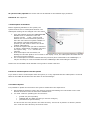
From the handset choose the SUBSCRIPTION
CREATE menu to subscribe to the new
system. Use the < and > keys to scroll
between the Id’s of the different systems if
there are more than one system available. If
the handset is already subscribed to 10
systems you will need to remove one of the
existing subscriptions.
Choose the system that you wish to subscribe
to. When a subscription is available, enter the
free system using < or > and the AC if
required.
If the subscription was successful, the
standby text and the speaker icon is shown in the display. If not, the subscription has failed and the
procedure must be repeated.
For re-subscription of a DECT handset that has previously been subscribed to the CallManager, it
may be necessary to reset the handset from the CallManager after subscribing the handset.
Please refer to the KIRK Z-3040 handset user’s guide for further reference.
8. Remove a Subscription from the System
If you wish to remove a subscription from the system, it is very important that the subscription is removed
FIRST on the KIRK IP Interface Card and then on the Call Manager.
9. Firmware Upload
It is possible to upload new firmware to the system. Please follow the steps below.
1.
2.
Put the KIRK IP Interface Card in ftp mode by pressing and holding the reset button on the card.
Release the button when the LED’s have flashed twice.
You need 3 files for uploading the new firmware:
•
•
•
gwload.exe (the ftp loader)
loadflash.bat (the batch file that you need to configure)
ipdect1500.bin (the firmware)
The first 2 files are to be placed in the same directory. The bin file is placed in a directory named
“bin” under the same directory as the first 2 files.