1
road where you drive (e.g. on the right in Germany and on the left in the U.K.) on
two-way roads.
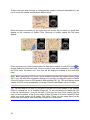
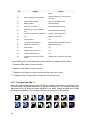
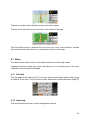
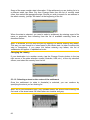
You always see this corrected position on the map. The position given by the GPS is
not displayed, but this is the information recorded in the track log. When recorded
track logs are shown on the map, the line is not corrected. You see the positions
reported by the GPS.
Note: The Lock-on-Road feature can be turned off in Advanced settings (Page 87)
for pedestrian use. When switched off, the arrow is displayed at the position reported
by the GPS receiver.
When the GPS position is lost, the arrow turns grey and remains at the last known
position.
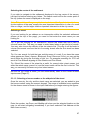
4.2.7 Selected map point, also known as the Cursor
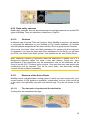
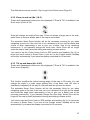
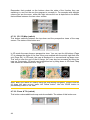
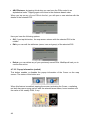
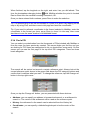
If you tap the map somewhere or select a specific item in Find, it will become the
selected point on the map, marked with a small red dot and permanently radiating
red circles to make it conspicuous at all zoom levels, even when it is in the
background of a 3D map view. You can use this point as starting point, via point, or
destination of your route, you can search for a POI near to it, or save it as a POI.
The cursor, when visible, is also the reference point for map scaling.
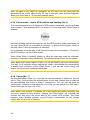
Note: When your GPS position is available, and Lock-to-Position (Lock to GPS
position and heading (No. 6)) is active, the cursor is the current GPS position, the
Green arrow. When you select another point by tapping the map, or using the Find
menu (Page 63), the new Cursor is shown on the display with the red dot and the
radiating red circles.
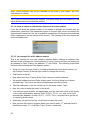
4.2.8 Visible POIs (Points of Interest)
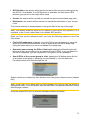
MioMap comes with thousands of built-in POIs, and you can create your own POI
database as well. Having all of them displayed on the map would make the map too
crowded. To avoid this, MioMap lets you select which POIs to show and which ones
to hide (Page 45) using their categories and subcategories.
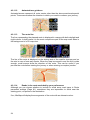
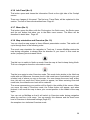
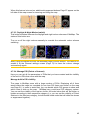
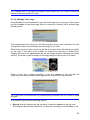
POIs are represented by icons on the map. For a built-in POI it is the icon of the
subcategory of the actual POI. For points you create, it is the icon you had chosen
when you created the POI (it can be changed later).
21