1
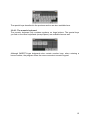
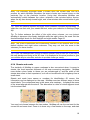
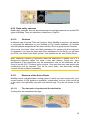
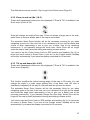
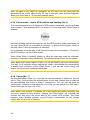
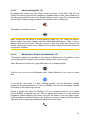
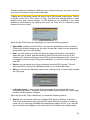
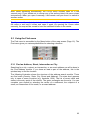
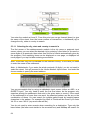
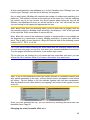
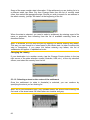
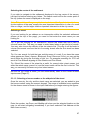
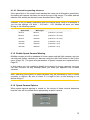
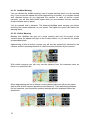
tilting up and down to see how MioMap switches between the two modes in an
instant.
Note: The automatic switching is on even when using Smart Zoom. At first you may
find it odd, but later you will discover how it adjusts the displayed information to the
current view of the map. It is important, as the driver must be able to read the map at
a glance.
Tip: If you do not want to be bothered by street names during navigation, turn them
off in Map Options (Page 86).
4.2.5 Other objects
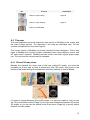
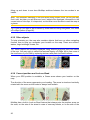
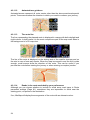
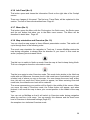
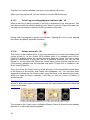
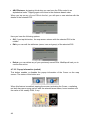
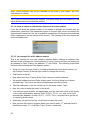
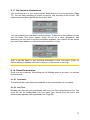
To help orientate you, the map also contains objects that have no other navigating
function than to help you recognise your location on the map. These are surfacewaters, large buildings, forests, etc.
Tip: These objects are normally displayed using textured polygons that look natural
to the eye. You may wish to switch the textured display off (Page 86) to free some of
the resources of your PNA by replacing textures with plain coloured surfaces.
4.2.6 Current position and Lock-on-Road
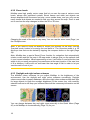
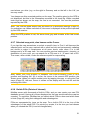
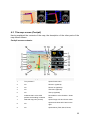
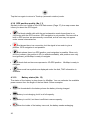
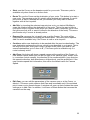
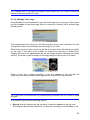
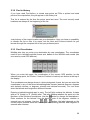
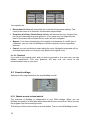
When your GPS position is available, a Green arrow shows your location on the
map.
The direction of the arrow represents your heading. The arrow is sized and vertically
rotated with the zoom and tilt levels to always look realistic.
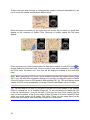
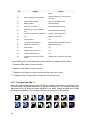
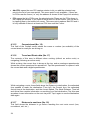
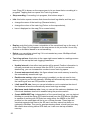
MioMap has a built-in Lock-on-Road feature that always puts the position arrow on
the road, on the axis of the street in case of one-way streets, or on the side of the
20