1
section 4
2532 / LIGHTJOCKEY OPERATION
Functions
The 2532 D.A. Controller provides the same functions when used with the Martin LightJockey controller as it does
with the 3032: please refer to the previous section. In addition, there is a print function and the user keys can be re-configured; the following functions are available:
•
•
•
Record Latch, Record Flash, and Toggle Latch/Flash View
Trig Auto Seq, Trig Man, Trig Man Rev
Fade Out, Fade In, Blackout and Restore (from Blackout)
Fade Out and Fade In use the fade time from the Master Intensity Control, while Fade Out X Sec and Fade In X
Sec uses the fade time indicated. It is highly recommended to assign the blackout/restore functions to user keys,
and not use the Black-out button of the 2532.
The 2532 must have software version 3.0 (or higher) in order to work with LightJockey. The basics are covered here.
Full information is provided in the online LightJockey help system.
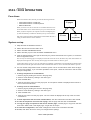
System setup
1. Choose Setup > Hardware Setup > Direct Access from the main LightJockey menu.
2. Select Martin 2532 under Direct Access Device.
3. Select the COM port (1, 2, 3, or 4) to which the 2532 is connected. Click OK.
4. Close and restart LightJockey.
5. Click the Direct Access icon on the fixture toolbar to open the 2532 Direct Access window.
6. Select Configuration from the 2532 Direct Access menu and check Enable 2532.
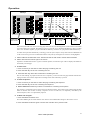
7. To assign cues:
i
Open the 2532 Direct Access window, if it is not already open, by clicking on the Direct Access icon.
ii Select View from the 2532 Direct Access menu and check 2532 Configuration.
iii Click on a page tab to select the page.
iv Click View Latch . There are three ways to assign cues:
•
•
•
Drag and drop a cue from the list of available cues to a virtual key.
Load the cue to assign, click Record Latch, and then press the latch key on the 2532.
Load the cue to assign, right-click a virtual key, and select Set Latch to Current Cue from the popup
menu.
8. To assign sequences:
i
Open the 2532 Direct Access window if it is not already open.
ii Click on a page tab to select the page.
iii Click View Flash. There are three ways to assign sequences:
•
•
•
Drag and drop a sequence from the list of available sequences to a virtual key.
Load the sequence to assign, click Record Flash, and then press the flash key on the 2532.
Load the sequence to assign, right-click a virtual key, and select Set Flash to Current Sequence from the
popup menu.
Operation
2532 / LightJockey operation is very similar to 2532 / 3032 operation: please refer to the previous section and the
online help.
To minimize the 2532 window, select View from the 2532 Direct Access menu and remove the check from 2532 Configuration.
2532 / LightJockey Operation
6