1
a797 Bourbon.book Page 91 Tuesday, September 22, 2009 10:50 AM
Customizing Mobile Video
2.
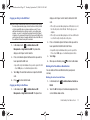
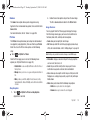
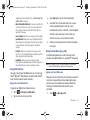
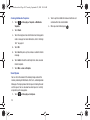
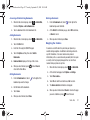
Updating the Favorites List
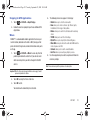
services listed within the Add to My Alerts section of the
The list of media providers which appear in the Favorites section
of the Mobile Video homepage can be edited and changed by the
user.
1.
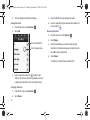
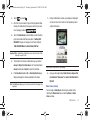
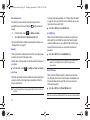
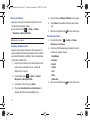
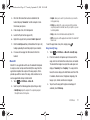
In Idle mode, touch
➔ Mobile Video ➔ Customize
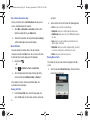
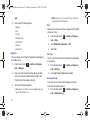
CV ➔ Edit My Favorites. The screen is composed of two
sections:
page (ex: Breaking News).
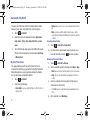
My Purchases
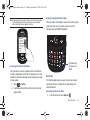
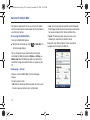
The CV homepage can be used to shop for streaming multimedia
content. The My Purchases section can help keep track of your
purchase history and view any new resale products.
1.
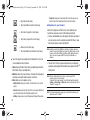
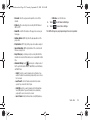
• Touch
to delete a Favorite.
• Touch
to open a Favorite.
• Touch
to move an item to the Favorites.
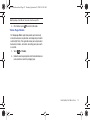
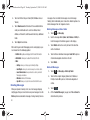
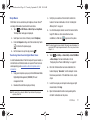
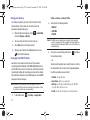
Adding a Video Alert
When new media is available for upload to your phone (such as
breaking news), you can set your phone to notify you of the new
available content.
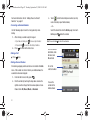
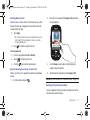
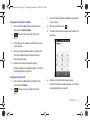
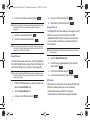
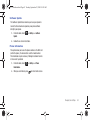
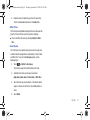
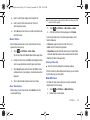
In Idle mode, touch
➔ Mobile Video ➔ Customize
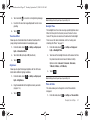
CV ➔ My Video Alerts ➔ Add to My Alerts.
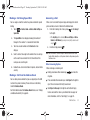
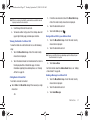
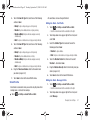
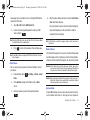
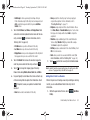
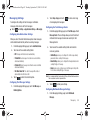
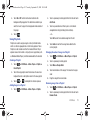
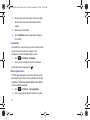
In Idle mode, touch
➔ Mobile Video ➔ Customize
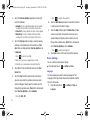
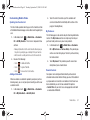
CV ➔ My Purchases ➔ Purchase History. This provides you
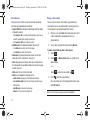
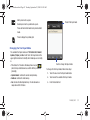
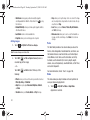
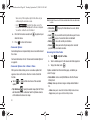
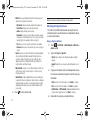
• Manage My Favorites: lists the current Favorites list and gives you
the option of opening the page or deleting it from your Favorites.
• Add to Favorites: selecting an item moves it to the Favorites list.
2. Do one of the following:
1.
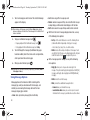
Touch the red circle next to any of the available alert
with an on screen listing of your “to date” purchase history
for media content.
2.
Touch My Account. This provides you with an onscreen
description of your account details.
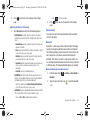
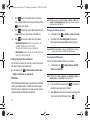
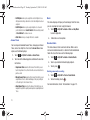
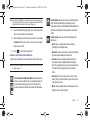
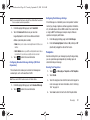
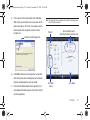
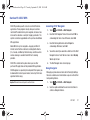
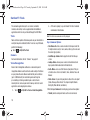
Parental Controls
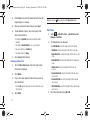
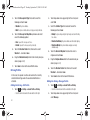
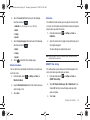
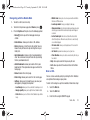
Your phone can be configured to block both purchased and
streamed media content. Before filtering, you must first establish
a pin/password and a contact e-mail address. Once those have
been established, you can the two available filter options:
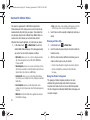
• Content Filters: let you restrict access to inappropriate content both
on and outside of MEdia Net.
Mobile Video
91