1
DVR User’s Manual
3.5.5
ezRecord Setup
This item aims to ease the complicated record settings, and to make the
setup much easier. Note that the item can be reached only when <ezRecord>
is selected as the option for <Preset Config>.
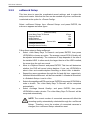
Select <ezRecord Setup> from <Record Setup> and press ENTER, the
sub-menu appears as below figure:
ezRecord Setup
How Many Days To Record
Daytime Record
Night Record
Weekend Record
Record Info
Average Normal PPS
Average Normal Quality
2 Days
Yes
Yes
Yes
7.5
Best
Follow these steps to Setup ezRecord:
•
Select <How Many Days To Record> and press ENTER, then press
UP/DOWN to choose an option. The average normal PPS & Quality will
be adjusted automatically. The maximum of days depends of the size of
the installed HDD. In other words, the larger the size of the HDD installed,
the more days the unit can record.
•
Move to <Daytime Record> and press ENTER. This item will determine
whether the DVR will record during daytime. If yes, use UP/DOWN to
select <Yes> as to enable daytime recording; or select <No> to disable.
•
Repeat the same procedures through the 3rd and 4th item, respectively.
Notethat<WeekendRecord> will be inaccessible if <Weekend Schedule>
in <Schedule Setup> is set to <No>.
•
Select<AverageNormalPPS>and press ENTER,then press UP/DOWN to
make a choice。The <How Many Days To Record> will be computed
automatically.
•
Select <Average Normal Quality> and press ENTER, then press
UP/DOWN to make a choice. The <How Many Days To Record> will be
computed automatically.
NOTE: The current number of connected cameras will affect the
recording quality automatically calculated through the <ezRecord
Setup>. Therefore, once the number of connected cameras is
changed, the <ezRecord Setup> should be reset.
22