1
PzDB User Manual
Version 1.1
Importing Libraries
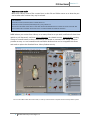
The first step in using PzDB is to Import a Library. A default first Library called
“Main Library” has been included. Simply click the “Browse” button and find your
Poser Library folder, then click “Import.” PzDB will then perform the Import
procedure. It will:
1.
Scan all the files in that Library folder and all subfolders.
2.
Repair any missing icons it discovers.
3.
Create database entries for all the new Poser content it finds in those folders.
4.
Look for new Keywords in these new database entries.
5.
Then automatically Group this new content and …
6.
Cross-reference it based both on these new Keywords, and the extensive lists of default
Keywords that came with PzDB.
After you Import a Library, you are ready to Browse and Search Content.
That‟s all there is to it. There‟s no typing, and no tedious data entry required!
Later, you may wish to rescan that Library later after you have added new content, or you can
import other Libraries from other folders. See Section 4 for Best Practices about using multiple
Libraries
.
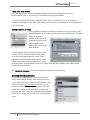
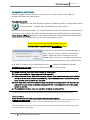
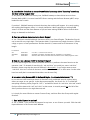
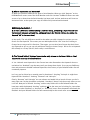
IM P O RT /U P D AT E W IN D O W
S ync hro nizes yo ur D a ta ba s e w it h yo ur Po s er L ibra ry
1 . S e le ct L ibra r y
(Your 1st Library M U ST
be the default
M ain Poser Library )
2 . B ro w s e to t he
L ibra r y Fo ld e r
(if you ha ven ’t already set it)
3 . C lic k Im p o rt
Note: In our initial tests using a 3 GHz computer, PzDB could index and cross-reference over 100,000 files
and over 16 Gigabytes of Library content per hour! Later rescans only took moments. Scanning smaller
Libraries is much faster, and we are always working on improving PzDB scan speeds.
7 © 2009 Rocketship Technologies LLC.