1
a) OPEN the HDD Tray:
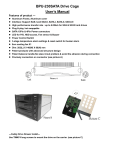
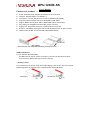
Firstly, unlock the HDD tray and pull out the handle to take out HDD tray(Picture B-1.)
b) LOCK the HDD Tray:
After HDD is installed on the HDD tray, then, slide in the HDD tray and press the front
handle forward and use the key to lock the HDD tray onto the unit (Picture B-2.)
---Front Panel & Real View---
(See Picture C & D)
Picture C
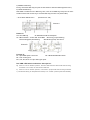
Picture C:
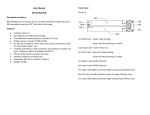
C1 to C4 : HDD Tray
C5 : Mechanical locker for front panel
C6: LED indication : *Power ON : Solid Blue
*Red blinking(fast):Overheating
*Accessing: Purple blinking
*Red blinking(slow): fan failure
Picture D
disable
enable
Picture D:
D7: 15pin SATA power connector
D8: LED Enable/Disable switch
D9 – D10: Cooling Fan
D11, D12, D13, D14: For 7pin data signal ports
D8: HDD LED Switch Indication description:
a) When it is set to “disable“ position, the front LED does
NOT blink while HDD is being
accessed. In this case, the LED shows solid blue
b)
When it is set to “enable” position, it will blink in purple while HDD is being accessed.
c) The default setting for D8 (HDD LED Switch) is to “enable” position (HDD LED Enable).