1
■ chapter 5 trouble shooting
Network Adapter / Ethernet Problems
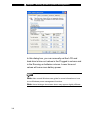
The Ethernet adapter does not work Go to [Start > Settings > Control Panel > System >
Hardware > Device Manager]. Double-click on Network
Adapters and check if Realtek RTL8139/810x Family Fast
Ethernet NIC appears as one of the adapters. If it does not
exist, Windows has not detected the Realtek RTL8139/810x
Family Fast Ethernet NIC or the device driver has not been
installed properly. If there is a yellow mark or red-cross on the
network adapter, it may be a device or resource conflict.
Replace or update the device driver from the factory CD-ROM
disk or consult Windows manual on how to solve the resource
conflict problem.
Make sure the physical connections on both ends of the
cable are good.
The hub or concentrator may not be working properly.
Check to see if other workstations connected to the same hub
or concentrator is working.
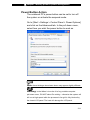
The Ethernet adapter does not appear to operate in the
100Mbps transmission mode Make sure the hub you are using supports 100Mbps
operation.
Make sure that your RJ-45 cable meets the 100Base-TX
requirements.
Make sure the Ethernet cable is connected to the hub socket that supports 100Base-TX mode. The hub may have
both 100Base-TX and 100Base-T sockets.
5-13