1
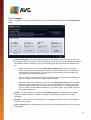
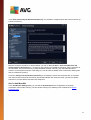
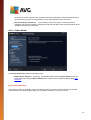
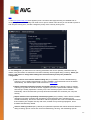
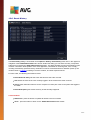
Next, the text field called Name (deactivated for all default schedules) states the name assigned to this very
schedule by the program vendor. For newly added schedules (you can add a new schedule by right-click ing
over the Scheduled scan item in the left navigation tree) you can specify your own name, and in that case
the text field will open for editing. Try to always use brief, descriptive, and apt names for scans to make it
easier to later differentiate the scan from others.
Example: It is not appropriate to call the scan by the name "New scan" or "My scan" since these names do
not refer to what the scan actually check s. On the other hand, an example of a good descriptive name would
be "System area scan" etc. It is also not necessary to specify in the scan's name whether it is the scan of the
whole computer or just a scan of selected files or folders - your own scans will always be a specific version of
the scan of selected files or folders.
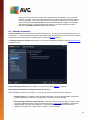
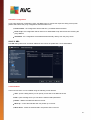
In this dialog you can further define the following parameters of the scan:
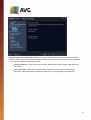
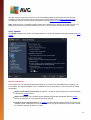
Schedule running
Here, you can specify time intervals for the newly scheduled scan launch. The timing can either be defined by
the repeated scan launch after a certain period of time (Run every ...) or by defining an exact date and time (
Run at specific time interval ...), or possibly by defining an event that the scan launch should be associated
with (Run on computer startup).
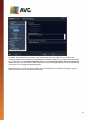
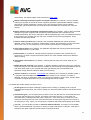
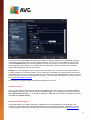
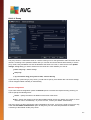
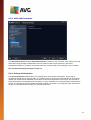
Advanced schedule options
This section allows you to define under which conditions the scan should/should not be launched if the
computer is in low power mode or switched off completely. Once the scheduled scan is launched in the time
you have specified, you will be informed on this fact via a pop-up window opened over the AVG system tray
72