1
Section 3 - Configuration
QoS Engine
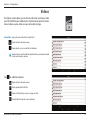
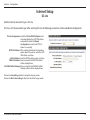
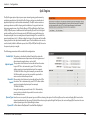
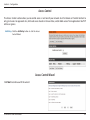
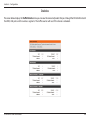
The QoS Engine option helps improve your network gaming performance by
prioritizing applications. By default the QoS Engine settings are disabled and
application priority is not classified automatically. The QoS section contains a
queuing mechanism, traffic shaping and classification. It supports two kinds
of queuing mechanisms. Strict Priority Queue (SPQ) and Weighted Fair Queue
(WFQ). SPQ will process traffic based on traffic priority. Queue1 has the highest
priority and Queue4 has the lowest priority. WFQ will process traffic based on
the queue weight. Users can configure each queue’s weight. The sum of all the
queue’s weight must be 100. When surfing the Internet, the system will do traffic
shaping based on the uplink and downlink speed. The classification rules can be
used to classify traffic to different queues, then SPQ or WFQ will do QoS based on
the queue’s priority or weight.
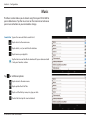
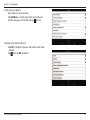
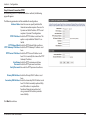
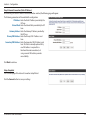
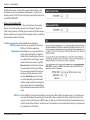
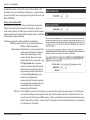
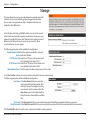
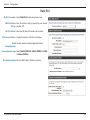
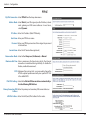
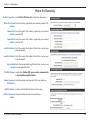
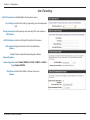
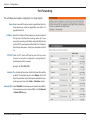
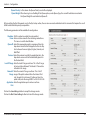
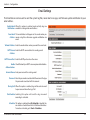
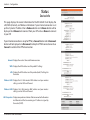
The following parameters will be available for configuration:
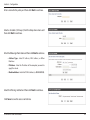
Enable QoS: This option is disabled by default. Enable this option for
better performance and experience with online games and
other interactive applications, such as VoIP.
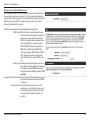
Uplink Speed: The speed at which data can be transferred from the router
to your ISP. This is determined by your ISP. An ISP often
defines speed as a download/upload pair. For example,
1.5 Mbits/284 Kbits. Using this example, you would enter
284. Alternatively you can test your uplink speed with a
service such as www.dslreports.com.
Downlink The speed at which data can be transferred from the ISP to
Speed: the router. This is determined by your ISP. ISP’s often define
speed as a download/upload pair. For example,
1.5 Mbits/284 Kbits.
Using this example, you would enter 1500. Alternatively
you can test your downlink speed with a service such as
www.dslreports.com.
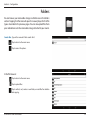
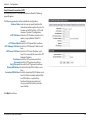
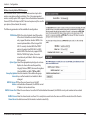
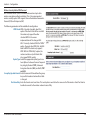
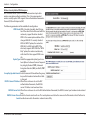
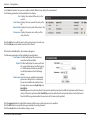
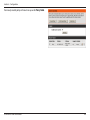
Queue Type: Here the user can specify the queue type used. When choosing the option Strict Priority Queue, the router will apply QoS based on the
internal specification for the queue IDs listed. When choosing the option Weight Fair Queue, the router will apply QoS based on the user
defined percentage in the Queue Weight column.
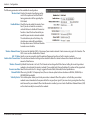
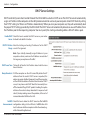
Queue ID: In this column the Queue ID used will be displayed.
D-Link DIR-818LW User Manual
120