1
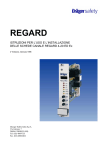
REGARD Configuration Software Instructions for Use REGARD Configuration Software certified as CUS0000 Software version: 1.0.0 REGARD Interface Card certified as CUI0000 Software version: 01.07 Configuration and documentation of REGARD channel cards systems Table of Contents REGARD Configuration Software .............................................................................. 1 Notice on REGARD Configuration Software............................................................. 4 Safety Instructions ................................................................................................... 4 Compatibility and Restrictions ............................................................................... 5 Intended use ............................................................................................................. 7 Use ......................................................................................................................... 7 Benefits for the user ............................................................................................... 7 System Requirements for the Gas Warning System.............................................. 7 Notices on How to Use the Instructions.................................................................... 8 Style Conventions .................................................................................................... 8 Help System.............................................................................................................. 8 Installing the REGARD Configuration Software ....................................................... 9 Starting the REGARD Configuration Software ....................................................... 10 Working with the REGARD Configuration Software .............................................. 11 Operating Modes .................................................................................................... 11 Offline Configuration Mode................................................................................... 11 Online Configuration Mode................................................................................... 11 Configuration Window ........................................................................................... 11 Creating System Configurations .......................................................................... 12 Creating New Cards and Channels ...................................................................... 12 Deleting System Elements ................................................................................... 13 Duplicating System Elements............................................................................... 14 Copying Channel Configurations.......................................................................... 14 Changing Parameters........................................................................................... 14 System Structure and Documentation.................................................................. 15 Search and Filter Functions.................................................................................. 15 Data Transfer between the REGARD Systems and the REGARD Configuration Software .................................................................................................................. 16 Reading Out the REGARD System Configuration ............................................... 17 Transferring the Configuration to the REGARD System ...................................... 17 System Comparison ............................................................................................. 19 Working in Online Mode ........................................................................................ 20 Starting the Online Mode...................................................................................... 20 Changing Individual Channel Configurations ....................................................... 20 Replacing Channel Configurations ....................................................................... 20 Sending Commands ............................................................................................. 21 Printing the System Configurations..................................................................... 23 Creating a User Account ....................................................................................... 23 Menu............................................................................................................................ 25 File Menu................................................................................................................. 25 Settings Menu......................................................................................................... 26 Configuration Menu ............................................................................................... 26 Help Menu ............................................................................................................... 27 Language Menu ...................................................................................................... 27 Error list ...................................................................................................................... 28 2 REGARD Interface Card ............................................................................................ 30 For Your Safety....................................................................................................... 30 Safety instructions ................................................................................................. 30 Declaration of Conformity ..................................................................................... 32 Intended Use........................................................................................................... 33 Indication of Operational and Fault Conditions.................................................. 33 Installation .............................................................................................................. 33 Specifications ......................................................................................................... 34 Disposal .................................................................................................................. 34 3 Notice on REGARD Configuration Software Safety Instructions Strictly Follow the Instructions for Use Any use of the PC-program requires complete understanding and strict observation of the user instructions below and other required REGARD instructions. The program is only to be used for the purposes explicitly specified in this manual. Safety Symbols used in these Instructions for Use While reading this manual, you will come across a number of warnings concerning some of the risks and dangers you may face while using the device. These warnings contain "signal words" that will alert you to the degree of hazard you may encounter. These words, and the hazards they describe, are as follows: WARNING Indicates a potentially hazardous situation which, if no safety precautions are taken, could result in death or serious injury. CAUTION Indicates a potentially hazardous situation which, if not avoided, could result in physical injury to you, or damage to the product. It may also be used to warn against unsafe practices. Notice Additional information on how to use the device. 4 Compatibility and Restrictions Minimum Requirements for the PC System Operating system: Windows 2000, Windows XP, Windows Vista Processor: Intel Pentium Working memory: 512 MB RAM Interfaces: REGARD Interface Card a free USB port Compatible REGARD Components Card type Software versions Icon Master card/ Extra master card V1.6, V1.7 (DMT), V1.8, V3.0 (ATEX) 4-20 mA channel card V1.5, V1.6, V1.7 (DMT), V3.0 (ATEX) 4-20 mA optical card V1.0, V3.0 (ATEX) Ex channel card V1.5, V1.6, V1.7 (DMT), V3.0 (ATEX) 8-channel display card V2.5, V3.0 (ATEX) HART channel card V1.4, V2.0 Relay display card V1.5, V3.0 (ATEX) CAUTION No other REGARD cards and software versions are supported by this software and therefore cannot be configured with this software! Driver REGARD Interface Card Driver The driver for the REGARD Interface card is provided on the installation CD. 5 Restrictions Card type Restriction Master card/ Extra master card Voting configurations of master cards regarding A3 alarms cannot be configured and read for groups consisting of more than 10! Such configurations have to be set manually or read out directly from the master card, if necessary. Icon The software will not recognise cards configured as extra master. If necessary, the extra master card configurations must be set directly at the card and added to the documentation manually after the system was read out. 4-20mA cards with The LCI2, ACl2, TCl2 functions/parameters cannot be chlorine or HF/HCI test changed or read using the software. These card parameters must be configured manually and documented. 8-channel display card/ HART channel card The software will not automatically assign the channels of multiple channel cards to the respective display cards. If necessary, the assignment must be carried out manually after the system configuration was read out. The procedure affects those card parameters which apply to all channels of a display card. They are marked yellow in the software. Relay display cards Relay display cards with CSUM communication errordetection cannot be configured using the software. All channel cards It is possible to change and read out configuration parameters using the software. All settings entries, such as e.g. zero point settings must be carried out manually on the channel cards. 6 Intended use Use The REGARD configuration software helps configure and document the REGARD channel card systems. Benefits for the user The REGARD configuration software enables comfortable, safe and timesaving configuration and documentation of the above mentioned REGARD channel cards. System Requirements for the Gas Warning System The above mentioned REGARD channel cards can be configured using the REGARD configuration software. This software is not to be used to configure systems operating with other cards or software versions. The REGARD Interface card is used to directly connect the REGARD systems to a USB port of a computer. To carry out the connection, the REGARD Interface card must be inserted into the system. Using the software is only possible when the REGARD system is entirely ready for communication. This means: 1. Make sure that a master card is inserted. 2. The master card must be provided with the number of channels and the start channel address of the channel cards. 3. All channels are assigned a unique card number (consecutive numbering without gaps). 4. All relay display cards have a unique card number assigned to them. 5. All relay modules have an address assigned to them. 6. The system is faultless (e.g. FLTX, FLTC, etc.) 7. The REGARD Interface card and the driver are installed. 7 Notices on How to Use the Instructions Notice This IFU must be used in combination with user manuals of the REGARD channel cards you intend to use. Style Conventions The following identification markings are used in IFUs: Work step sequence: x ... x ... x ... Listings for the (completeness) check: 1. ... 2. ... 3. ... Handling options: a) ... b) ... c) ... Listings in the text: ... ... ... Buttons and menu items: Selection Help System In addition to the operating manual enclosed with the software package, a comprehensive help system is integrated in the REGARD configuration software. You can call up the Help function by clicking on the question mark in the menu. All of the explanations found in the operating manual are also given in the Help. 8 Installing the REGARD Configuration Software x Insert installation CD in CD/DVD-ROM drive. x If the installation routine does not start automatically: launch setup.exe. x Follow the installation instructions. Result 1. The REGARD configuration software is installed automatically in the C:\Program Files\Draeger\REGARD Configuration Software directory. Any existing version in the folder will be overwritten. 2. Links to the program will be created on the Desktop and in the Start menu. 9 Starting the REGARD Configuration Software You can start the REGARD configuration software in two ways: a) by double-clicking the REGARD configuration software icon on the Desktop b) by choosing the REGARD configuration software menu item in the Windows menu under Start - Programs - Dräger x After the installation, user profiles must be created in the user administration. The following default settings in the user administration are preconfigured: user name: password: admin admin Notice To prevent unauthorised use, the administrator password must be changed after the installation has been completed. 10 Working with the REGARD Configuration Software Operating Modes Offline Configuration Mode The following operations can be carried out in this mode: setting new system configurations editing/changing system configurations opening and saving system configuration files printing system configurations Online Configuration Mode The following operations can be carried out in this mode: changing individual channel card parameters during operation replacing channel card configurations (replacing cards) sending channel cards and system commands Configuration Window The system configuration is displayed in the configuration window. The system architecture is visible in a tree structure on the left side of the instrument window. By selecting the required parameter or the required card, the corresponding data is displayed on the right side and can also be changed here if needed. Values shown in grey cannot be changed. 11 Conformance of the Parameter Description In the configuration software, a consistent designation of all card parameter settings was used. However, the designations in the operating manual and on the displays of the REGARD components may be different. In particular: Card type Card designation Designation in software 8-channel display card/ HART channel card ON ALARM ENER NORMALLY NORM Creating System Configurations x New system configurations can be created using either a menu or a button: a) Select New in the File menu. b) Press button. Creating New Cards and Channels The user can create new cards and directories. x Select a master element (system, subsystem, relay, display, HART or 8-channel card). x Create a new card/channel using either a menu or a button: a) Select New in the context menu. b) Press button. x Choose card type or subsystem. x If possible, select software version of the channel card. x If possible, select channel number. x Enter a description if necessary. x Confirm dialog with OK. 12 Deleting System Elements x Choose the element to be deleted (e.g. channel or subsystem). x Delete the element using either a menu or a button: a) Select Delete in the context menu. b) Press button Notice All subelements will also be deleted. 13 Duplicating System Elements Cards and channels can be duplicated. The newly-created channels are automatically provided with available channel numbers. x Choose the element to be duplicated (e.g. channel or subsystem). x Duplicate the element using either a menu or a button: a) Select Duplicate in the context menu. b) Press button. Copying Channel Configurations The configurations can be copied from one channel to another. Only channels or cards of the same type can be copied. It is not possible to copy a Non-ATEX version configuration to an ATEX version. x Choose the element from which the configuration should be copied. x Copy the element using either a menu or a button: a) Select Copy settings in the context menu. b) Press button. x Choose a different element of the same type. x Paste the element using either a menu or a button: a) Select Paste settings in the context menu. b) Press button. Changing Parameters All adjustable parameters of a channel card are displayed on the right. Cards can be selected in the system structure on the left. Values shown in grey cannot be changed. For further information on individual parameters refer to the user manual of the respective channel card. Notice Voting configurations of master cards regarding A3 alarms cannot be configured and imported for groups consisting of more than 10 items! They have to be set directly on the master card if necessary. Notice Some parameters of the multiple channel cards HART and 8-channel cards apply to all card channels. Any change will influence all channels i.e. the entire card. These parameters are marked yellow! Notice Information considering designation (TAG), transmitter and sensor current values are relevant for the documentation only and have no influence on the card configuration. 14 Notice After the transmission, configuration changes of the relay display cards or modules cannot be reset. This is because contrary to channel cards, relay display cards have an auto-save function which is triggered after transmission. This ensures that all parameters are permanently changed after transmission. System Structure and Documentation Comments on the system configuration e.g. notices on certain system properties can be entered in the system dialog. Channels or cards can be moved by Drag&Drop within the system window and sorted into subsystems or rack. They can also be nested within each other to enable a depiction of complex systems. Notice These system designations are only relevant for the documentation in the configuration file and will not influence the system configuration. For documentation purposes, a transmitter for each channel card can be selected or entered in the parameter view of channels or cards. In case of EX cards the sensor current can be documented. Each channel can be provided with a description (TAG). These entries will not influence the settings on the channel card. Search and Filter Functions The software is provided with functions enabling the user to search the data for descriptions and filter it according to a channel or a card type. Search x Enter a search item into the search field. x Start search using a button. x Use a button to continue searching until the required element is found. Filter x Select a card or a channel type using a button. The remaining card or channel types are faded out. 15 Data Transfer between the REGARD Systems and the REGARD Configuration Software WARNING Observe the information in the REGARD instructions. Accessing the system can cause communication errors. During the access procedure, the system will be fully or partially set to service mode (Inhibit). Access is only possible when the system is entirely ready for communication! Voting configurations of master cards regarding A3 alarms cannot be configured and imported for groups consisting of more than 10 items! They have to be set directly on the master card if necessary. Only one REGARD Interface card may be connected. During the access procedure a part of the MEASURE messages at the system bus (Modbus cards etc.) is blanked. This can influence the performance of the Vision32 software. During the access no manual changes may be carried out at the system. The system may only be accessed using the software. After the system was configured or the configuration transfer was completed, the connection between the REGARD Interface card and the PC must be disconnected. The user must confirm system access procedures, e.g. Read, Write and Online Mode using a password. 16 Reading Out the REGARD System Configuration x Power up the system. x Connect the REGARD Interface card to the PC using the supplied USB cable. x Start the REGARD configuration software. x To read out the REGARD system configuration, a) Select Receive from system in the Configuration menu. x b) press x Confirm system access using a password. x Save the system configuration as a file. button. If the transferred REGARD system contains multiple channel cards (HART or 8channel display cards), the respective channels must be arranged into groups. To do so, the multiple channel cards can be added to the system configuration and the channels can be sorted using the Drag&Drop function. This operation must be carried out very carefully, because an incorrect arrangement could distort the configuration. Transferring the Configuration to the REGARD System x Power up the REGARD system. 17 x Connect the REGARD Interface card to the PC using the supplied USB cable. x Start the REGARD configuration software. x Create or load configuration. x If necessary, save the system configuration as a file. x Transfer the configuration to the system, use either the menu or the button a) Select Send to system in the Configuration menu. b) Press button. x Confirm system access using a password. x After the transfer, the data is read back and must be checked for correctness. All parameters are listed as tables in a compare dialog. x Confirm data verification and permanently save the configuration. or x The system can be set to its previous state using the Reset button, if necessary. The procedure does not apply to the configuration data of the relay display card or modules which must be, if necessary, reset manually. Result The parameters from the REGARD configuration software are transferred to the system, previous system settings are overwritten. 18 System Comparison It is possible to compare the current system configuration with a saved system configuration. The differences are displayed in tables in a dialog. x Power up the REGARD System. x Connect the REGARD Interface card to the PC using the supplied USB cable. x Start the REGARD configuration software. x Load the saved configuration. x Start system comparison using the x Confirm system access using a password. x Carry out a system comparison assessment. button. In the comparison view the user can filter the data according to differences and card types. The result of the comparison can be printed out using the Print button. 19 Working in Online Mode Starting the Online Mode In Online mode the software displays the current system and enables configuration changes for each channel individually. x Power up the system. x Connect the REGARD Interface card to the PC using the supplied USB cable. x Start the REGARD configuration software. x Start Online mode using x Confirm system access using a password. button. The Online mode can be closed using the button. Changing Individual Channel Configurations x Select a channel from the tree structure on the left side of the screen. x Change parameters. x button. Transfer the change to the channel card using the The configuration is transferred to the channel card and - for safety reasons automatically read back. x After the transfer was completed, check if the parameters have been transferred and read back correctly. x Confirm data verification and permanently save the configuration using the button. or Use the button to reset parameters that were changed but not transferred or permanently saved yet. The procedure does not apply to the configuration data transferred to the relay display card or modules. These must be reset manually to the previous condition. Replacing Channel Configurations A complete parametrization of a card can be carried out using the saved configuration. This can be advantageous e.g. after exchanging or replacing a card. x Start Online mode. x Select a channel from the tree structure. x Load a channel configuration from a file using the Replace configuration menu. x Select configuration file. x Select and accept channel. 20 x Transfer the change to the channel card parameter using the button. The configuration is transferred to the channel card and - for safety reasons automatically read back. x After the transfer was completed, check if the parameters have been transferred and read back correctly. x Confirm data verification and permanently save the configuration using the button. or Use the button to reset parameters that were changed but not transferred or permanently saved yet. The procedure does not apply to the configuration data transferred to the relay display card or modules which - if necessary - must be reset manually. The configurations of multiple channel cards / relay modules must be exchanged for each channel/module individually. Sending Commands The following commands can be sent to all channels in the REGARD system or to each channel individually: Acknowledge. Set inhibit mode. Inhibit LOCK (60-0). Leave inhibit mode. Test LEDs (14-0). Leave Test LEDs. Only for HART channels: Transfer (04-7. Notice 21 Commands sent to the system are ignored by the master cards. Commands must always be sent directly to the master cards. x Start Online mode. x Select a channel or system from the tree structure. x Send command using either a menu or a button. a) Select Command in the menu. b) Press button. 22 Printing the System Configurations For documentation purposes, the system configurations can be printed out. Print When the configuration files are opened, the Print button is active and the system configurations can be printed. Creating a User Account A user account must be created for each software user. User administration The following information must (*) or can be entered: User name * First name Last name Password * Each user can be assigned different rights: Receive (Read out system/configuration) Send (system/configuration) Edit configurations Online Mode 23 Only the administrator can manage user accounts. The following information can be entered or changed in the "Administrator" user account: First name Last name Password Notice To save any changes of user data or user rights, a new password must be assigned. 24 Menu The menu of the REGARD configuration software is located in the program window header. Frequently used functions are also available as buttons in a button bar. Some of these buttons are adaptive, hence are active only when corresponding functions are available. File Menu Logout The current user is logged out. The login dialog is displayed. New Creates a new system configuration. Open Calls up a configuration selection window. Select the required file and press the Open button. Close Closes the opened system configuration. If any opened configurations contain changes that have not yet been saved, the user is asked if the data should be saved before the window closes. Save The opened system configuration is saved. Save as Enables saving system configurations with a different file name. Print The system configuration is printed by the selected printer. 25 Exit Exits the REGARD configuration software. If any opened configurations contain changes that have not yet been saved, the user is asked if the data should be saved before the window closes. Settings Menu User administration The user administration dialog is opened. This function is available only to the administrator. Printer Settings Opens the printer settings dialog. Configuration Menu Compare The opened system configuration is compared with the configuration of the connected REGARD system. Send to system The currently opened system configuration is loaded to the connected REGARD system. Receive from system The configuration is read out from the connected REGARD system. Online mode Starts the Online mode. 26 Help Menu About Opens a dialog containing program information. Contents Opens the Help file. Language Menu The Languages menu contains all selectable languages. To change the program language, select required item. 27 Error list Error Message Context/Meaning Cause The REGARD Interface card was not detected. Please check the connection. Communication with Connection with the the system was card is disturbed. started. Check the USB connection. Check the LEDs on the card. The verification of the read back configuration values failed! Correct the configuration on the card manually. Configuration parameter transfer. A discrepancy/ implausibility of parameters was detected. Interrupt the configuration. Restart the configuration. Reset card manually. Card may be defective. Configurations cannot be compared. The system contains different number of cards. Comparison of system configuration. There are too many differences between the amount of the cards/channels or their structure to compare the configuration file and the current system configuration. Checking the configuration. Updating configuration file. Configurations cannot be compared. At least one card has a different software version. Comparison of system configuration. There are too many differences between the amount of the cards/channels or their structure to compare the configuration file and the current system configuration. Checking the configuration. Updating configuration file. Invalid configuration file! Load from a file. An invalid The file is invalid or was configuration file manipulated. Create new was attempted to be file if necessary. loaded. File could not be created. System configuration data is defective! Saving the configurations. An unknown error occurred. A critical error Communication with Connection with the occurred. Please make the system was card is disturbed. sure that the REGARD started. Interface card is connected correctly. Action / Remedy Restart the program. The computer memory may be defective. Restart the application. Check the system configuration if necessary Check the USB connection. Check the LEDs on the card. 28 Error Message Context/Meaning Cause Action / Remedy A communication error Configuration occurred during the parameter transfer. start of the Online mode. Please make sure that the REGARD system and the REGARD Interface card are connected correctly. The connection with the card or the system is disturbed. Check the USB connection. Check the LEDs on the card. Configuration of at least one of the cards is invalid. Please, correct the settings. Configuration of at least one of the cards is invalid. Check the system configuration if necessary A communication error Communication with The connection with occurred. Check the the system. the card or the system configuration system is disturbed. manually. Check the configuration for invalid values and adjust if necessary. Check the USB connection. Check the LEDs on the card. Check the system configuration if necessary 29 REGARD Interface Card For Your Safety Follow the instructions Follow the instructions for installation, operation and maintenance. Any use of the device requires full understanding and strict observation of these instructions. The device may only be used for the purposes specified here. Not for use in potentially explosive atmospheres. The REGARD Interface card is not approved for operating underground or in potentially explosive atmospheres. Maintenance The REGARD Interface card does not require any maintenance but should be checked at regular intervals for correct operation. For the USB connection between the REGARD Interface card and the PC, the cable used should not be longer than 3m. Safety instructions Strictly follow the instructions for use Any use of the REGARD Interface card requires complete understanding and strict observation of the user instructions below and other required REGARD instructions. The REGARD Interface card is only to be used for the purposes specified herein. Safety symbols used in these Instructions for Use While reading this manual, you will come across a number of warnings concerning some of the risks and dangers you may face while using the device. These warnings contain "signal words" that will alert you to the degree of hazard you may encounter. These words, and the hazards they describe, are as follows: WARNING Indicates a potentially hazardous situation which, if no safety precautions are taken, could result in death or serious injury. Notice Additional information on how to use the device. 30 CE marking and ATEX marking The REGARD Interface card is provided with a CE marking indicating its conformity with the "ATEX" Directive 94/9/EC as accessory of the REGARD system. In addition, the card carries the following marking in accordance with the directive: EC-Type Examination Certificate DMT 02 ATEX G 002 X WARNING This marking does not mean that the card is explosion-proof. Without suitable protection, the REGARD Interface cards may not be used in potentially explosive atmospheres (hazardous areas). However, this applies only if ATEX versions of the REGARD channel cards with software version 3.0 (see chapter "Compatibility") are used. Designation The date of manufacture is encoded in the serial number. The year of manufacture is indicated by the third letter in the serial number shown on the rating plate: T = 2003, U = 2004, W = 2005, X = 2006, Y = 2007, Z = 2008, A = 2009, B = 2010, C = 2011, etc. Example: Serial No. ARUH-0054: the third letter is U, which means that the unit was manufactured in 2004. 31 Declaration of Conformity 32 Intended Use The REGARD Interface card is designed for the REGARD channel card systems and must be used with the REGARD configuration software only. The REGARD Interface card can stay permanently inserted in the rack, but the USB cable is only allowed to be connected to the software during the configuration procedure. Indication of Operational and Fault Conditions After the PC and the REGARD Interface card have been connected via USB connector, the power up procedure and the card self-test are initiated. During these procedures the Fault and the Comm LEDs light up automatically. If the system voltage supply is connected, the Power LED lights up as well. The interface is ready for communication after approx. 3 seconds. Notice During the power up procedure all messages are ignored. LED Colour Indicates Lit: The card is correctly connected with the REGARD system and is supplied with voltage from the system. Power green Fault yellow Flashing: Operational disturbance or card error. Disconnect the USB connection and then reconnect it. In case of permanent error message: The card is defective and must be replaced. Comm green Lit: USB connection without communication Flashing: System <-> PC communication Unlit: Check USB cable. Check the USB voltage supply. In case of permanent error message: The card is defective and must be replaced. Installation Install the REGARD configuration software incl. driver, before installing the channel card. Insert the card into the slot of the REGARD rack, just like the other REGARD channel cards. The rack requires no other cabling. Notice Observe the REGARD manuals for channel cards. 33 Specifications Operation and Storage DC supply system Voltage range 18 – 30V DC Current consumption at 24V maximum 90mA DC supply on the USB side Voltage range 5V DC (USB supply) -1V + 0.25V Current consumption at 5V maximum 90mA Operating conditions Temperature 0 to 55°C Humidity 0 to 90% RH, non-condensing Vibration according to EN 60079-29-1 USB cable The used USB connecting cables should not be longer than 3m. Storage conditions Temperature –25 to 55 °C Weights REGARD Interface Card 105 g Disposal Since August 2005, regulations concerning the disposal of electrical and electronic devices have been implemented throughout the entire European Union; these regulations are specified in the Directive 2002/96/EC of the European Parliament and in national laws relating to this device. Special collection and recycling possibilities have been established for private households. However, since the device has not been registered for use in private households, it cannot be disposed of as special household waste. Therefore, you should send it to your national Dräger distribution organisation for disposal, which you can contact for further information. 34 Great Britain Draeger Safety UK Limited Manufacturing Division Kitty Brewster Estate Blyth, Northumberland NE24 4RG England, U.K. Phone: +44/1670/35 28 91 Mobile: +44/7968/962384 Fax: +44/1670/361 732 Dräger Safety AG & Co. KGaA Revalstrasse 1 D-23560 Luebeck, Germany Phone: +49 451 8 82-0 Fax: +49 451 8 82-20 80 www.draeger.com 90 33 113 – GA 4675.960 en © Dräger Safety AG & Co. KGaA Edition 02 - 05/2009 (Edition 01 - 12/2008) Subject to alterations 35