1
Note: Cubase and Nuendo display the latency values signalled from the driver separately for
record and playback. While with our former cards these values equalled exactly the buffer size
(for example 3 ms at 128 samples), the Fireface displays an additional millisecond – the time
needed for the AD/DA-conversion. Playback even shows another millisecond added – see
Safety Buffer.
Safety Buffer
An additional small Safety Buffer on the playback side only has proven to be very efficient and
useful. The Fireface UC uses a fixed additional buffer of 32 samples, which is added to the current buffer size. The main advantage is the ability to use lowest latency at highest CPU loads.
Furthermore, the fixed buffer does not add to the latency jitter (see Tech Info), the subjective
timing is extraordinary.
Core Audio's Safety Offset
Under OS X, every audio interface has to use a so called Safety Offset, otherwise Core Audio
won't operate click-free. The Fireface UC uses a safety offset of 16 samples. This offset is signalled to the system, and the software can calculate and display the total latency of buffer size
plus AD/DA offset plus 2 x Safety Offset plus Safety Buffer for the current sample rate.
31.3 USB Audio
USB audio is in several ways different from PCI based audio interfaces.
A Fireface UC can achieve a performance similar to a PCI or PCI Express card when used with
an optimal PC. Low CPU load and click-free operation even at 48 samples buffer size are indeed possible on current computers. However, using older computers a simple stereo playback
will already cause a CPU load of more than 30%.
A computer blocked for a short time – no matter if ASIO or WDM – will loose one or more data
packets. Such problems can only be solved by increasing the buffer size (and with this the latency).
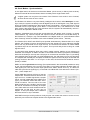
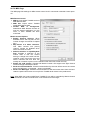
The Fireface UC features a unique data checking,
detecting errors during transmission via USB and
displaying them in the Settings dialog. Additionally the
Fireface provides a special mechanism to continue
recording and playback in spite of drop-outs, and to correct
the sample position in real-time.
Like any audio interface the Fireface UC should have a data transmission to the computer as
undisturbed as possible. The easiest way to guarantee this is to connect it to its own bus, which
should be no big problem as most USB 2.0 interfaces are a double bus design. A check in the
Device Manager can be done as follows:
¾
¾
¾
Connect the Fireface UC to a USB port
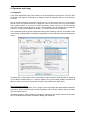
Start the Device Manager, choose View Devices by Connection
Select ACPI x86-based PC, Microsoft ACPI-Compliant System, expand PCI Bus
This branch normally includes two entries of a USB2 Enhanced Host Controller. A USB Root
Hub can be seen, which then connects all USB devices, including the Fireface UC. By reconnecting to a different port this view now allows for a check at which of the two controllers the
Fireface is connected. With multiple devices it can also be checked if they are connected to the
same controller.
Furthermore this information can be used to operate an external USB drive without disturbing
the Fireface UC, by simply connecting the drive to the other controller.
User's Guide Fireface UC © RME
83