1
KDevelop User Manual
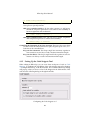
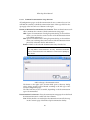
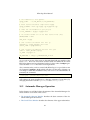
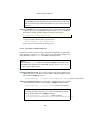
Short Suppresses all compiler flags and formats the output to be more
readable.
Full Displays all output messages unmodified.
T IP
There is an alternative way to switch the compiler output detail. Just right
click in the Messages Output View window and select the according detail
level from the popup menu.
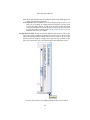
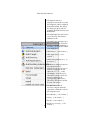
Application Output View Window font: The Application Output View window is used to display error and state information from applications
which are run from inside KDevelop. These are information the applications usually sends to the console when run stand-alone. So you do not
need to leave the IDE when testing the application you currently work
on.
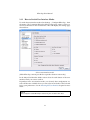
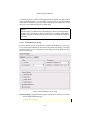
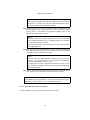
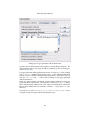
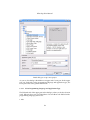
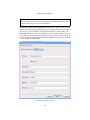
To select a font suitable for the Application Output View window click
the Window Font button showing the currently selected font (it says ‘Luxi
Sans’ in the above illustration). The KDE standard Select Font dialog will
pop up from which you may select the font to be used.
N OTE
On first start-up, KDevelop initializes this font setting to the standard font for
which your KDE user has been configured. This setting is fixed, so if you alter
Preferences → Appearances & Themes → Fonts in the Control Center, this
will not effect this KDevelop font selection. You will have to explicitly reselect
the Application Output View window font.
4.1.2
Selecting the User Interface
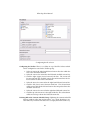
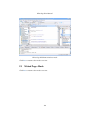
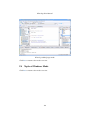
As already said in the Available User Interface Modes chapter there are four
different ways the KDevelop work area may be set up, namely:
• IDEAl Mode
• Child Frame Windows Mode
• Tabbed Pages Mode
• Toplevel Windows Mode
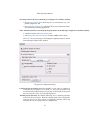
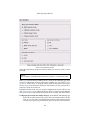
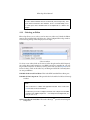
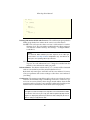
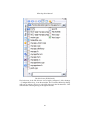
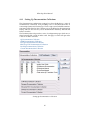
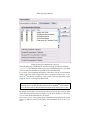
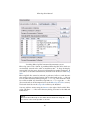
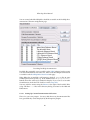
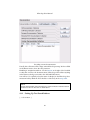
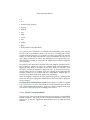
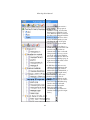
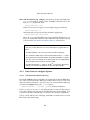
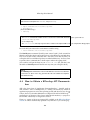
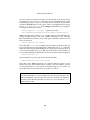
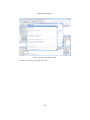
To switch the user interface mode select Settings → Configure KDevelop... from
the menus. The Customize KDevelop dialog will pop up, where you have to
select User Interface in the left hand tree. This will display the following settings dialog to the right.
19