1
1
Introduction
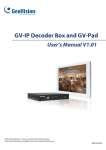
Welcome to the GV-IP Decoder Box / GV-Pad Quick Start Guide. In the
following sections, you will learn about the basic configuration and features
of the GV-IP Decoder Box / GV-Pad. For a detailed user’s manual, see
Quick Start Guide
GV-IP Decoder Box and GV-Pad User’s Manual on software DVD.
GV-IP Decoder Box and GV-Pad
or
GV-IP Decoder Box
GV-Video Server
or
GV-Pad
LAN
Computer installed
with GV-System and
GV-Mobile Server
GV-Compact DVR
Analog camera
GV-PT/PTZ
GV-IP Camera
Some 3rd party
IP cameras
through RTSP
GV-IP devices,
analog cameras
and some
third-party
cameras
Packing List
GV-IP Decoder Box
●
●
●
GV-IP Decoder Box × 1
AC/DC adapter × 1 (12 V, 3 A, 36 W)
Software DVD x 1
●
●
IR remote control × 1
Power cord x 1
●
●
●
IR remote control × 1
Screw x 4
Power cord x 1
GV-Pad
Note: no SD/SDHC card slot or local storage function in Argentina
Thank you for purchasing GV-IP Decoder Box and GV-Pad. This guide is designed to assist the
new user in getting immediate results from the GV-IP Decoder Box and GV-Pad. For advanced
information on how to use the GV-IP Decoder Box and GV-Pad, please refer to GV-IP Decoder
Box and GV-Pad User's Manual on Software DVD.
2011/11
English
© 2011 GeoVision Inc. All rights reserved.
DBV10-QG-A
●
●
●
●
GV-Pad × 1
Magnetic hinge x 1
AC/DC adapter × 1 (12 V, 3 A, 36 W)
Software DVD x 1
Compatible Devices
The GV-IP Decoder Box / GV-Pad is compatible with most GeoVision IP
devices (of the indicated firmware versions) and several third-party IP
devices that support RTSP. The supported devices are listed below.
Supported GeoVision IP Devices
Device Type
Models
Firmware Versions
Supported
Third-Party IP
Devices
Box Camera
GV-BX110D
V1.08 or later
Axis P1311
Bullet Camera
V1.06 or later
All models
(except GV-BX110D)
Sanyo
VCC-HD2100P
GV-BL110D
V1.08 or later
All models
(except GV-BL110D)
V1.06 or later
Sanyo
VCC-HD5600P
Cube Camera
All models
Fixed Dome
Vandal Proof IP Dome
V1.06 or later
Mini Fixed Dome
V1.08 or later
GV-MFD110
Pelco D5118
V1.06 or later
All models
(except GV-MFD110)
GV-PT110D
V1.08 or later
PTZ Camera
GV-PTZ010D
V1.08 or later
Speed Dome
All models
V1.02 or later
Video Server
GV-VS04H
V1.04 or later
GV-VS11
V1.0 or later
GV-VS12
V1.05 or later
GV-Compact DVR
V3 series only
V1.0 or later
Compact DVR
Supported Devices Connected to GV-System
Analog cameras
All models of GeoVision IP cameras, GV-Video Server, GV-Compact DVR,
GV-IP Speed Dome, GV-Smart Box and GV-DSP LPR
11 brands of third-party IP cameras. For detail, see
http://www.geovision.com.tw/english/4_21.asp
Vivotek IP8151
Samsung
SNB-3000N
PT Camera
To decode and display non-H.264 IP channels or analog channels, connect
the devices to GV-System and access them through GV-Mobile Server. The
supported devices are listed below.
IMPORTANT: The connected GeoVision and third-party channels must be set with
H.264 codec to be compatible.
Options
Optional accessories can expand the capabilities and versatility of your
GV-IP Decoder Box / GV-Pad. Contact your dealer for more information.
Device
Description
Wall Mount Kit
For GV-IP Decoder Box only.
Used to mount GV-IP Decoder Box
on wall.
VESA monitor
mount kit
For GV-IP Decoder Box only.
Used to mount GV-IP Decoder Box
on the back of a VESA monitor.
GV-Joystick
Connected to GV-IP Decoder Box /
GV-Pad to control GV PTZ cameras
including GV-PT110D, GV-PTZ010D
and GV-IP Speed Dome.
2
Overview
GV-IP Decoder Box
Back View
Front View
1
2
3
4
5
1
2
3
4 5
No.
Name
Function
No.
Name
Function
1
LED Indicators
The green LED indicates the system is ready for
use.
The red LED indicates the power is supplied.
1
Network
Connect to the network.
2
HD
Connect to an HD-supported display device.
3
VGA
Connect to a VGA monitor.
4
Power OFF/ON
Switch the power on or off.
5
DC 12V
Connect to power by using the supplied power
adapter.
2
USB
Connect to a GV-Joystick, or to a USB storage
device for local storage of snapshot and
firmware upgrade.
3
IR
Built-in IR receiver to receive the IR signals from
the IR remote control.
4
Default
Reset the GV-IP Decoder Box to the default
factory settings. Use a pin to press the button
until the green LED fades. This will take about
10 seconds. The system will then reset and
reboot itself shortly.
5
SD Card Slot
Connect to an SD card for local storage of
snapshot and firmware upgrade.
Note: The SPDIF and L/R ports are not functional.
GV-Pad
Right Panel View
Left Panel View
1
2
3
4
5
6
7
8
9
1
2
3
4
5
No.
Name
Function
1
SD Card Slot
Connect to an SD card for local storage of
snapshot and firmware upgrade.
2
USB
Connect to a GV-Joystick, or to a USB storage
device for local storage of snapshot and
firmware upgrade.
3
LED Indicators
The green LED indicates the system is ready
for use.
The red LED indicates the power is supplied.
4
IR
Built-in IR receiver to receive the IR signals from
the IR remote control.
5
Network
Connect to the network.
No. Name
1 MENU
2
3
4
5
6
7
8
9
Function
● Switch to the setup menu.
● Load default: Press for 10 seconds to load default
settings.
ENTER
● Save settings in the Setup Menu.
● Display selected channels.
Move the cursor up.
UP
Move the cursor down.
DOWN
● Move the cursor left.
LEFT
● Unselect a channel on the Device List.
● Move the cursor right.
RIGHT
● Select a channel on the Device List.
Press to enter the Standby mode. In the standby mode,
STAND BY
the screen turns off to minimize power consumption.
Press the key again to enter the ON mode.
Power OFF/ON Switch the power on or off.
Connect to power using the supplied power adapter.
DC 12V
The IR Remote Control
1
2
POWER
abc
6
def
1
2
3
+
ghi
jkl
mno
VOL
-
4
5
6
pqrs
tuv
wxyz
7
8
9
MUTE
0
REASE
CANCEL
No.
Name
Function
7
Menu
Switch to the setup menu.
8
OK
● Save settings in the Setup Menu.
● Display selected channels.
9
Shift
Switch among the 8 resolutions. When the key
is pressed, the Green LED on the front panel
flashes. Press No. 0 ~ 7 for the desired
resolution within 30 seconds.
Shift + 0 : VGA_640 x 480
Shift + 1 : VGA_1024 x 768
Shift + 2 : VGA_1280 x 768
Shift + 3 : VGA_1366 x 768
Shift + 4 : HD_480p
Shift + 5 : HD_720p
Shift + 6 : HD_1080i
Shift + 7 : HD_1080p
Note after the resolution is configured, the green
LED will fade and GV-IP Decoder Box will
reboot automatically.
10
INFO
Shows the camera name and total number of
cameras under display.
-/--:
*
3
CK
BA
4
OK
PA
UPGE
GE
PAOWN
D
CTRL
5
No. Name
7
ME
NU
SHIFT
CH1
CH2
CH3
CH4
REC
ZOOM
SEARCH
INFO
A
B
C
D
8
9
10
Function
1
Power
Turn on or off the GV-IP Decoder Box / GV-Pad.
2
Numeric /
Enter numbers, alphabets or punctuation marks.
Alphabetical /
Punctuation
Marks keys
3
Back
Back to the previous page in the Setup Menu.
4
Arrow
● Move up, down, right and left in the Setup Menu.
● Right arrow key: select a channel on the Device List.
● Left arrow key: unselect a channel on the Device List.
5
REC
Capture a snapshot.
6
Loop Start /
● Start or stop sequential display.
Stop
● Display and fix at a channel: press the Loop Start /
Stop key, a numeric key and OK to display and fix at
the selected channel. Press 0 and OK to return to the
last displayed channel.
Note: The Shift key is only functional for GV-IP Decoder Box.
3
Connection
GV-IP Decoder Box
2
GV-Pad
1
4
3
1. Connect a display device to VGA connector or HD connector for video
output.
3
1
2
2. Connect to a standard network cable.
3. Connect to power using the supplied power adapter.
4. Turn the Power switch to ON.
Note:
1. The GV-IP Decoder Box can only be connected to one display
device through the HD or VGA connector.
1. Connect to power using the supplied power adapter.
2. Connect to a standard network cable.
3. Turn the Power switch to ON.
2. The default video output is set to VGA with 1024 x 768 resolutions.
If you use an HD monitor, be sure to configure the output type. To
change the default setting or configure the output type, see 3.5
Configurging the Accout, Storage and Output Type in the GV-IP
Decoder Box and GV-Pad User’s Manual on software DVD.
Continued on the reverse
4
Configuring the IP Address, ID and Password
After you have installed and connected the necessary cables, you are ready
to configure the IP address, ID and password.
The GV-IP Decoder Box / GV-Pad contains two sets of ID and password:
2. Configure the IP address.
A. On the main menu, select the
window appears.
icon and press OK. This
one set is required when configuring GV-IP Decoder Box through GV-IP
Device Utility; the other set is for direct connection between GV IP devices
and GV-IP Decoder Box.
Note:
1. By default, the IP address of GV-IP Decoder Box / GV-Pad is
192.168.0.10 and the ID and password are admin. Therefore, it is
advisable to configure the IP address to avoid IP conflict when a
new GV IP device is installed under the same LAN.
2. When connecting directly to GV-IP Decoder Box, the GV IP devices
need to have the same ID and password set on the GV-IP Decoder
Box.
1. Power on your GV-IP Decoder Box / GV-Pad. The main menu
appears.
B. To set up a dynamic IP address, select Yes for the DHCP option,
and press OK to confirm.
C. To set up a static IP address, type the network information as
required and press OK.
D. The system will restart and the green LED will fade. Wait for the
green LED to return.
3. Configure ID and password for GV-IP Decoder Box / GV-Pad.
A. On the main menu, select the
window appears.
icon and press OK. This
5
B. Type the ID and password and press OK to confirm. The
maximum number of characters is 14.
4. Configure the ID and password for GV IP device connection.
A. On the main menu, select the
window appears.
icon and press OK. This
Displaying Channels from GV IP Devices
Use the search feature on GV-IP Decoder Box to display channels of GV IP
devices installed under the same LAN.
Note: The GV-IP Decoder Box / GV-Pad can decode a total of 64
channels from GeoVision and third-party IP devices.
1. Be sure your GV IP devices:
● are under same LAN with the GV-IP Decoder Box / GV-Pad.
● have the same ID and password set on the GV-IP Decoder Box /
GV-Pad for IP channel connection. For detail, see, step 4 in 4.
Configuring the IP Address, ID and Password.
● have the same VSS port with the NVR port of the GV-IP Decoder
Box.
2. Select the
icon and press OK. The GV IP devices under the
same LAN will appear on the Device List.
B. Type the ID and password and press OK to confirm. The
maximum number of characters is 15.
6
3. To move the cursor (shown in yellow), press the up and down arrow
keys. To select, press the right arrow key (shown in red).
Displaying Channels Using GV IP Device Utility
You may use the GV IP Device Utility to add and display channels from GV
IP devices, GV-System (through GV-Mobile Server) and third-party IP
devices through RTSP.
1. Make sure your GV IP devices, GV-System or third-party IP devices
are under same LAN with the GV-IP Decoder Box.
2. Install the GV IP Device Utility in a computer under the same LAN with
GV-IP Decoder Box. Double-click the GV IP Device Utility icon on the
desktop. The GV IP Utility window appears. It will automatically
search for all the channels from GV IP devices and from GV-System
under the same LAN.
4. Press the OK key, the selected channels will be displayed.
Note:
1. When the system idles over 30 seconds or resumes after power
interruption, the GV-IP Decoder Box will automatically display
channels based on the last successful settings.
2. Every time when the search function
is performed, any
channels selected previously on the Device List will be unselected.
3. Click on the IP address of your GV-IP Decoder Box and select
Connect Setting. This dialog box appears.
To add third-party IP channels, see 6. Displaying Channels Using GV IP
Device Utility in the Quick Start Guide.
To access the channels connected to GV-System, see 2.6 Displaying
Channels from GV-System in GV-IP Decoder Box and GV-Pad User’s
Manual on software DVD.
4. Type the ID and password of your GV-IP Decoder Box and click OK.
For detail, see step 3 in 4. Configuring the IP Address, ID and
Password. The Video Connection Setting window appears.
The IP devices under the same LAN with the GV-IP Decoder Box will be
listed in the Camera List column, and the connected channels will be listed
A. Click Tool on the Video Connection Setting window, and select
Add Camera. This dialog box appears.
in the Connection Information column.
B. Type the IP address, user name and password of the device.
5. To connect to a GV IP device or devices from GV-System, use the
and right
and left
buttons to add or remove the device.
C. Select Protocol for Brand and one of the following RTSP type for
Device Name field using the drop-down lists, and type the RTSP
command. Refer to your third-party IP camera’s manual for this
information.
IMPORTANT: To select and connect to channels from GV-System, be
sure you have run and configured GV-Mobile Server. For setup steps,
see 2.6 Displaying Channels from GV-System in GV-IP Decoder Box
and GV-Pad User’s Manual on software DVD.
6. Right-click the added channel, select Edit and type the username and
password of the channel to log in. By default the login username and
password both are admin in all GV IP devices.
▪
RTSP over HTTP: The RTSP protocol uses an HTTP port for
data streaming from the IP camera.
▪
RTSP over TCP: The RTSP protocol uses a TCP port for data
streaming from the IP camera.
▪
RTSP over UDP: The RTSP protocol uses a UDP port for data
streaming from the IP camera.
7. To add a third-party IP camera, follow the steps below.
7
D. Click OK. The camera will be added to the list.
Taking a Snapshot
The security administrators can capture images when events occur.
Snapshot images are automatically saved to an inserted storage device
such as a USB drive or SD card in JPEG format.
Before you start, be sure:
● you have at least 30 MB of space on your storage device.
● you have inserted a USB drive or SD card for storage.
● the storage type is correctly configured.
Otherwise, the error icon
appears when attempting to capture an
image.
1. On the main menu, select
under Storage.
8. Use the up
and down
buttons to move the added channels
up and down the Connection Information list. The channels will be
displayed according to this order.
9. Click Save. The cameras on the Connection Information column will
be updated to the GV-IP Decoder Box and displayed on the monitor.
and select the inserted storage device
2. Press the REC key to capture the image. A camera icon appears at
the top right corner of the monitor and 3 consecutive snapshots will be
taken and saved to the inserted storage device.
8
Pausing the Looped View
You can pause the looped view at a single channel. To pause the looped
view, press the
key. A loop sign with a cross will appear on the
top-right corner of the display channel. To resume to the looped view, press
the
key again.
1. Copy the firmware file to the root folder of a USB storage device or a
SD card.
2. Connect the USB drive or SD card to the GV-IP Decoder Box /
GV-Pad.
3. On the setup menu, select
9
Upgrading the Firmware
We will periodically release the updated firmware on the website. You may
choose to update firmware locally using a USB drive or SD card
and press OK. This window appears.
4. In the Firmware Update field, select USB or SD storage that stores
the firmware file.
5. Press OK. The firmware upgrade runs automatically, and the GV-IP
Decoder Box / GV-Pad will restart after the firmware upgrade is
completed.
To upgrade the firmware remotely through GV IP Device Utility, see 3.6.2
Upgarding Firmware through GV IP Device Utility in GV-IP Decoder Box
and GV-Pad User’s Manual on software DVD.
Before you start, be sure:
● you have inserted a storage device (USB drive or SD card) and it
contains one firmware file only.
● the USB drive or SD card must have at least 100 MB of free
space.
9F, No. 246, Sec. 1, Neihu Rd., Neihu District, Taipei, Taiwan
Tel: +886-2-8797-8376 Fax: +886-2-8797-8335
[email protected]
http://www.geovision.com.tw