1
Page 15
Introducing version 2.8 Summer 04
Introducing 2.8
Continuing the evolution and improvement to their console
software that has been ongoing since the 430 console first
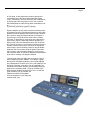
appeared in 1995, Strand have now released GeniusPro/Lightpalette software version 2.8. Let’s take a look
and see what this adds to make our lives easier!
Trackback
The most powerful new feature is TRACKBACK.
Many console users are familiar with tracking on the 500series and consoles from other manufacturers. Historically,
tracking is the descendent of the way that manual ‘one preset’ consoles, such as the piano boards used on Broadway, were operated: in cue 1, the electricians might put
channel 1 to 50%, channel 2 to 60% and channel 3 to FL.
In cue 2, they would move channel 1 to 30%. In cue 3, they
would move channels 2 and 3 to 20%. In cue 4, they would
move all of the channels to 0%. In other words, a channel
would be put to a level, and would then stay there (track)
until there was an instruction for it to do something else,
while a cue would be a list of changes to particular channels.
Contrast this with ‘non tracking’ or ‘state’ style operation.
This is the descendent of the two- or three-preset manual
consoles that were common in the UK. Here an operator
would set a complete lighting state on one set of faders. He
or she would then set the next state on a second set of faders, then cross-fade from one set to another before clearing the first set and using it to set cue 3. Generally the cue
sheet therefore described a level for every channel in every
cue. Occasionally a cue would be so simple that it wasn’t
worth wasting a complete set of faders for - perhaps a
practical light was switched on, requiring just one channel
to be moved to full. Here the operator’s cue sheet might
note that this was a ‘move fade’, to be carried out by manually moving the appropriate fader on the current ‘live’ fader
bank.
In time, US computer consoles - the Lightpalette family adopted the tracking style of operation, but with the advantage that the console could always figure out how to get the
complete ‘look’ of a given lighting cue back on stage, even
when jumping around out of sequence - something that
was quite hard for the piano board operators to do from
their list-of-changes cue sheets! Conversely, UK/European
computer consoles, such as the Galaxy family, adopted the
‘state’ approach where each cue contained a level for
every channel and ‘move fades’ could be used in special
cases where only certain channels had to change in a cue.
The current 300- and 500-series consoles can work in either way: choose by pressing [REPORT] then {ADV
SETUP>} then {SHOW SETUP>} then setting CUE
TRACKING to OFF (for state operation: complete
states plus move fades) or either ON or THIS CUE
ONLY for tracking-style operation.
The mode of choice will sometimes depend on the
operator or lighting designer’s experience or preference, but generally if you’re dealing with moving
lights you’ll want to use the console in tracking
mode: you usually want a moving light to track because if you point it somewhere, you want it to stay
there until you move it somewhere else! Complex
shows, particularly those with overlapping cues, also
benefit from tracking operation: making changes that
run through long sequences of cues is easier, and it
allows multiple cues to run at the same time since
each cue will only affect the channels it has instructions for. It’s therefore very easy to make a slow sunrise (cue 10 has the sun channel coming to full over
five minutes) with lots of quick changes of specials
then happening downstage of it (cues 11 to 20 each
change to a different special in one second).
In TRACKING ON mode, recording or updating a
cue, or modifying a channel in the preview screen,
will cause that change to track forwards until the
next cue where the light has an existing instruction
to do something different - unless you press the
TRACK/QONLY key to make the change QONLY,
limiting the change to just that cue (conversely, in
THIS CUE ONLY mode, a change will only affect
one cue unless TRACK/QONLY is pressed to make
the change TRACK).
The new Trackback function allows changes to track
backwards through the show as well as forwards. For
example, you might reach the middle of a sequence
before you notice a light is too bright. Before, the
quickest way to make the change through the entire
sequence of cues after setting the new levels was
either to use UPDATE to store the changes into the
first cue in the sequence, from where they’d then
track forwards (but this meant you had to know
where the channels first came up), or to go to PREVIEW, scroll up until you found the cue where the
channels came up then go [channels][@][LIVE] to
‘pull’ the current levels from live into the previewed
cue, from where they would track forwards (but this
would be cumbersome if different channels came up
in different cues).
Now you can just type
[UPDATE] [SHIFT] [TRACK/QONLY] [*]