1
Display the menu at the push of a button
Simply push the front panel MENU
key once to display the menu
screen. The menu screen gives you
access to a variety of functions. The
MENU key is backlit by a color LED
that indicates operating and alarm
status.
Connect a mouse and keyboard for a "PC feel"
With the USB interface option, you can connect a keyboard and/or mouse
to control on-screen operations (text input, etc.). And with USB memory,
you can save data and easily transfer it to a PC.
Blue :Running
(no alarms)
Red :Alarm occurring
Not lit :Power off
Write freehand messages
You can draw or hand-write on the waveform area using a stylus (included) or
the tip of your finger. You can even select a color and line width.
User interface designed for real people
Human factor led design concepts guided us in everything from screen colors
and button sizes to navigation between screens—the result is an intuitive and
easy user experience. The menu screen is translucent, so you can even keep
your eye on your data while entering settings.
Monitor multiple screens at once
on the multi-panel display
You can divide the display into 2 to 6 sections and assign each to your choice of
screen. You can select from 9 forms (of 2 to 6 screens each), and save up to 20
multi-panel configurations.
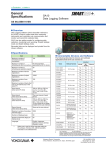
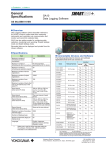
Multi-panel display
The multi-panel display is supported only by the GP20.
5