1
Chapter
7 Saving and Loading User Setting Data
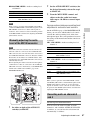
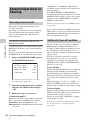
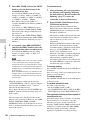
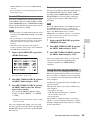
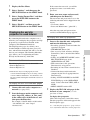
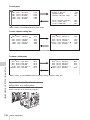
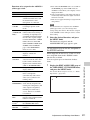
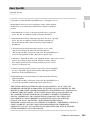
To set a file ID for the data to be saved
Set the file ID before going to step 2.
Saving and Recalling
User Files
For details on setting the file ID, see “To set the
file ID” (page 221).
2
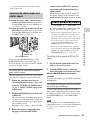
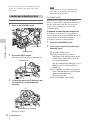
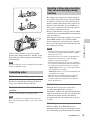
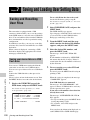
The camcorder is equipped with a USB
connector, which enables you to save the settings
in the USER menu as a user file onto a USB flash
drive. You can load these files from the USB flash
drive for immediate recall of a particular setting
configuration.
In addition to user files, you can save scene files,
reference files, lens files and ALL files on a USB
flash drive.
When a menu is displayed, connecting a USB
flash drive displays the appropriate file-related
menu page automatically.
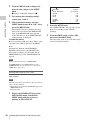
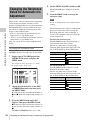
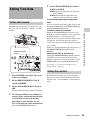
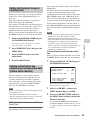
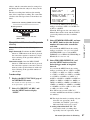
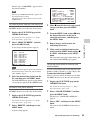
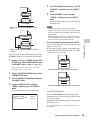
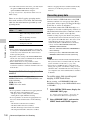
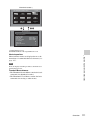
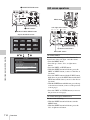
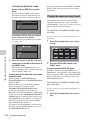
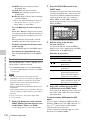
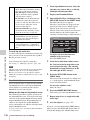
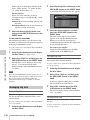
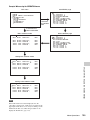
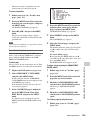
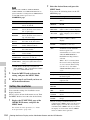
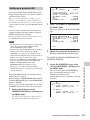
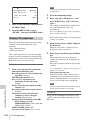
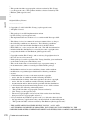
The USER SAVE page appears.
Up to 20 pages, from P00 to P19, can be used
to save user files on the USB flash drive.
Each page can hold up to five files.
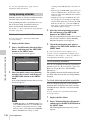
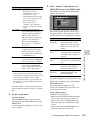
3
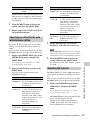
Turn the MENU knob until the page
which contains the desired file number
appears, and press the MENU knob.
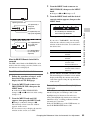
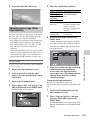
4
Select the desired file number, and
press the MENU knob.
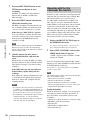
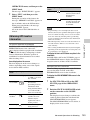
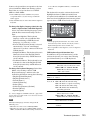
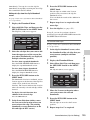
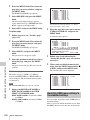
The message “SAVE OK? YES b NO”
appears.
If a file number is followed by “NEW FILE”,
this means that the file is empty. If data is
stored in the file, the file number is followed
by the file name.
Saving user menu data on a USB
flash drive
Chapter 7 Saving and Loading User Setting Data
220
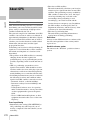
You can save USER menu settings held in the
camcorder as user files on a USB flash drive.
You can save up to 100 user files on a USB flash
drive.
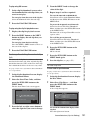
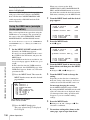
Connect the USB flash drive, then proceed as
follows.
(How to select an item in the menu screen: Turn
the MENU knob to move b to the desired item.)
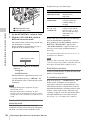
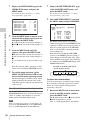
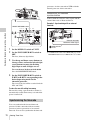
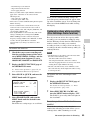
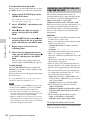
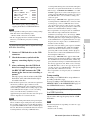
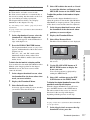
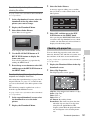
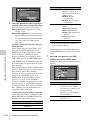
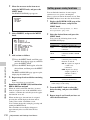
1
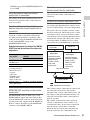
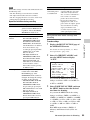
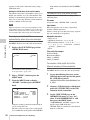
Display the USER FILE page of the
FILE menu, and press the MENU knob.
For details on menu operations, see “Basic
menu operations” (page 193).
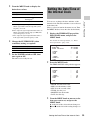
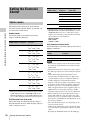
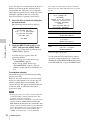
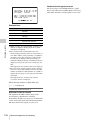
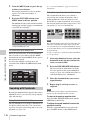
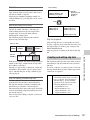
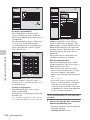
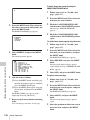
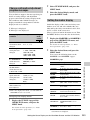
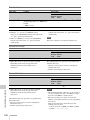
?F01 USER FILE
USER FILE LOAD
USER FILE SAVE
TOP
:
:
EXEC
EXEC
F.ID : ssssssssssssssss
USER PRESET
:
EXEC
Select USER FILE SAVE, and press the
MENU knob.
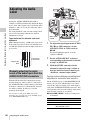
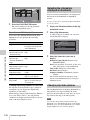
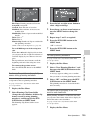
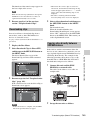
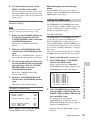
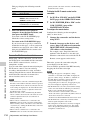
5
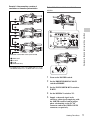
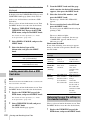
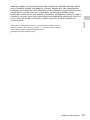
To carry out the save, select YES and
press the MENU knob.
To cancel, press the MENU knob leaving b
pointing to NO.
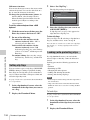
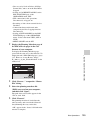
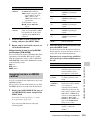
When the saving is completed, the message
“COMPLETE” appears.
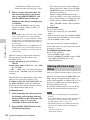
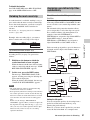
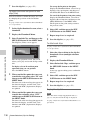
If no USB flash drive is connected
The message “NO USB MEMORY” will
appear. Connect a USB flash drive and carry
out the operation once again.
If you select a file number where data has
already been saved
The message “OVERWRITE OK? YES b
NO” appears.
• To stop overwriting, press the MENU knob
leaving b pointing to NO.
• To overwrite, select YES and press the
MENU knob.
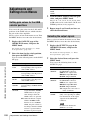
You can select the information displayed on
each USER SAVE or USER LOAD page.
Saving and Recalling User Files