1
Appendix A: Communication and Control Troubleshooting Tips
Problem
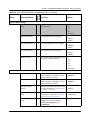
There is no Ethernet connectivity with the frame.
Solutions
•
Verify that the correct IP address is being used. If your are not certain, refer
to the above procedure to set to default IP.
•
Verify that the Ethernet cable is the correct type (a crossover cable is
required for direct connection from a PC).
•
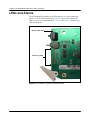
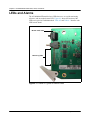
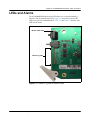
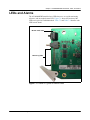
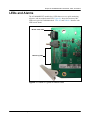
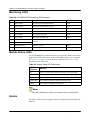
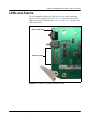
Verify the Link and Activity (left and right) status LEDS are active on the
RJ-45 connector at the rear of the frame.
•
Verify the Status LED is lit and green on the ETH6800+ card, as viewed
from the front of the frame with the door open.
•
Verify that the security settings on the PC allow for connection to a frame
(TCP port 80 and UDP ports 4000/4050 must be open).
•
Verify that the PC is configured for and can communicate on the desired
subnet.
•
Verify that the frame reference signal has not been mistakenly connected to
a Communications port on the rear of the frame.
Problem
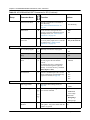
CCS software sees the frame, but does not find all of the modules.
Solutions
•
Remove any legacy 6800 series products.
•
Plug your modules in before starting the discovery.
•
Start your discovery after the frame and all modules have fully powered up.
•
Refresh the CCS software and ensure that the installed modules are fully
powered up first before discovery.
Problem
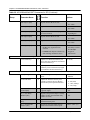
CCS Software does not respond after it is launched.
Solutions
Close any CCS software that is already launched.
Problem
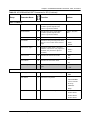
CCS software shows a module in the Control window, but cannot control it.
Solution
Follow this procedure:
1. Set the module’s Local/Remote jumper to Remote.
2. Ensure the module name in the Control window matches the module type
in the frame.
ACO6800+ Installation and Operation Manual
167