1
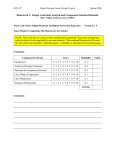
ECE 477 Digital Systems Senior Design Project Fall 2005 Homework 13: User Manual Due: Monday, May 1, at 5:00 PM Team Code Name: Digital Real-time Intelligent Networked Kegerator Group No. 4 NOTE: This is one of the last sections needed to finish the Final Report. This homework will count for 4% of each team member’s grade, and therefore all team members should participate equally in completing it. The User Manual should be about 5 pages in length (one page per bullet). User Manual Outline: Brief (marketing-style) product description Product illustration annotated with callouts for each control/display Product setup instructions Product use instructions Product troubleshooting instructions Evaluation: Component/Criterion Score Multiplier Product description 0 1 2 3 4 5 6 7 8 9 10 X2 Product illustration with callouts 0 1 2 3 4 5 6 7 8 9 10 X2 Product setup instructions 0 1 2 3 4 5 6 7 8 9 10 X2 Product use instructions 0 1 2 3 4 5 6 7 8 9 10 X2 Product troubleshooting instructions 0 1 2 3 4 5 6 7 8 9 10 X2 TOTAL Points ECE 477 Digital Systems Senior Design Project Digital Real-time Intelligent Networked Kegerator User’s Manual 4/30/2006 Fall 2005 ECE 477 Digital Systems Senior Design Project Fall 2005 WARNING Household AC power is dangerous, and contact with a human could result in injury or death. To avoid electrical shock, do not open the contactor box. There are no user serviceable parts inside the contactor box. Only use approved connectors when operating this device. Stop use if any connectors become damaged during operation or transport. GOVERNMENT WARNING: (1) According to the Surgeon General, women should not drink alcoholic beverages during pregnancy because of the risk of birth defects. (2) Consumption of alcoholic beverages impairs your ability to drive a car or operate machinery, and may cause health problems." Precautions: Please carefully read this booklet and place it in a safe place for future reference before operating the D.R.I.N.K. system. Users should not attempt to service the D.R.I.N.K system beyond the troubleshooting guide provided at the end of this document. All other servicing should be done by qualified service personnel. Consumption statistics provided by the D.R.I.N.K. system are intended to be estimates. This measurement capability of this device has not been verified by any federal, state, or local government institution. These statistics are not designed to be used for law enforcement purposes. Please do not drink and drive. Note: Please check the below package inventory list. If an item is missing from the list, notify the manufacturer immediately. Inventory list: One D.R.I.N.K Electronic Draft Tower Four solenoid valve and flowmeter assemblies Three temperature probe lines Four draft facets Four two inch draft shanks 20’ of 3/16” ID beverage tubing AC Contactor 100W DC Power Supply ECE 477 Digital Systems Senior Design Project Fall 2005 The DRINK system merges advanced beverage monitoring and access control technology with aesthetics design excellence. Form accompanies function, with web accessible user and system statistics, temperature control, a color graphical display, and RFID and biometric technology. Enjoy features ranging from safety improvements, inventory control, waste reduction, easy beverage cost sharing, and other usability enhancements. Simply login to the DRINK system by scanning an RFID tagged container and placing a finger on the front console and the system will do the rest. Perfect pours? Not problem with the DRINK’s auto fill feature. Don’t know when your kegs will run out? Never again with the “at a glance” keg health screen. Underage or unlawful drinking a problem? The DRINK can protect users with access control and simple and accurate blood alcohol level reporting. Beer costs burning a hole in your wallet? Earn a return on your investment using the front mounted bill acceptor. Product Feature List • User access control using biometric fingerprint scanner and solenoid valves • RFID container volume tracking with auto fill feature • Individual user statistics o Profile information with weight, age, etc. o Pour volume tracking o Blood Alcohol Level estimation o Credits paid/owed • System statistics including temperature, keg types, and keg volume remaining • Web administrator interface o Remote temperature control and monitoring o Account creation/modification • Validates and accepts up to three hundred $1, $5, $10, $20 bills ECE 477 Digital Systems Senior Design Project Fall 2005 ECE 477 Digital Systems Senior Design Project Fall 2005 DRINK System Setup Required Materials: Chest freezer or refrigerator, keg tap, CO2 tank and distribution system, drill, Dremel tool or large drill bits, faucet wrench, crescent wrench 1. Locate desirable location for the DRINK draft tower 2. Drill the 4 mounting holes and the tubing hole. To accurately place these holes, set the unit in the desired location, open the back hinged cover, and mark the holed with a pen or marker. 3. Once the holes are drilled or cut, feed the tubing and temperature probes down the hole into the cooled area. 4. Bolt the unit down to the surface using the previously drilled mounting holes. 5. Connect the hex beverage lines to your current taps using the enclosed washer. 6. Remove the contactor, network, and power lines from the back of the unit. 7. Connect the network cable to a DHCP enabled router. 8. Bring the contactor cable and the power cable down to wherever the compressor is located. 9. Plug the system power into a surge suppressed receptacle. If you are using this system to monitor the temperature of your refrigerator, read on. If not, you are finished. Turn the power on and access the unit via the web. WARNING Electric shock hazard, disconnect all power sources and turn of all related power breakers before continuing. Failure to do so may result in serious injury or death. 1. Cut one of the two power lines to the compressor. 2. Connect each side of the cut to the contactor's primary screw terminals. It does not matter which line from the compressor you cut. If there is an existing temperature controller, set it to a very low temperature setting. Consult your refrigerator or freezer's user manual for details. 3. Secure the contactor and make sure the housing is in place. Failure to check the housing could result in injury or fire. When completed, close the unit and turn the power back on in the presence of an observer. If smoke or sparks are observed, disconnect power and call an electrician. If the circuit breaker resets, leave it off and call an electrician. ECE 477 Digital Systems Senior Design Project Fall 2005 DRINK Login Instructions Logging in with an RFID cup: Swipe your cup across the RFID antenna. Once the cup’s tag is read, the screen will switch to prompt the user for a PIN. Enter the three digit pin using the navigation knob, pressing down on the button when each number is selected. On successful login, the allowed beverage lines will be opened. At this point, pouring is allowed and additional user and system statistics are viewable using the navigation knob. Logout is provided by the final selection on the user screen. If the user does not logout, the system will time them out and return to the title screen. Web Server Instructions Accessing the Web Server: Open up your preferred web browser and enter your assigned IP into the address bar. This should bring up the main page of the web server. The main page contains links to User Statistics, Keg Statistics, and Log In. Logging onto the Web Server: From the main page, /index.html, click on the Log In link. You will be taken to the Log In page, /Login.html. ECE 477 Digital Systems Senior Design Project Fall 2005 Enter the username and password and click Login. You will be logged in and routed to the Administrator’s Page, /Changes.html. Adding a User: From the Administrator’s Page, /Changes.html, click on the Add User link. You will be taken to the User Information page, /UserForm.html. Enter all required information into the form and click the Submit button. If you do not have an RFID tag available, leave this field blank and enter it at another time. Once you click Submit you will be routed to the User Statistics page. From here you should see the names of the current user with more and edit buttons beside the name. Click on the link to Administrator’s Page to return there. Adding a Keg: From the Administrator’s page click on the Add Keg link. Enter all required information into the form. Clicking submit will take you to the Keg Statistics page which will display ECE 477 Digital Systems Senior Design Project Fall 2005 the name of each keg and buttons labeled edit and more. Click on the Administrator’s Page link to return there. Editing User/Keg Information: From the Administrator’s page click on User/Keg Statistics. Find the name you want to edit in the list and select the edit button next to the name. Click on the Submit button at the bottom of the page. You will be taken to a form that contains all of the previously entered information. From here you can change desired fields. Once changes are made clicking the save button will make them permanent. If you want to delete this keg/user you may click on the Remove button at the bottom of the page to delete it. Once a selection is made you will be routed back to the User/Keg Statistics Page. Displaying User/Keg Information: ECE 477 Digital Systems Senior Design Project Fall 2005 From the main page, /index.html, or the Administrator’s page you can click on Keg/User Statistics. From here select the more button next to the name of the item you want to view. You will be routed to a screen that displays all of the information for that item. Changing Time and Date: From the Administrator’s page click on the Change Date link. The next screen allows you to enter the current time and date. This is essential for using the system clock. Saving to Flash: Once logged in, you may save to flash by logging out of the system. To logout, click on the Log Out link on the Administrator’s Page. Displaying System Information: ECE 477 Digital Systems Senior Design Project Fall 2005 From the Administrator’s Page you may click on System Diagnostics to see system data. You must be logged in to view this page. From this page you have the option to change the system mode as well as the control temperature. ECE 477 Digital Systems Senior Design Project Fall 2005 Troubleshooting The following information can be used to troubleshoot common issues experienced with the D.R.I.N.K. system. If problems persist, please contact the nearest service center for maintenance. Troubleshooting Problem System is not powered on Title screen is present, but user cannot login Knob is not responding to turns Beverage will not dispense when logged in Web server will not respond Incorrect recording of beverage statistics Incorrect identification of user Temperature incorrectly controlled Bill acceptor will not take money Possible Solution Check power plug connection, two blue LEDs indicate that the power is correctly supplied Verify that container is equipped with a valid RFID tag and check that tag is within four inches of the reader Check that user is logged in Check keg volume levels, CO2 tank pressure gauge, and keg connections for possible leaks Reboot kegerator Verify that the correct user is logged in Verify that RFID is registered to correct user using the web page Verify that temperature probe is correctly placed inside the refrigerator Empty bill box Contact Information ECE477 Team 4 Designers: Ian Snyder, Matt Kocsis, Dustin Poe, Justin Thacker Website: http://shay.ecn.purdue.edu/~477grp4/ Email: [email protected]