1
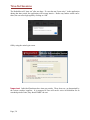
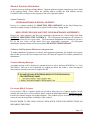
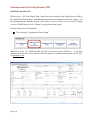
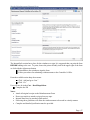
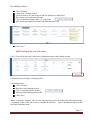
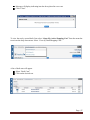
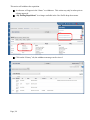
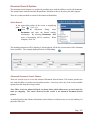
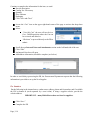
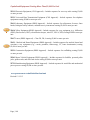
Using the “History” tab view: The PO number is displayed in this view.
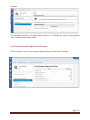
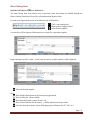
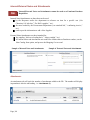
If the HokieMart PO does not appear, an error message(s) (example below) will appear in the
“History.”
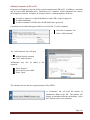
When no temporary PO is created, Requestor must correct error, copy the cart, and resubmit the PR.
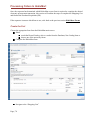
PO Follow-up
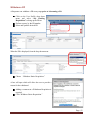
From the Main Screen of HokieMart:
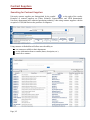
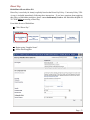
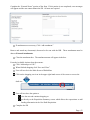
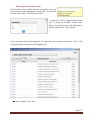
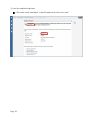
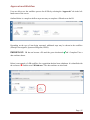
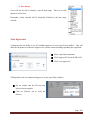
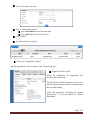
Search for the PO No. from drop-down menu in the upper right-hand corner.
Under Notifications or
Under User Profile Option
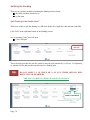
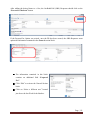
Choose and click to select the PO.
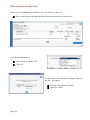
PO will be displayed.
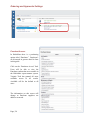
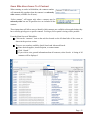
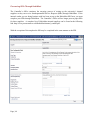
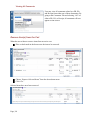
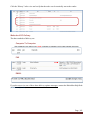
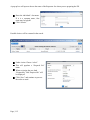
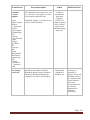
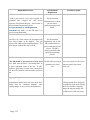
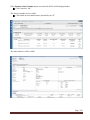
Click “PO Approvals” or “History” tab to follow the status of the PR from entry by Requestor
until a temporary HokieMart PO is assigned.
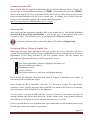
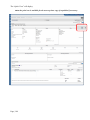
Click “PO Approvals” tab to confirm that the PO completed the work flow.
Page | 100